


404ops Activity Log
Records security-relevant site events into the site’s own database: logins, logouts and failed logins, post and page changes, plugin and theme installs, updates and activation, WordPress core updates, file editor saves, user and role changes, changes to the General, Writing, Reading, Discussion and Permalinks settings, menus, widgets, media, and content and personal-data exports and erasures. With WooCommerce active it also records order status and product price and stock changes. With Gravity Forms, WPForms, Contact Form 7, Yoast SEO, Rank Math, ACF, LearnDash, LifterLMS, MemberPress, Paid Memberships Pro or Elementor active, it records their form, submission, SEO, custom field, course, membership and page-builder changes (never what was typed into a form, a custom field’s value or a payment).
Each event stores its time, the acting user (or guest), the IP address (truncated by default), device and browser, event type, the object affected and a summary. An admin screen lists events newest first, with filters, search, pagination and CSV export. Retention is 90 days by default; choose a finite period or keep events indefinitely. The daily purge follows that setting. A daily summary email digest is included.
Features:
- Logs logins, failed logins and logouts, and profile, email, password and application-password changes. Passwords and password hashes are never stored.
- Logs post and page create, edit, trash, restore and delete, plugin and theme changes, WordPress core updates, and file editor saves (the file and its size, never its content).
- Logs user create, delete and role changes, and what a role may do.
- Logs popular form, SEO, custom field, LMS, membership and page-builder plugins, each only while it is active.
- Filterable log viewer with free-text search, pagination and CSV export.
- Read-only REST route and WP-CLI commands for administrators.
- Exclude chosen users or roles from the log, and import history from Simple History, WP Activity Log or Stream.
- IP addresses are truncated by default. Country and city come from a MaxMind database you supply, looked up on your own server.
- Works with WordPress’s personal-data export and erasure tools.
- Choose a finite retention period of up to a hundred years, or keep events indefinitely. The same setting applies to imported history and multisite event cleanup.
Pro
404ops Activity Log Pro is a separate, paid add-on plugin. It is not required, it is not bundled here, and none of it is present in this download: the free plugin above is complete on its own and behaves identically whether the add-on is installed or not. Buy it at https://404ops.com/plugins/404ops-activity-log and activate the licence on the plugin’s own Licence tab.
Three things it adds:
- External forwarding. Copy each event as it is recorded to a Slack channel, to your own HTTPS webhook (JSON, optionally signed with a shared secret), or to this server’s syslog. Every destination is off until you switch it on, and you choose which.
- Monthly archives. On the first of each month, the previous month is written to a CSV file under uploads and — if you ask for it — those rows are then removed from the database. The archives are protected from the web and downloaded through a capability- and nonce-checked admin action, never a direct link.
- Saved reports. Filter the Activity Log tab the way you want, then “Save this view” to keep it as a named report on the add-on’s own Reports tab. Turn on a daily or weekly schedule and Pro emails it automatically — a short plain-text summary (counts by event type and the busiest actors) with the matching rows attached as a CSV — to up to ten recipients you choose. A saved report’s schedule and recipients are the add-on’s own settings; the event data it draws on is the same log the free plugin already keeps.
External services
The free plugin contacts an external service only when you start or switch on one of these optional features:
-
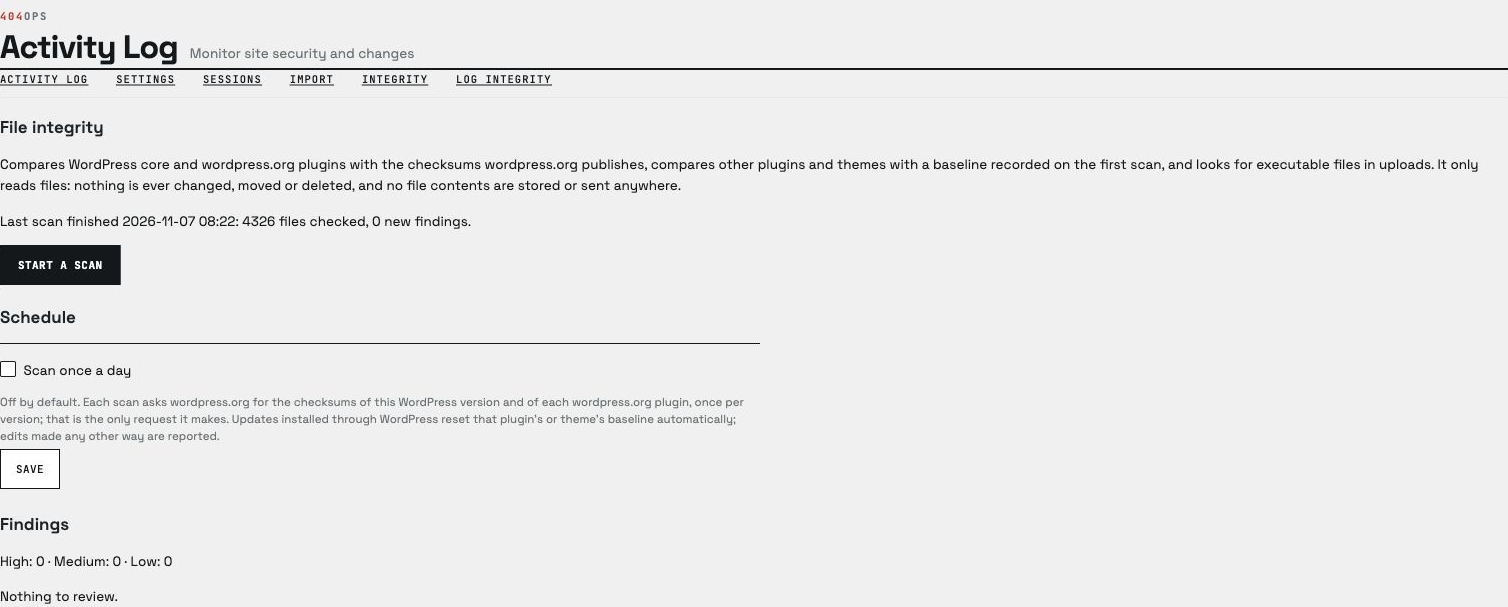
WordPress.org checksums (file integrity scan). When you run a file integrity scan, or the daily scan is switched on, this site asks api.wordpress.org for the checksums of its WordPress version and downloads.wordpress.org for the checksums of each plugin version it compares. Each request carries only a version number, a locale or a plugin’s public slug. Nothing about your visitors or your content is sent. WordPress.org handles these requests under its privacy policy (https://wordpress.org/about/privacy/).
-
MaxMind (optional, off by default). If you turn on “Download and install weekly” under Settings Location and device and enter your own MaxMind account ID and licence key, this site downloads the GeoLite2 Country or City database from download.maxmind.com once a week (and when you press “Save and download now”). The request carries your account ID and licence key in an HTTP Authorization header and nothing about your site’s visitors or events; MaxMind then redirects the download to its storage provider, which receives no credentials. The database is installed on your own server and every lookup happens there. Data sent this way is handled under MaxMind’s terms of use (https://www.maxmind.com/en/terms-of-use), GeoLite2 end user licence (https://www.maxmind.com/en/geolite2/eula) and privacy policy (https://www.maxmind.com/en/privacy-policy). Uploading a database file yourself, or pointing at one already on the server, contacts nothing.
-
AI provider (optional, off by default). When you enable AI in Activity Log settings and configure a compatible provider in WordPress Settings Connectors, the daily digest gets a short AI-written summary. WordPress chooses a compatible provider from those configured, and that choice can change as providers change. The WordPress AI Client sends that provider the day’s event counts by type and anomaly descriptions. The provider’s terms apply. The separate Pro weekly summary, if enabled for AI, sends redacted figures, flags and change summaries. Without Activity Log’s opt-in or a compatible provider, the digest uses a local overview and sends no data to AI. Existing 404ops AI Connection credentials are not migrated: configure WordPress Connectors and enable AI for Activity Log again.
Policy references for commonly available WordPress AI providers (check the provider you configure):
- OpenAI: API services agreement and privacy policy.
- Anthropic: commercial terms and privacy policy.
- Gemini: API terms and Google privacy policy.
For any other provider available through WordPress, review that provider’s terms and privacy policy before enabling the feature.
The Pro add-on contacts only the services you configure yourself, and only the ones you switch on:
- Your own webhook endpoint. If you enable webhook forwarding and supply an HTTPS URL, each recorded event is sent to that URL as a JSON request containing this site’s URL and the event’s time, user, IP address as stored, event type, object type and summary. The address is yours; where it goes, what it is used for, and its privacy terms are entirely under your control.
- Slack. If you enable Slack forwarding and supply a Slack incoming-webhook URL, the same events are posted to the channel that webhook belongs to as short text lines, batched into one message per page request. Data sent this way is handled under Slack’s terms of service (https://slack.com/terms-of-service) and privacy policy (https://slack.com/trust/privacy/privacy-policy).
- 404ops licensing. The Pro add-on checks its licence against 404ops’s licensing service once a day, and when you activate or deactivate a key. It sends the key, this site’s address, and the add-on’s version. For a licence that includes installed-use coverage it also asks that service which published release and download match the installed version.
Syslog forwarding is local to your own server and contacts nothing over the network.
Details



Related plugins
Plugins that also contain the tag activity-log
WP Activity Log

Activity Log – Monitor & Record User Changes

Shield: Blocks Bots, Protects Users, and Prevents Security Breaches

Activity Logs, User Activity Tracking, Multisite Activity Log from Logtivity

WP Admin Audit

Adminify Activity Logs


About
Plugin for that tries to help you find the WordPress plugin you are looking for.
| Please enjoy an image of Crush (this awesome turtle) and have a lovely day! |  |
We do not own any plugin listed on this site and do not work for or work with WordPress.com or it's associated companies. We simply provide a searchable list of the available WordPress plugins.