



ABP Tour & Travel
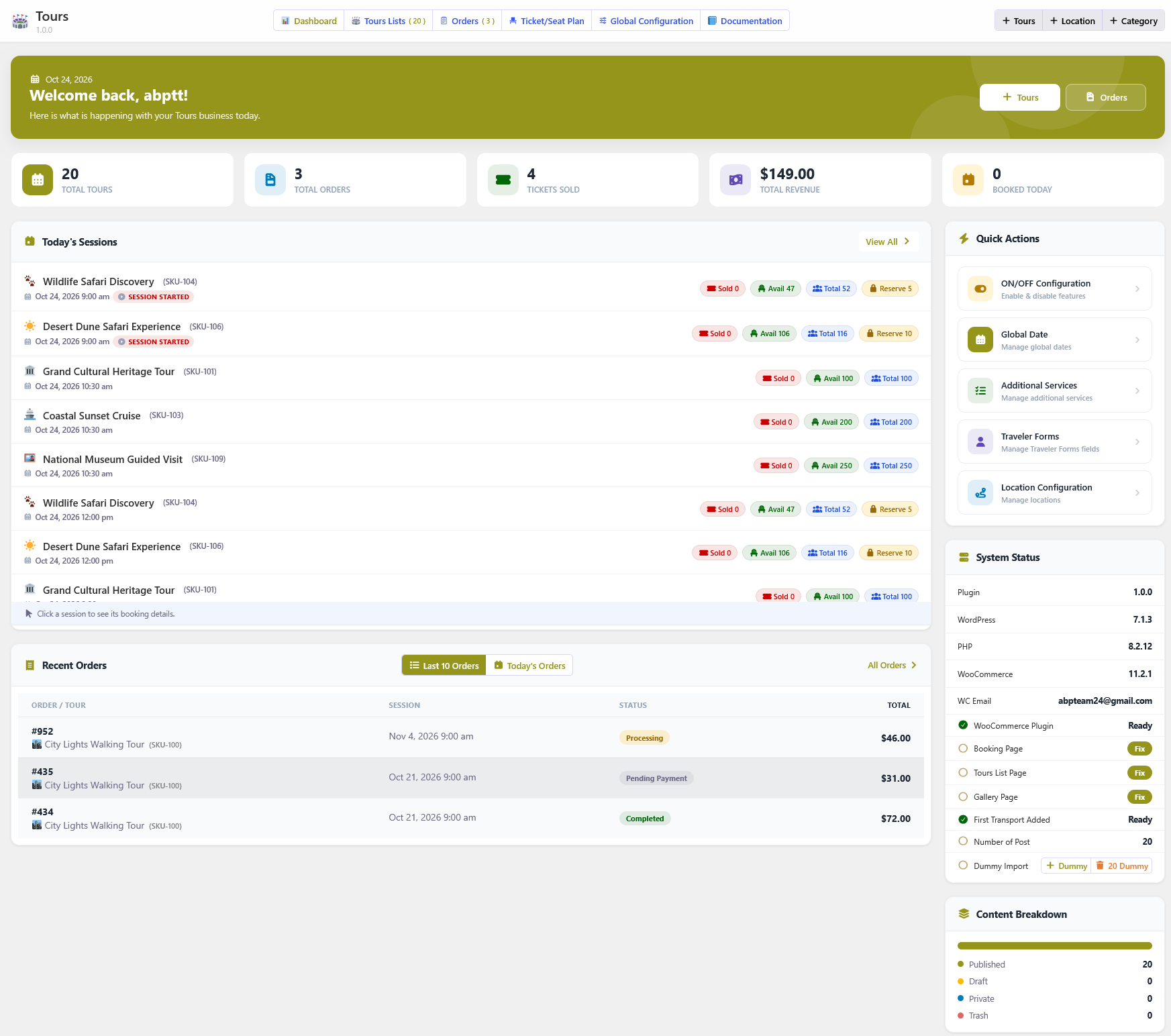
ABP Tour and Travel turns WooCommerce into a complete tour ticketing and registration system. Create tours, configure ticket types and prices, publish tour details, collect guest information, and sell tickets through the standard WooCommerce checkout for tours, concerts, conferences, festivals, and workshops.
The plugin supports both general admission and reserved seating. Administrators can build reusable seat plans with drag-and-drop controls, automatic numbering, custom labels, ticket-type assignment, and flexible layouts. Seat availability is updated in real time as tickets are booked, keeping seat inventory in sync with each booking.
Create reusable global configuration for ticket types, seat plans, dates, locations, categories, operators, features, additional services, guest forms, FAQs, Terms & Conditions, tour timelines, and guides. Global configuration can be imported into an individual tour and customized when needed. Customers can book from any page with a lightweight shortcode, and a Bookings tab appears automatically in their WooCommerce account.
Key Features
- Tour creation and management
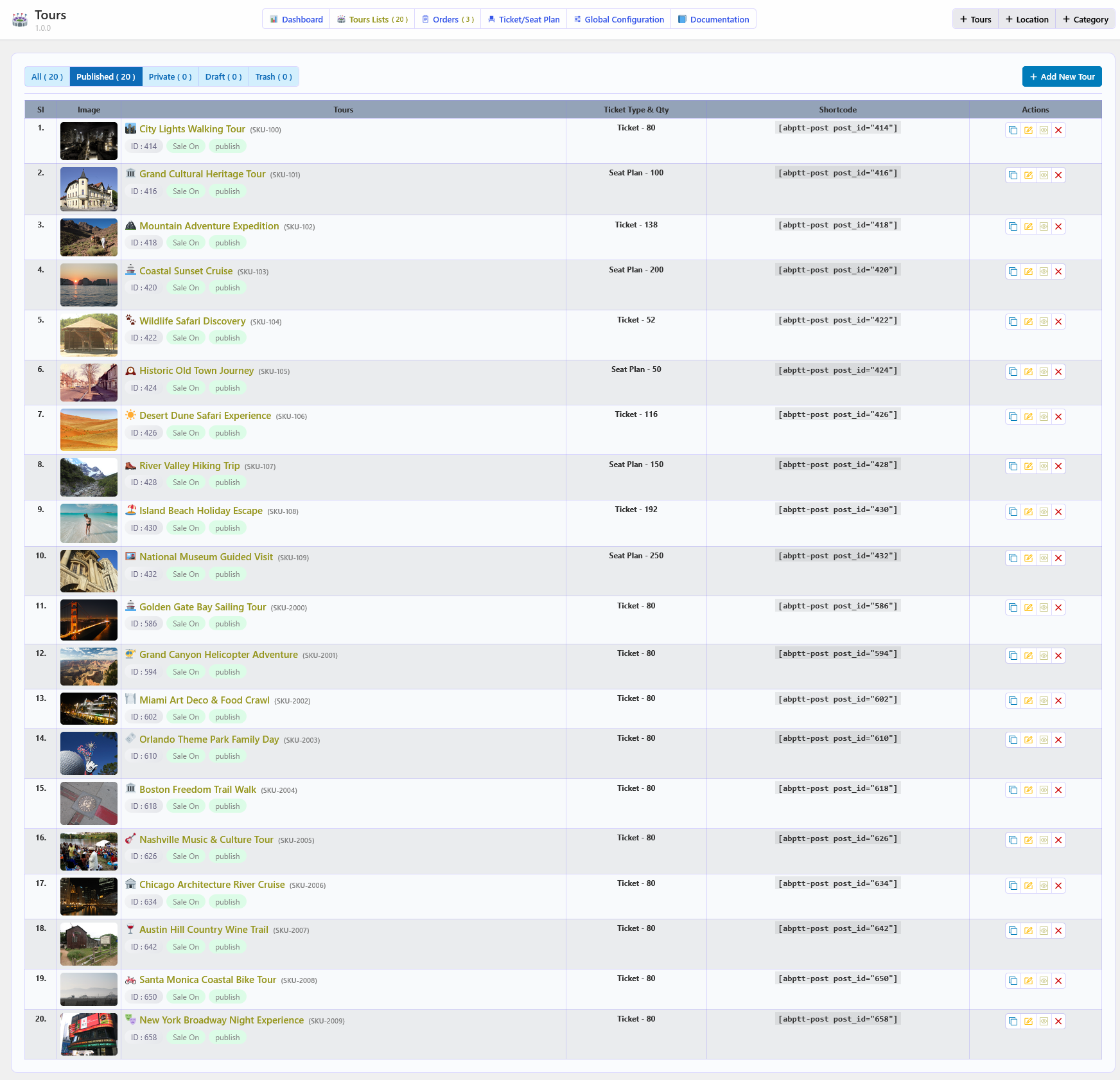
- Tour list with pagination and status filters
- Tour edit, clone, view, trash, restore, and permanent delete actions
- General admission ticket sales
- Reserved seat ticket sales
- Reusable global ticket types
- Multiple ticket types and pricing options
- Minimum, maximum, and reserved quantity controls
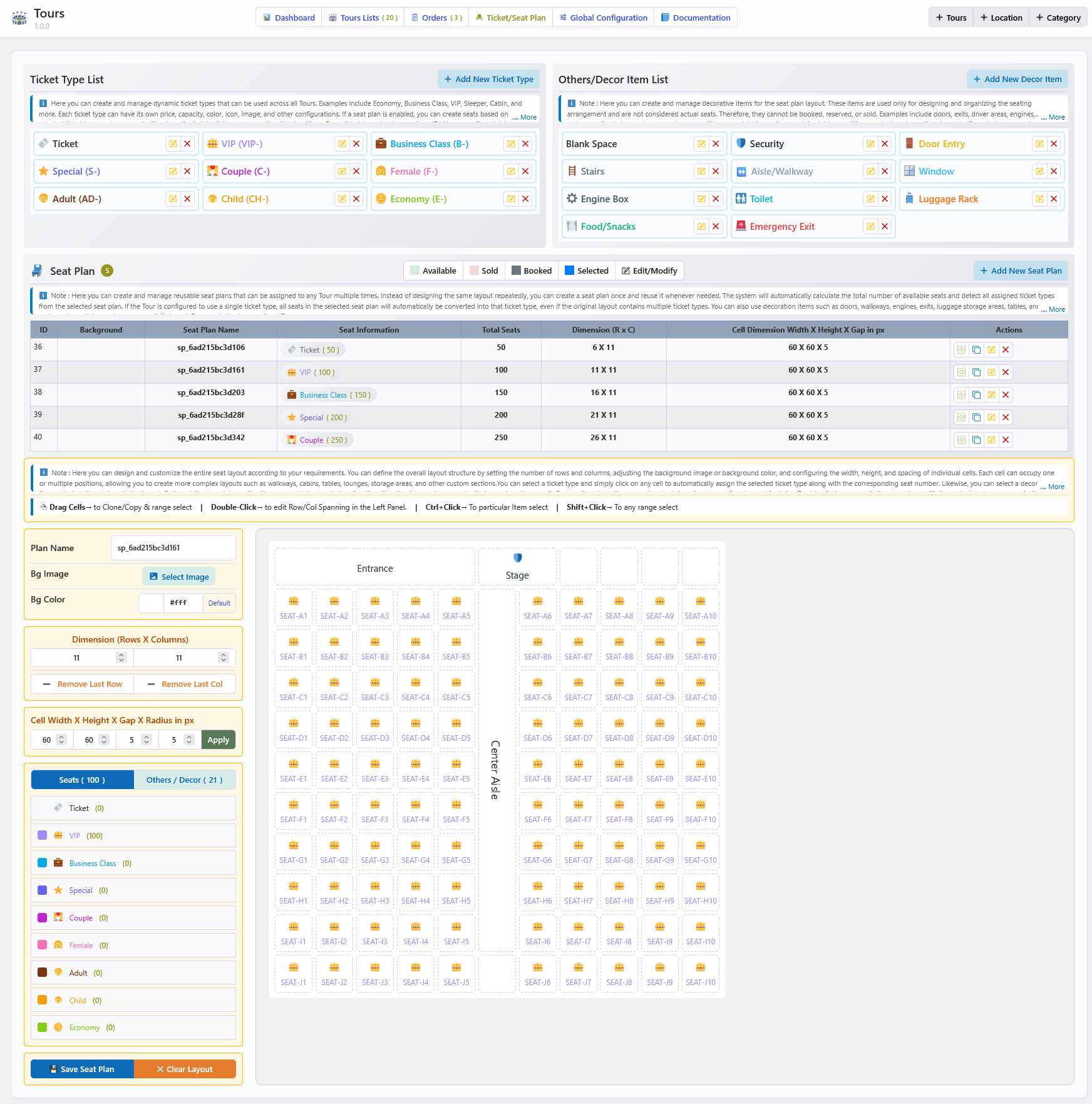
- Reusable seat plans
- Drag-and-drop seat plan designer
- Automatic seat numbering and custom seat prefixes
- Custom seat labels, cells, dimensions, spacing, and layout
- Ticket-type assignment to seats
- Multiple seat plan instances and seat layers
- Real-time seat availability
- Specific-date and periodic-date tour schedules
- Date-wise and day-wise time configuration
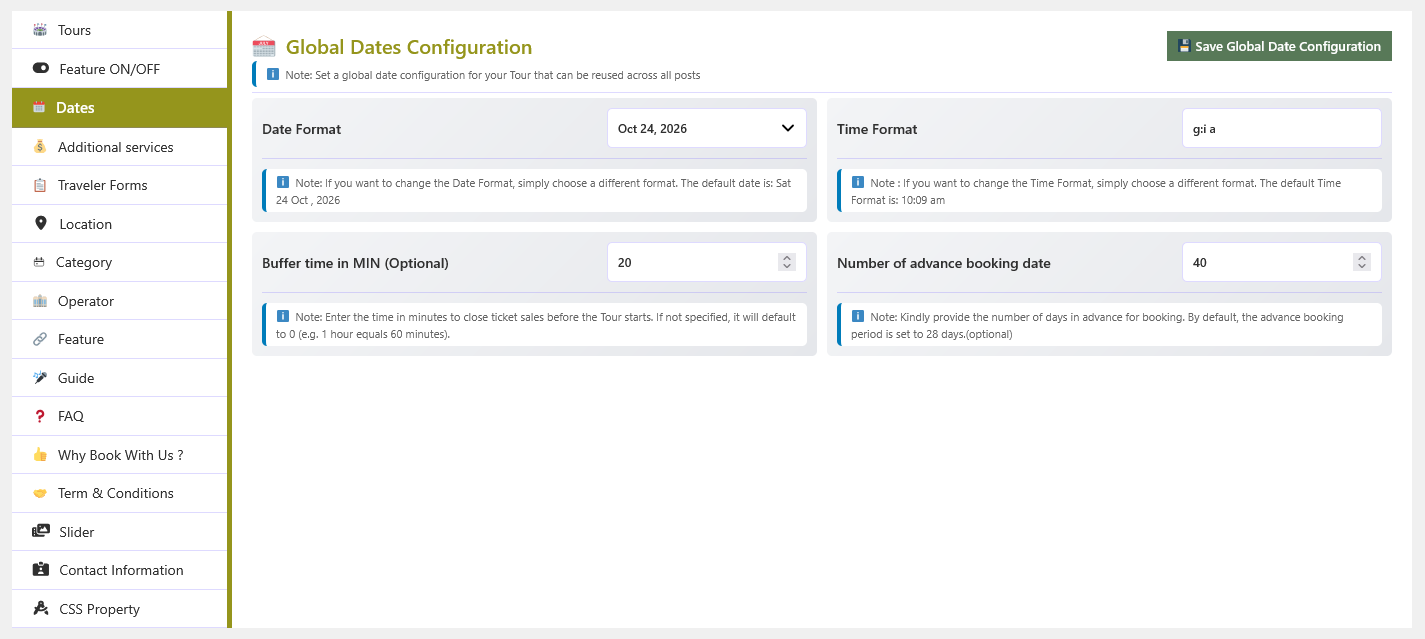
- Advance booking and sale closing buffer controls
- Location, category, and operator management
- Google Location Map with search-and-select admin picker and key-free iframe fallback
- Frontend location map with three display styles (default, light, modern)
- Tour features and related tour display
- Why Book With Us reasons block with per-reason icon, title, and description
- Configurable guest information forms
- Optional additional services with pricing
- Tour FAQs and Terms & Conditions
- Tour Timeline with time, title, and description entries
- Tour Guides with full profiles (bio, photo, designation, company, website, social links)
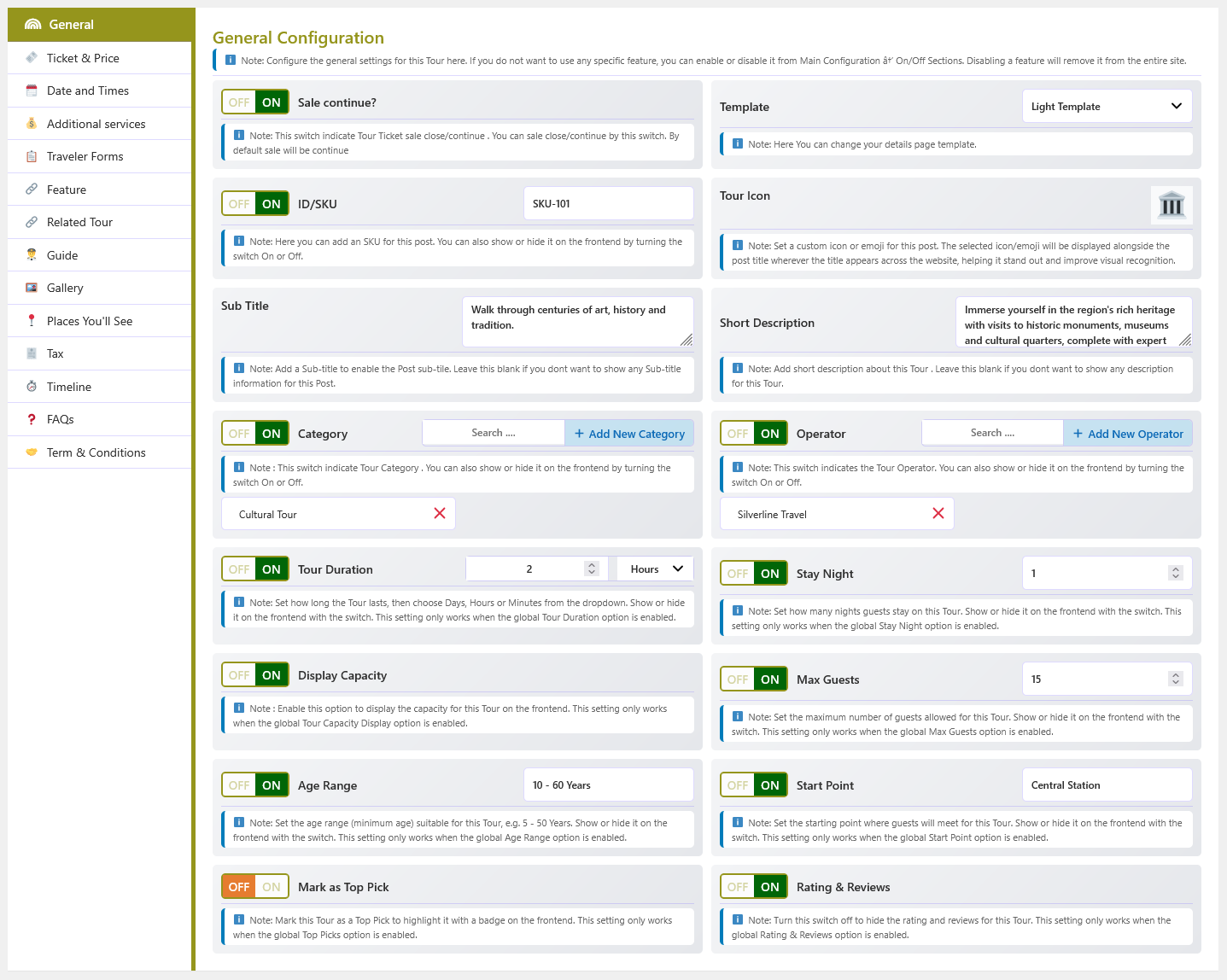
- Global and tour-specific configuration
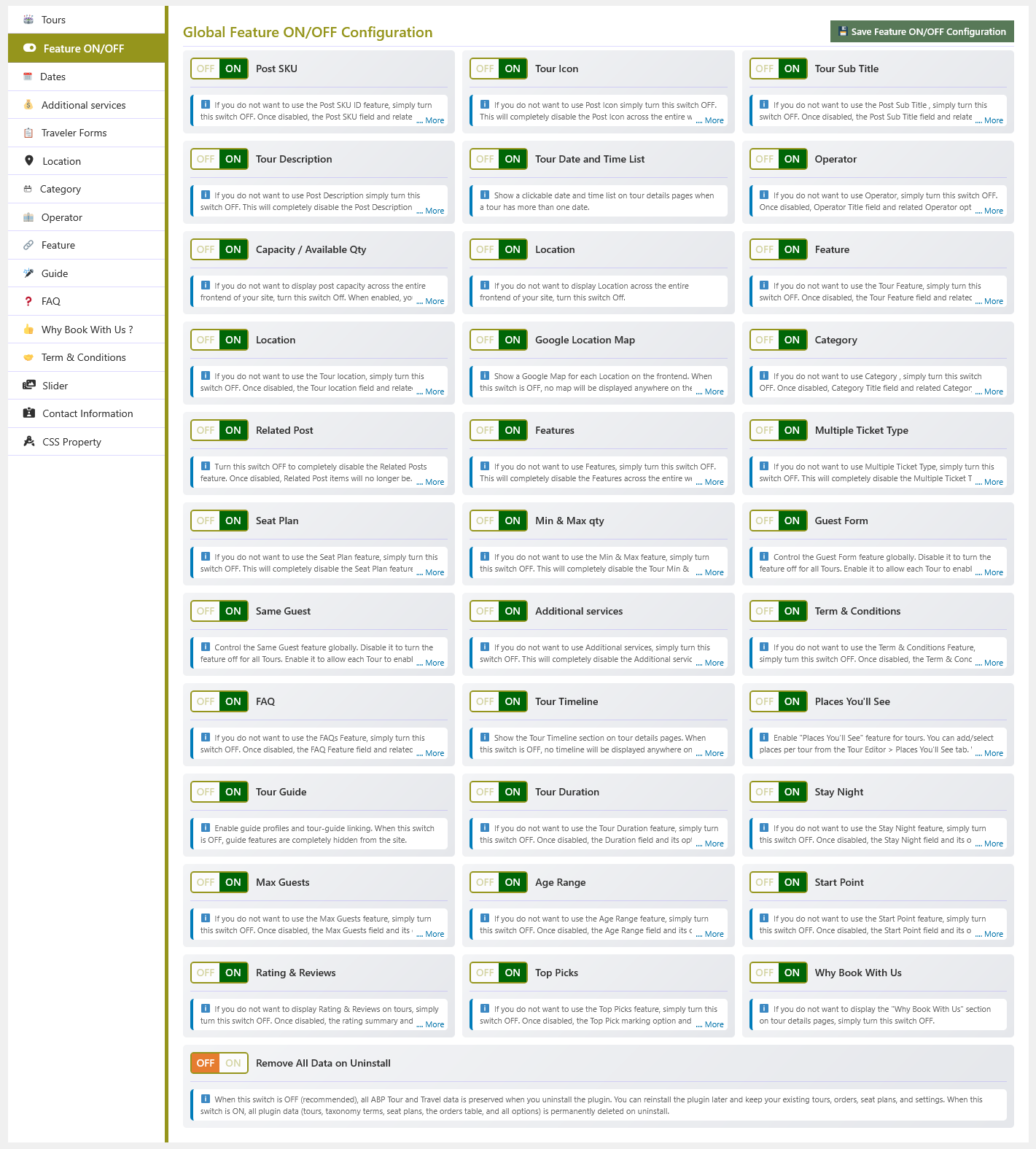
- Feature enable and disable controls
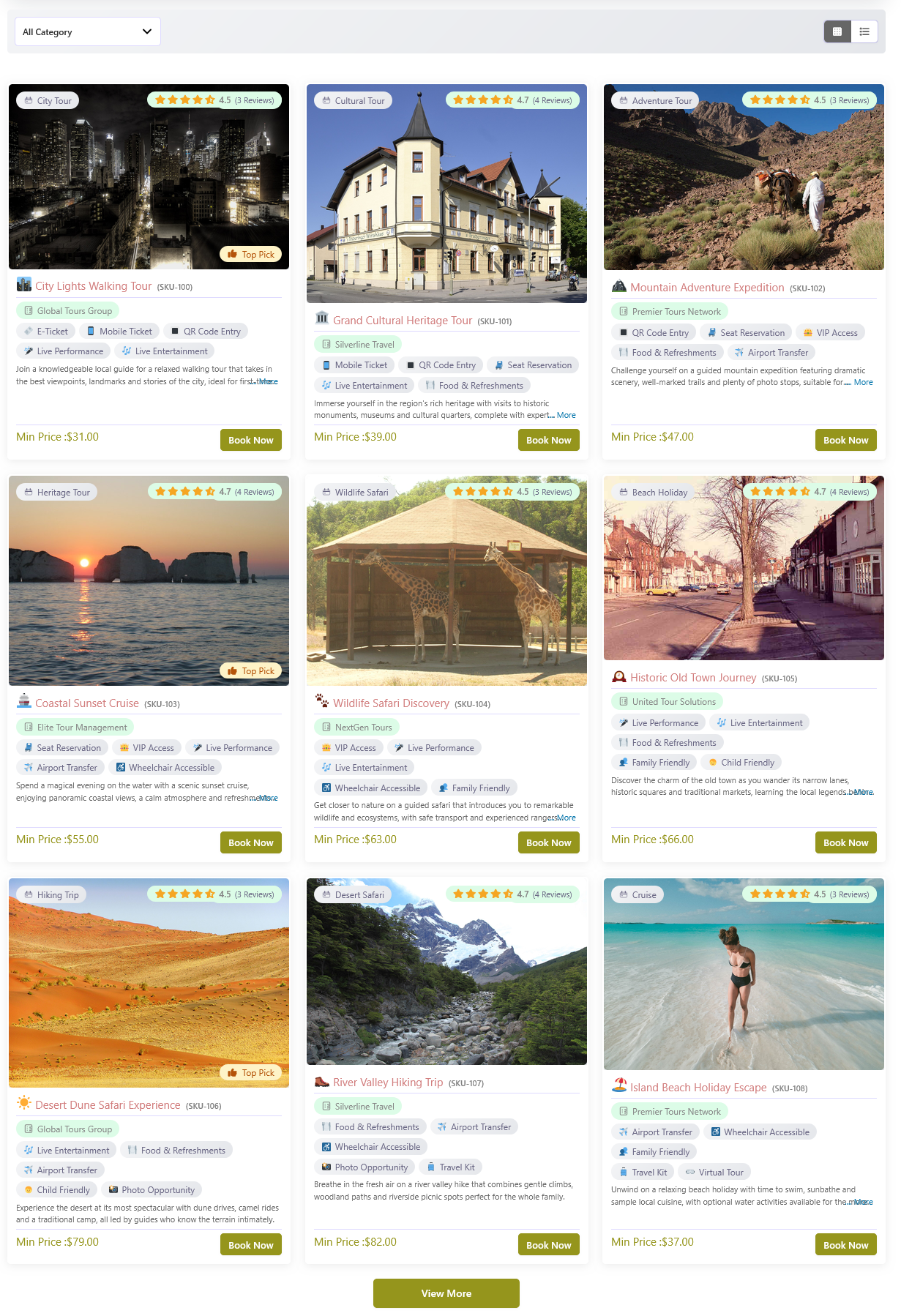
- Tour search, filtering, and pagination
- Tour details templates and display themes
- Tour gallery and image slider
- WooCommerce cart, checkout, payment, tax, coupon, and order integration
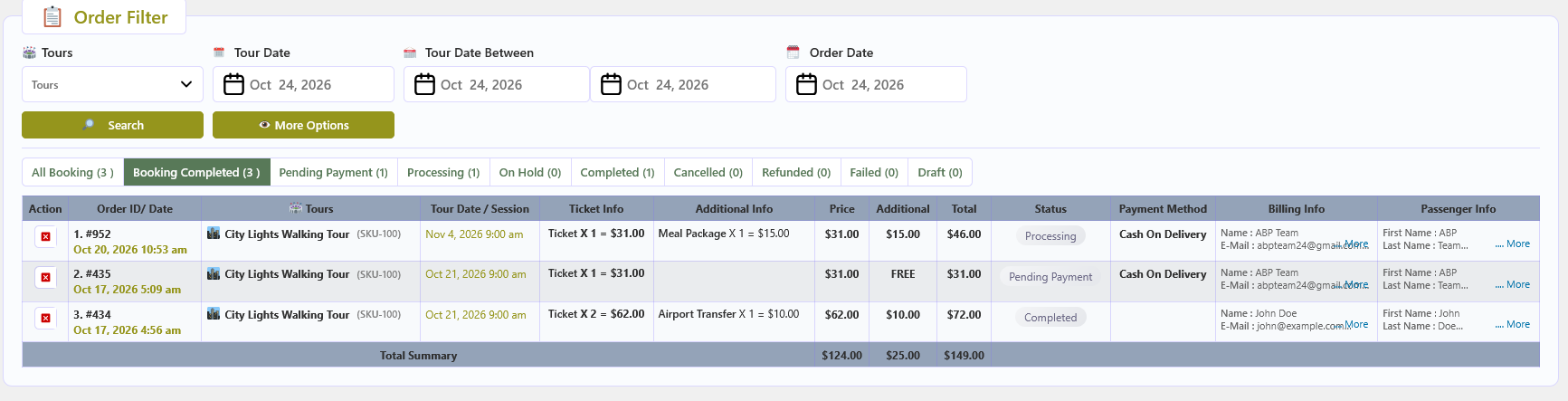
- Booking and order details in the WordPress dashboard
- Translation-ready
- Gutenberg-compatible tour post type and taxonomies
- Polylang-compatible frontend language filtering when Polylang is active
Ticket Types and Pricing
Create ticket types such as Adult, Child, VIP, or Early Bird and configure their prices and quantities. Ticket types can be created globally and reused across tours. For reserved seating tours, ticket types can also be assigned to specific seats or seat areas.
Seat Plan Designer
The seat plan designer lets you create reusable seating layouts for theaters, conferences, classrooms, meeting points, and other tours.
Seat plans support:
- Drag-and-drop positioning
- Automatic seat numbering
- Custom seat names and prefixes
- Custom cells and text
- Flexible rows and columns
- Adjustable cell size and gaps
- Ticket-type assignment
- Multiple layout configurations
- Visual and background customization
- Clone, edit, view, and delete actions
Tour Scheduling
Configure when tickets are available for each tour:
- Specific tour dates
- Periodic dates
- Date-wise times
- Day-wise times
- Advance booking date limits
- Sale closing buffer time
- Availability and quantity controls
Google Location Map
Show a Google Map for the locations assigned to a tour. With a Google Maps JavaScript API key the interactive map renders via the JavaScript API and Places library; without a key, an embedded iframe renders instead, so the location still displays while the global switch is on.
Setup:
- Enable Google Location Map under the plugin’s global ON/OFF settings.
- Paste your Google Maps JavaScript API key into the Google Maps API Key field.
- Open a Location in the global data, search for the address or place, and select it on the map to save its latitude, longitude, address, and place data.
- Assign that location to a tour.
The map appears on the tour details page when the switch is on, the tour has a location, and the location has saved map data. It includes a search-and-select picker, a draggable marker, per-location data, three frontend styles (default, light, modern), an info window on click, and “Get Directions” links to Google Maps.
Tour Timeline
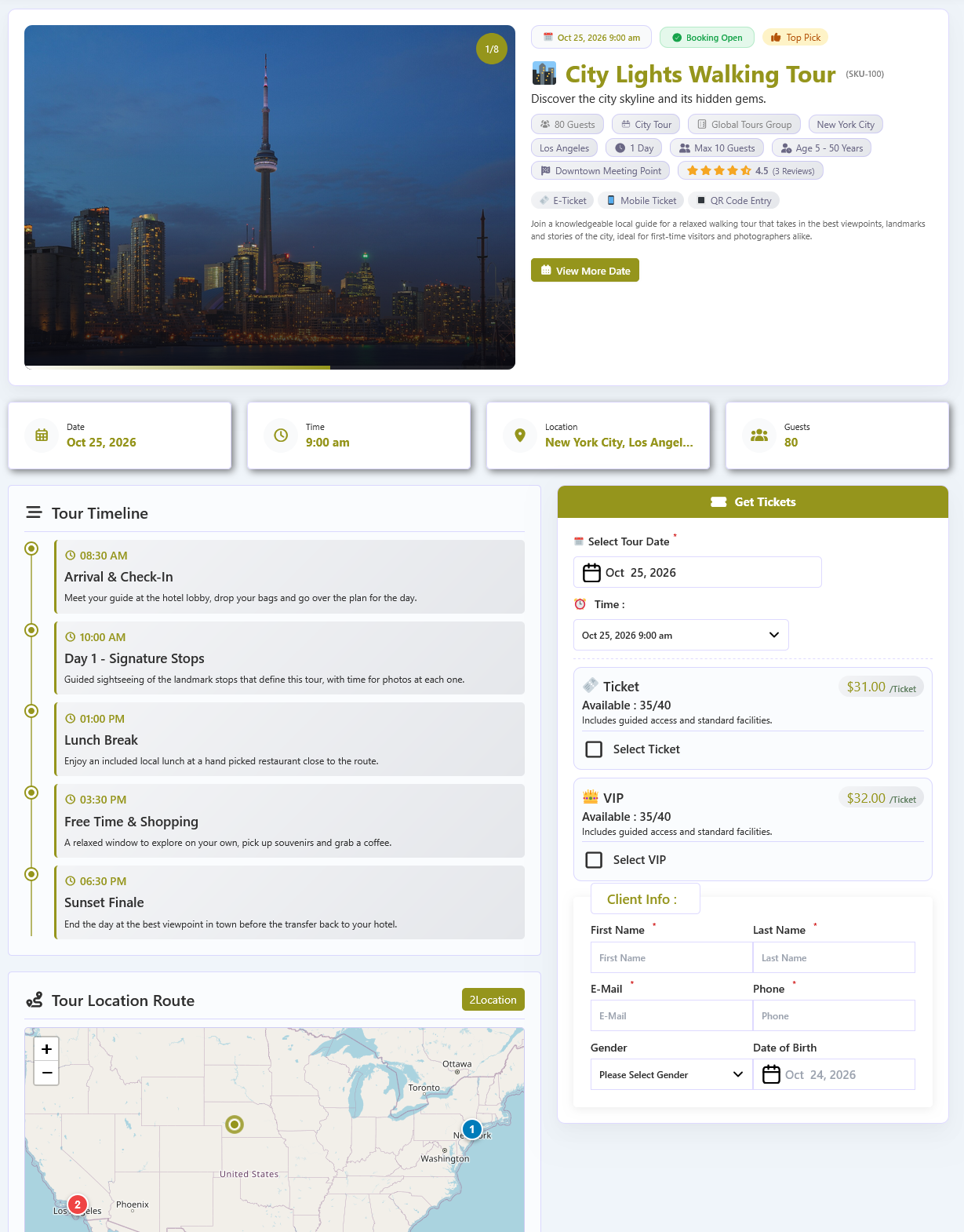
Display a visual timeline on the tour details page showing activities in chronological order. Each entry has a time, title, and rich-text description.
Setup:
- Enable Tour Timeline under the plugin’s global ON/OFF settings.
- Open a tour and go to the Timeline tab.
- Turn on the “Active Timeline” switch for that tour.
- Click “Add New Timeline Item” and fill in the time, title, and description for each entry.
- Save the tour.
The timeline appears when the tour has at least one titled entry and follows the details template: Default uses a vertical line with dot markers and bordered cards, Light uses circle markers and shadowed cards, and Modern uses a header banner with badge markers and dashed cards. The global switch hides all timelines when OFF; the per-tour switch controls each tour.
Tour Guides
Create and manage reusable guide profiles with rich information including bio, photo, designation, company, website, and social media links (Twitter/X, LinkedIn, Facebook, Instagram). A guide can be linked to any number of tours.
Setup:
- Enable Tour Guide under the plugin’s global ON/OFF settings.
- Open the plugin’s Global Data section and go to the Guide tab.
- Click “Add New Guide” and fill in the name, bio, photo, designation, company, website, and social links.
- Save the guide.
- Open a tour and go to the tour edit screen.
- In the Guide section, search and select one or more guides to associate with the tour.
- Save the tour.
Guide management includes:
- Add, edit, and delete guides from the Global Data > Guide tab
- Rich-text guide bio
- Guide photo upload with image selection and removal
- Designation and company fields
- Website URL
- Social profile URLs for Twitter/X, LinkedIn, Facebook, and Instagram
- Optional per-guide slug, used for the guide profile page URL
- A guide picker in the tour editor with multi-select, so a single guide can be reused across many tours
- A per-tour “Active Guide” switch to show or hide the guide section for that tour
- A global Tour Guide switch that hides all guide features when turned OFF
Guides are stored as terms in the abptt_guide taxonomy, which is registered against the Tour post type. Per-guide data such as photo, designation, company, website, and social links is stored in guide meta.
Frontend Display
Linked guides appear automatically on the tour details page below the timeline, following the active details template: Default is a vertical list with photo, name, role, bio, and social links; Light is a responsive card grid; Modern is a centred avatar row in a bordered panel. Guides without a photo show their initials. The section is skipped when no guides are linked, the global Tour Guide switch is OFF, or the per-tour “Active Guide” switch is OFF (ON by default).
Guide Page
Each guide has a profile page at /guide/{guide-slug}/ (the guide slug is configurable). It shows only the guide’s saved data: photo or initials, name, designation and company, website, full bio, and social profiles, omitting empty fields. Override page/guide.php by copying it into wp-content/tt_templates/page/. To list a guide’s tours elsewhere, use [abptt-post guide_id="TERM_ID"]; the term ID appears in Global Data > Guide.
Display Hook
To reposition or restyle the guide section, use do_action( 'abptt_guide', $post_infos, $post_id, 'default' ); with the tour meta array, tour post ID, and style (default, light, or modern). Each style also fires abptt_guide_{style}_template after rendering.
Template Overrides
Copy default.php, light.php, or modern.php from the plugin’s tt_templates/guide folder into wp-content/tt_templates/guide/ and edit your copy; the plugin uses it automatically.
Why Book With Us
Show a “Why Book With Us” reasons block on every tour page. The block has a heading plus a repeatable list of reasons, and each reason has its own icon, title, and description.
Setup:
- Enable Why Book With Us under the plugin’s global ON/OFF settings.
- Open the plugin’s Global Data section and go to the Why Book With Us tab.
- Edit the section title and click “Add New Reason” to add each reason’s icon, title, and description.
- Save.
The block appears on the tour details page in every template style and follows the active design automatically. When the global switch is OFF, or when no reasons are saved, no block is displayed.
Guest Information and Services
Collect the information required for registration through configurable guest forms. Add optional services, such as meals, merchandise, or other tour extras, with separate prices.
Global guest forms and additional services can be imported into a tour and customized for that tour.
WooCommerce Integration
WooCommerce is required for ticket cart and checkout functionality. Customers can select a tour, ticket type, date, seats (when enabled), guest details, and optional services before completing payment through any payment gateway supported by WooCommerce.
WooCommerce manages the cart, checkout, payment, tax, coupon, customer account, and order workflow.
Shortcodes
Add these shortcodes to any WordPress page:
[abptt-booking]
Displays the tour listing and booking interface, including search, filters, ticket selection, guest forms, and checkout flow.
[abptt-post]
Displays a tour listing without the booking wrapper.
[abptt-gallery]
Displays tour images in a gallery or slider.
Common attributes include:
post_id– Display a specific tour.cat_id– Filter by category.loc_id– Filter by location.organizer_id– Filter by operator.guide_id– Filter by tour guide.style– Listing style:grid,list,missionary, orminimal.slider_style– Gallery style:galleryorslider.pagination– Enable or disable pagination.pagination-style– Pagination mode:liveornumber.column– Number of listing columns.sort– Tour order:ASCorDESC.
Example:
[abptt-booking style="grid" column="3" pagination="yes"]
Minimal tour list example:
[abptt-post style="minimal" show="8" pagination-style="number"]<h3>My Account Bookings</h3>
When used with WooCommerce, a “Bookings” tab is added automatically to the WooCommerce My Account area. Logged-in customers can view their tour bookings, tour dates, ticket details, additional services, guest information, and order totals in one place, with pagination for large histories.
External services
This plugin can connect to third-party services to display maps, route maps, and a searchable location picker. A service is only contacted when the related feature is used, and never while the related options are disabled. The plugin itself does not collect, store, or forward this data to the plugin author.
Google Maps Platform (JavaScript API and Places library)
Used for the interactive location map, the frontend route map, and the searchable location picker. When the Google Location Map option is enabled and a Google Maps API key has been saved, the site loads the Google Maps JavaScript API and the Places library. The visitor’s browser sends map requests, the coordinates of the locations being displayed, and any address or place text typed into the location search directly to Google. This service is provided by Google LLC. Terms of Service: https://cloud.google.com/maps-platform/terms. Privacy Policy: https://policies.google.com/privacy.
Google Maps embed
Used to display a key-free map for a tour location when the Google Location Map option is enabled but no Google Maps API key has been saved. The visitor’s browser loads a map iframe from maps.google.com and sends the saved coordinates of the tour location to Google. This service is provided by Google LLC. Terms of Service: https://cloud.google.com/maps-platform/terms. Privacy Policy: https://policies.google.com/privacy.
OpenStreetMap tiles
Used as the map background for the frontend route map. The visitor’s browser requests map tile images for the visible map area from the OpenStreetMap tile servers and sends the requested tile coordinates and the visitor’s IP address. This service is provided by the OpenStreetMap Foundation. Tile usage policy: https://operations.osmfoundation.org/policies/tiles/. Privacy Policy: https://wiki.osmfoundation.org/wiki/Privacy_Policy.
OSRM demo server
Used to calculate the driving route drawn between the tour stops on the frontend route map. The visitor’s browser sends the latitude and longitude of the stops to the OSRM demo server at router.project-osrm.org. No account information or personal details are sent. This service is provided by the OSRM project. Usage policy: https://github.com/Project-OSRM/osrm-backend/wiki/Demo-server. Project website: https://project-osrm.org/.
Requirements
- WordPress 6.2 or later
- PHP 7.4 or later
- MySQL 5.7 or later
- WooCommerce 8.0 or later
Gutenberg and Multilingual Support
The tour post type and all tour taxonomies are registered with REST API support, so tours and taxonomies can be edited with the Gutenberg block editor. The plugin’s tour listing and booking shortcodes can also be inserted into Gutenberg Shortcode blocks.
The plugin is translation-ready and supports Polylang’s frontend language filtering for tour listings. Create a translated tour and translated taxonomy terms in Polylang for each language you publish. WooCommerce handles translated checkout and customer account pages according to the multilingual plugin configuration.
Plugin-specific global configuration labels, ticket names, and option values are stored as reusable settings and are not automatically duplicated or translated by Polylang. Translate those values through your multilingual workflow or use tour-specific values when each language needs different content.
Need help or have suggestions?
If you need any further assistance or support, please contact us through the 🎫 support form. We welcome your suggestions, so feel free to tell us anything we can improve in the plugin.
🌐 Live Demo
📖 Documentation
💬 Support Forum
🐛 Bug Reports
📧 Email: support@abp-team.com
Details
Related plugins
Plugins that also contain the tag seat-plan
ABP Event Ticket


About
Plugin for that tries to help you find the WordPress plugin you are looking for.
| Please enjoy an image of Crush (this awesome turtle) and have a lovely day! |  |
We do not own any plugin listed on this site and do not work for or work with WordPress.com or it's associated companies. We simply provide a searchable list of the available WordPress plugins.