



ActivateDigital: Digital Product Passports for WooCommerce
Build Digital Product Passports from the product data your WooCommerce store already holds. ActivateDigital resolves what can be established and asks only for what genuinely remains.
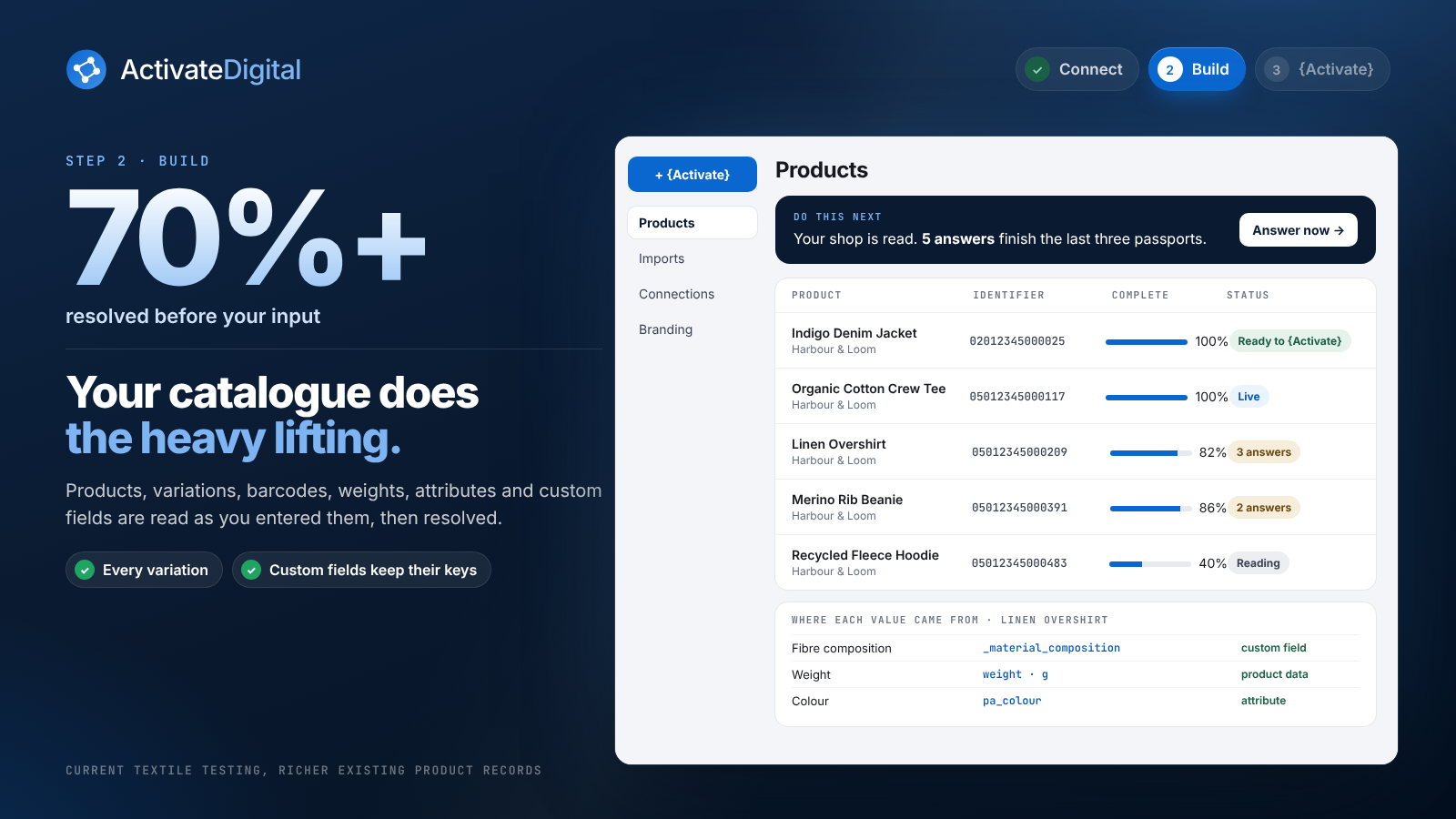
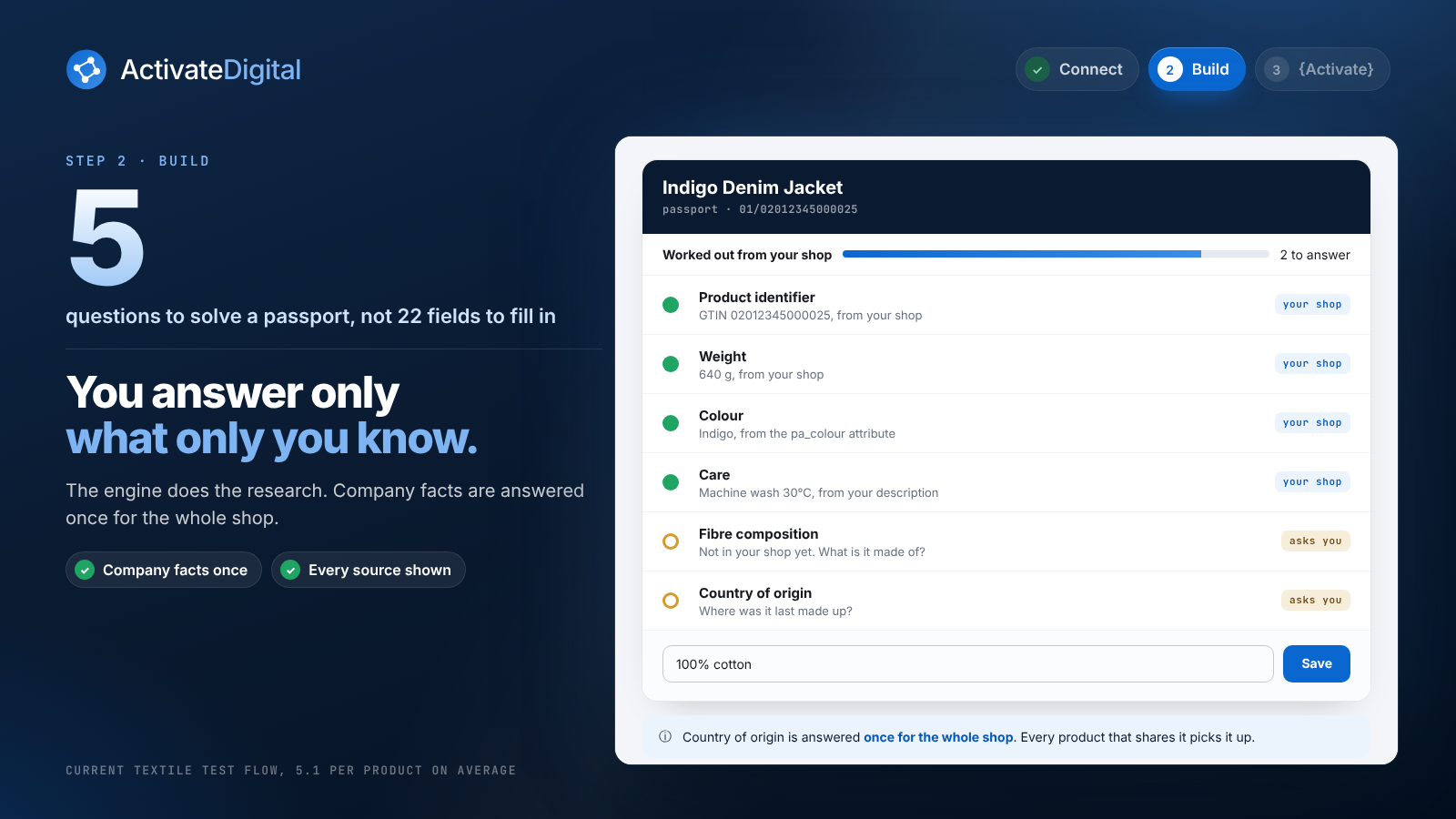
Your products, sizes and colours, barcodes, weights, attributes, descriptions and custom fields are read as you entered them. ActivateDigital works out every passport field it can from them and from public sources, shows you where each answer came from and asks you only the questions it could not answer. Nothing is guessed: a fact your shop doesn’t hold stays open until you or your supplier supply it.
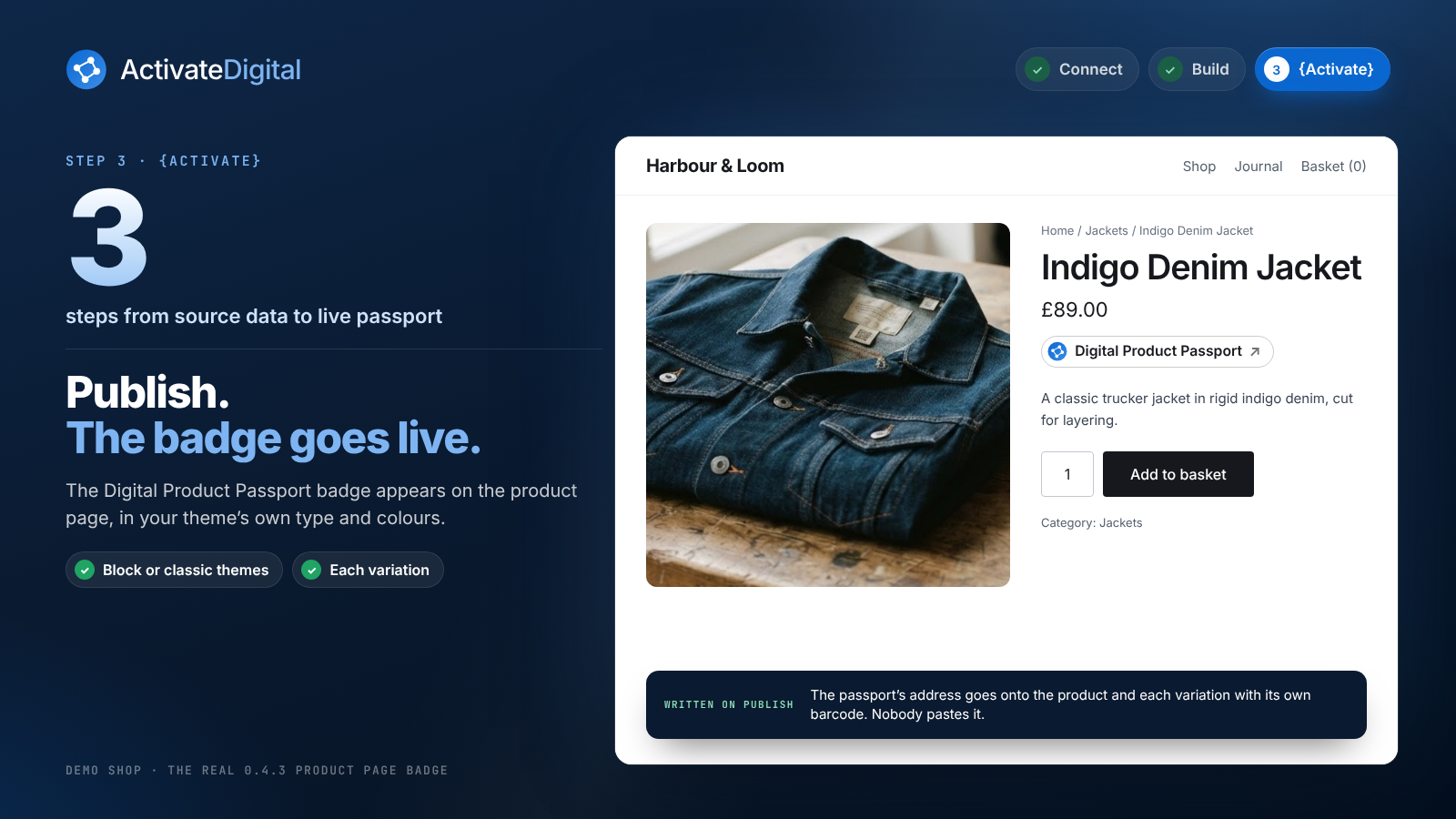
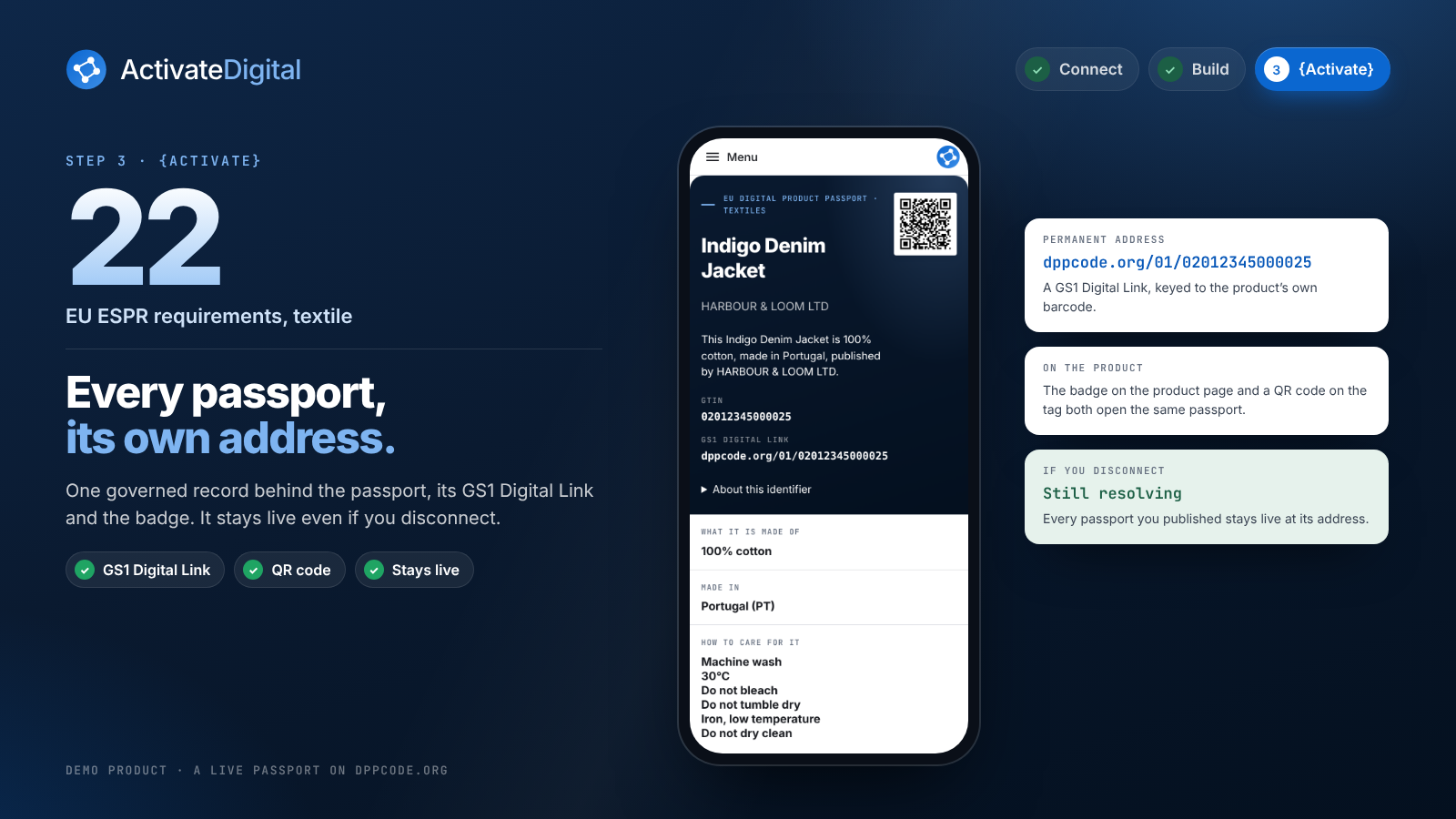
When you publish a passport, its address is written onto the product, and onto each variation that has its own barcode, so the Digital Product Passport badge appears without anyone pasting it. When you edit, add or bin a product, your shop tells ActivateDigital and the next visit reads it again. Only products that changed are looked at again.
What the plugin itself does:
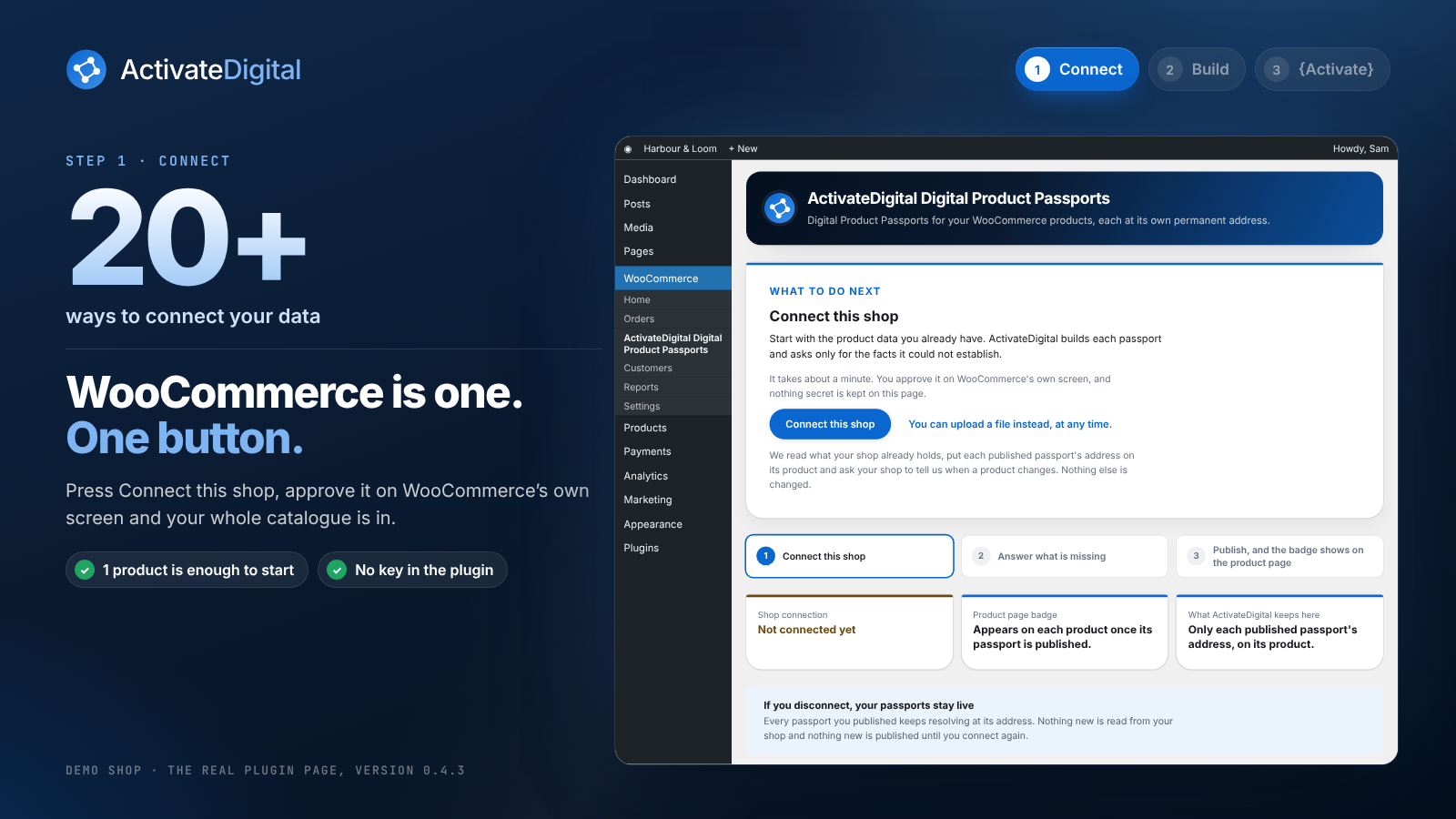
- Adds an ActivateDigital Digital Product Passports page under WooCommerce that says what to do next, with a Connect this shop button.
- Shows a small Digital Product Passport badge on the product page, linking to the published passport, as a block or under the product summary.
The plugin keeps no data, holds no key and makes no call from your server. The connection uses WooCommerce’s own approval screen, and everything else happens in the ActivateDigital console.
The plugin is free. ActivateDigital is a paid service, and nothing is charged until you choose a plan in the console.
Pricing
- Your first 5 passports are free.
- Pay as you go: 0.99 per published passport, at most 50.00 in any 30 days.
- Unlimited: 19.99 every 30 days for as many passports as you publish.
- Prices are in US dollars or pounds sterling, at the same figures.
Payment is taken in the ActivateDigital console. The plugin never sees or stores payment details.
External services
This plugin connects your shop to one external service, the ActivateDigital console at activatedigital.ai, run by SIGNALANALYTICS.AI LTD. The plugin itself makes no call from your server, sends nothing on activation and does no tracking. Nothing is sent until you press Connect this shop.
What goes to activatedigital.ai, when and why:
- When you press Connect this shop, your browser opens the console with your shop’s host name, the platform name (woocommerce) and the address of this admin page to come back to. This tells the console which shop to connect.
- WooCommerce then shows its own approval screen. When you approve, your shop sends a consumer key and secret with read and write access to the console. The key pair is created by WooCommerce, never by this plugin, and the plugin never holds it.
- With that key the console reads, through the WooCommerce REST API, your products, their variations and your weight unit setting. It reads them to build each passport.
- When you publish a passport, the console writes one field, activate_digital_passport_link, onto that product and onto each variation with its own barcode. It writes nothing else: titles, prices, stock and descriptions are never written.
- The console creates product webhooks in your shop, so your shop tells it when a product is created, edited, binned or restored. They send that product’s data to the console.
- No customer or order data is read.
What goes to dppcode.org:
- Nothing from the plugin or from your shop. Published passports are public pages served from dppcode.org. The product page links to them and a shopper’s browser opens them when the link is clicked. They keep resolving whether or not the plugin stays active.
Privacy policy: https://activatedigital.ai/privacy
Terms of service: https://activatedigital.ai/terms
Service and support: https://activatedigital.ai/woocommerce-digital-product-passport
You can withdraw access at any time under WooCommerce, Settings, Advanced, REST API, by revoking the ActivateDigital key. Its webhooks stop being accepted at the same moment.
Testing instructions
Use a clean WordPress 6.5 or later with WooCommerce active and at least one simple and one variable product. Follow the installation steps. The connection is done when step 4 shows the product and variant counts. Publish one product in the console and its passport address appears on the product page and in the product’s custom fields as activate_digital_passport_link.
Details
Related plugins
Plugins that also contain the tag digital-product-passport
DPPBuilder – Digital Product Passports for WooCommerce

Digital Product Passport for WooCommerce

DPTag Digital Product Passports for WooCommerce
Digital Product Passport


About
Plugin for that tries to help you find the WordPress plugin you are looking for.
| Please enjoy an image of Crush (this awesome turtle) and have a lovely day! |  |
We do not own any plugin listed on this site and do not work for or work with WordPress.com or it's associated companies. We simply provide a searchable list of the available WordPress plugins.