


AddSynapse – AI Website & Store Assistant for WooCommerce
AddSynapse – AI Website & Store Assistant for WooCommerce is an AI assistant for WordPress and WooCommerce that
lives in wp-admin (AddSynapse Store Assistant). Shop managers ask, in plain words and in their own language, about
their store and their website, and for the product changes they would otherwise click through screen by screen:
“which products are out of stock?”, “what were my best sellers last month?”, “put the Linen Shirt on sale at 29.90
until Sunday”, “set this photo as the main image of the blue mug”, “write a better SEO title for the Linen Shirt”.
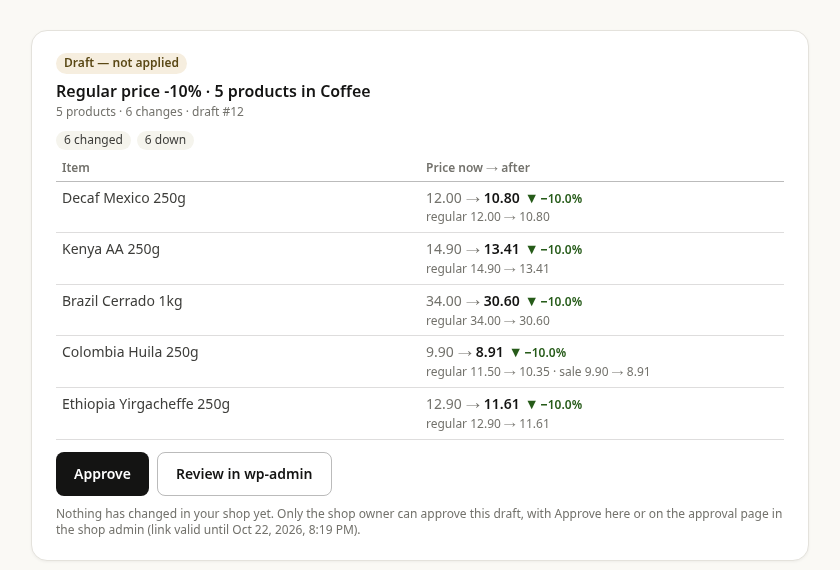
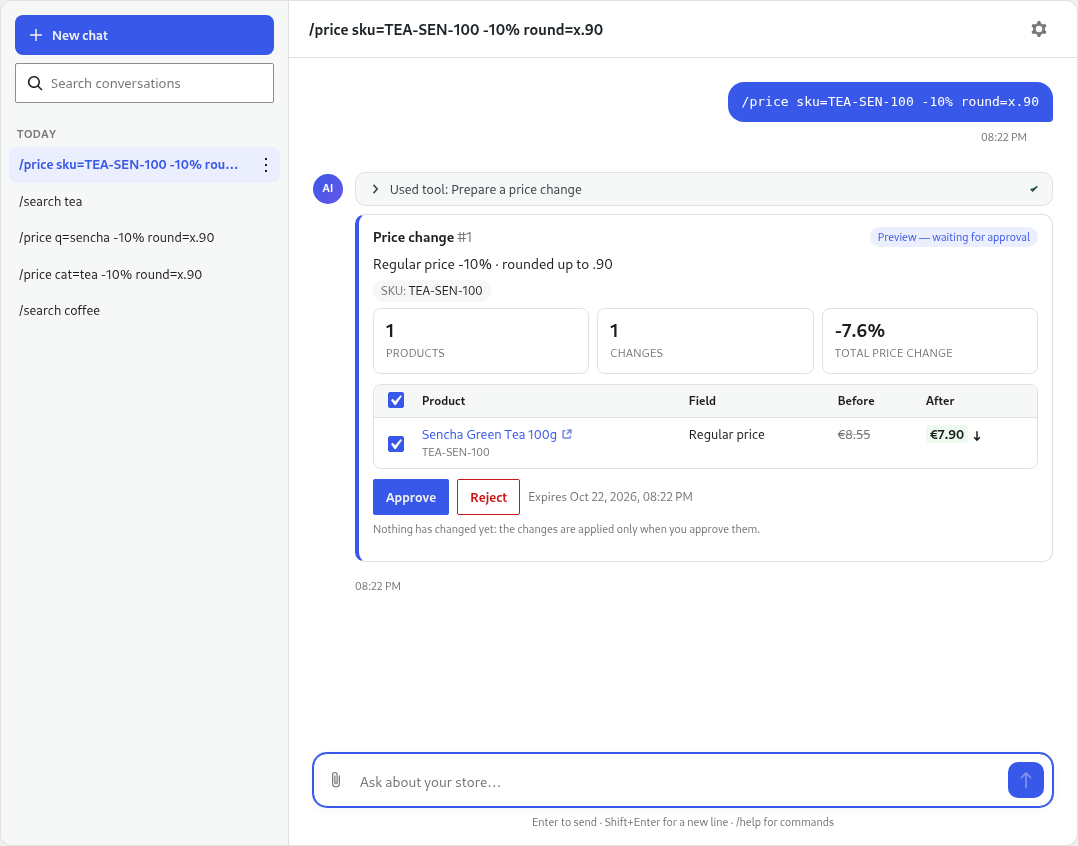
It works as an AI agent with a fixed set of checked tools: it looks the data up itself, then prepares a preview of the
change, and nothing changes until you click Approve.
Free with your own Claude or OpenAI API key
Paste an Anthropic (Claude) or OpenAI (GPT) API key in Settings (or in the chat’s first screen) and every feature of
the plugin works, with no account and no plan. It edits one product at a time. You pay your AI provider directly for
what you use; the Settings screen shows an estimate of your usage and cost. The key is stored encrypted on your site
(or in wp-config.php) and is never sent to the browser or to AddSynapse.
No account is needed. After your key works, the plugin offers once to create a free AddSynapse account, to be told first
when Store Assistant Pro launches — optional, nothing is locked without it, and nothing is sent unless you click
Create account.
Everything that runs on your site also works before you add a key: slash commands (for example /report low_stock or
/price id=123 -10%), the previews, Approve, Undo and voice input.
WooCommerce reports in plain words
Search products (by name, SKU, category, tag, brand, attribute, price, stock) and ask for low stock, out of stock,
products missing images, descriptions or prices, best sellers, sales by day, week or month, recent orders and top
customers (as references only — no names or emails leave your site). Sales answers come with simple charts.
AI product descriptions and product SEO, one product at a time
- Product descriptions: the AI writes, rewrites, shortens or translates the name, short description and description
of a product, and you see the new text in the preview before you approve it. - Product SEO: a new SEO title, meta description and focus keyword for a product, in Rank Math or Yoast SEO, with
their lengths checked. - Product images: drop or paste a photo into the chat and make it the main image or add it to the gallery.
- Prices and stock: price and sale price with dates, and the stock quantity.
- Categories, tags and brand: assign the product to existing ones.
Each change covers one product. When you ask for many at once, the assistant says so and offers to do one now.
Your WordPress website, also without WooCommerce
The assistant reads your pages (Gutenberg and Elementor), menus, media library and the SEO of pages and posts, so you
can ask “which pages have no meta description?” or “what is in the main menu?”. On a plain WordPress site (no
WooCommerce) it answers about the site; changes to pages, posts and menus are planned for Store Assistant Pro.
Voice and images
Type or speak (optional voice input, off by default) and attach an image to a message. The AI can see an attached image
(a reduced copy; you can turn this off in Settings).
Coming soon: Store Assistant Pro
AddSynapse is preparing Store Assistant Pro, a separate add-on for work beyond single products, for example:
- AI blog writing: drafting blog posts and other content.
- Bulk edit products: bulk price changes by category or brand, CSV imports.
- SEO at scale: SEO titles, meta descriptions and image alt text for many products, pages and posts at once.
- Pages and menus: editing pages, sections, menus and the site’s appearance.
- Catalog and sales: managing categories, tags, brands, attributes and variations, coupons and orders, and a full
change history.
It is not released yet, it is not included in this plugin and this plugin does not check for it: everything described
in the sections above is complete and free.
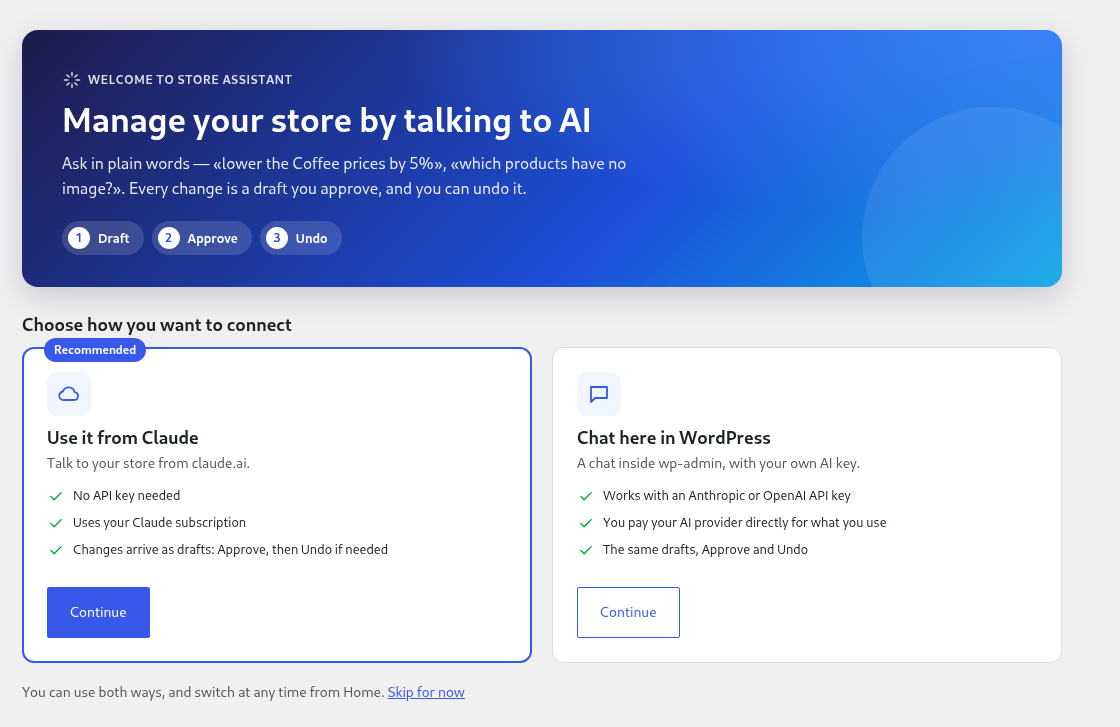
Every change is a preview a person approves
The assistant only reads data and prepares drafts. Nothing on your site changes until a logged-in user with the right
permissions clicks Approve on the preview here in wp-admin, and every approved change can be undone (Undo) as
long as nothing else changed the same data since. The assistant never creates, edits or deletes user accounts, never
changes passwords and never runs code or SQL: it can only ask the plugin for a fixed set of checked operations.
How it works
The chat, the tools and your data stay in WordPress. Your AI provider decides which tool to use next and writes the
answers; the tools themselves run on your server, during the chat request of the logged-in user and with that user’s
permissions.
Nothing can start anything on your site from outside. The plugin has no job queue, no background polling and no
“wake-up” or remote-command endpoint: the AI only answers the chat requests that a logged-in user sends from wp-admin,
and every change is applied only when a logged-in user approves its preview here in wp-admin.
The AI runs on an external service
The AI is not part of the plugin: your server calls your AI provider’s API directly (api.anthropic.com or
api.openai.com) with your key. For a question to the AI the plugin sends the text of your chat message and the store
and site data the AI needs to answer it (the results of the tools it used: products, categories, pages, menus, SEO and
order data — customers only as anonymous references), plus a summary of your site structure, and an image you attach
to that message (a reduced copy; it can be turned off in Settings). Nothing is sent before an administrator saves a
key, and slash commands are never sent. The exact list of calls is in External services
below.
AddSynapse is operated by WebOrange (Ioannis Sakkoulas).
External services
The AI of the assistant is an external service: your own AI provider (sections 1 and 2). Slash commands, previews,
Approve and Undo run on your site and need no service. Nothing is sent anywhere until an administrator clicks “Save
and test” in AddSynapse Store Assistant Settings, next to a text that lists what is sent. Before that, the plugin
makes no outgoing requests and schedules no recurring background tasks (only local one-off work that you start
yourself: applying a large approved change, or removing an image you uploaded in the chat and never used). The plugin
contacts AddSynapse only if an administrator creates an AddSynapse account from the plugin (section 4).
1. Anthropic API — api.anthropic.com (only with your own Anthropic key)
Used to answer in the chat with your key, called by your server (never by the browser), only while a logged-in user
chats. Save and test sends one tiny test message with no site data. Then, for each question to the AI (slash
commands are never sent): one small call that picks the tools the question needs and a title for the conversation (it
gets the message, the previous answer and the number of ticked products), and the main calls with the message and the
conversation, the instructions of the assistant and the list of its tools, a summary of your site structure (active
plugins, theme, taxonomies and attributes, currency, time zone, menu locations), the admin and site language, the ids
of ticked products, and an image you attach in the chat: its name, size and type and the image itself, reduced to at
most 1,024 pixels (on by default; a manager can turn it off in Settings “The AI sees the images you upload”, then only
the name, size and type are sent; images are sent only with the message they are attached to), and
the results of the tools the assistant used (product, category, page, menu, SEO and order
data — customers only as anonymous references, never names, emails, phone numbers or addresses). Your key is sent in
the request header.
- Anthropic commercial terms: https://www.anthropic.com/legal/commercial-terms
- Anthropic privacy policy: https://www.anthropic.com/legal/privacy
2. OpenAI API — api.openai.com (only with your own OpenAI key)
The same data as in section 1, sent the same way and at the same moments, with store: false (OpenAI is asked not to
keep the responses).
- OpenAI terms: https://openai.com/policies/business-terms
- OpenAI privacy policy: https://openai.com/policies/privacy-policy
3. Browser speech recognition — voice input (optional, off by default)
Only if a manager turns on Voice input in Settings. The plugin sends nothing for this feature: it asks the
manager’s browser to recognize speech (the browser’s Web Speech API) after the microphone button is pressed.
Depending on the browser, the audio may be sent to the browser vendor for recognition (Chrome: Google, Edge:
Microsoft, Safari: Apple or on the device), under the vendor’s own terms:
- Google privacy policy: https://policies.google.com/privacy
- Microsoft privacy statement: https://www.microsoft.com/en-us/privacy/privacystatement
- Apple privacy policy: https://www.apple.com/legal/privacy/
4. AddSynapse — api.addsynapse.com (only if you create an account from the plugin)
Optional. After “Save and test” succeeds, the plugin’s own screens show a card “Create a free AddSynapse account”
(with “Not now”; it comes back at most once, 30 days later), to be told first when Store Assistant Pro launches; the
first “coming in Store Assistant Pro” reply of a chat conversation has a small “Get notified” link to the same form.
Nothing is sent unless an administrator clicks Create account. Then, once: the email in the card (prefilled with the site’s admin email, editable), the shop’s
address (home URL), whether the “Send me news and offers” box was ticked (unticked by default; news are emailed only
after you confirm a link AddSynapse sends) and the version of the consent text. AddSynapse creates the account and
returns a site key (stored encrypted). Your AI key, chats and store data are never
sent.
With an account, at most once a day and only while a user opens the plugin’s own screens, the plugin asks AddSynapse
for short announcements (text and at most one link, shown only on the plugin’s screens, dismissible, no images or
tracking). It sends the site key, the plugin version and the site language. “Disconnect this site” in Settings (or
deleting the plugin) stops this.
- AddSynapse terms of service: https://addsynapse.com/terms
- AddSynapse privacy policy: https://addsynapse.com/privacy
Details

Related plugins
Plugins that also contain the tag ai
SEOPress – On-site SEO & Analytics

AI Engine – The Chatbot, AI Framework & MCP for WordPress

GetGenie – AI Content Writer with Keyword Research & SEO Tracking Tools

SEO Plugin by Squirrly SEO

Website LLMs.txt

Smartsupp – live chat, AI shopping assistant and chatbots


About
Plugin for that tries to help you find the WordPress plugin you are looking for.
| Please enjoy an image of Crush (this awesome turtle) and have a lovely day! |  |
We do not own any plugin listed on this site and do not work for or work with WordPress.com or it's associated companies. We simply provide a searchable list of the available WordPress plugins.