



AddToWallet for Simply Schedule Appointments
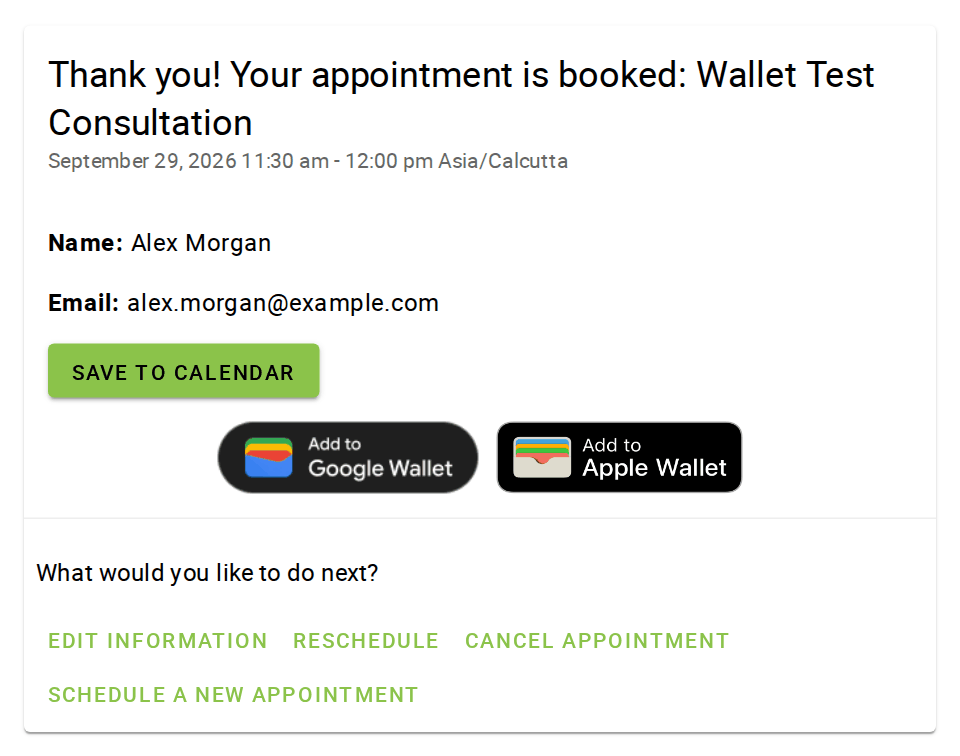
Your customer books an appointment, and SSA’s confirmation screen offers them an Add to
Apple Wallet and Add to Google Wallet button, right below Save to calendar. The
pass carries the appointment type, the customer’s name, and the date and time, with a
barcode staff can scan.
Design the pass
The Pass design tab is a visual editor with a live Apple Wallet and Google Wallet
preview, front and back, filled in with your latest booking.
- Your business name, logo and colour.
- A header line, the pass title and up to three fields on the front.
- Sections on the back: text, links, phone numbers, email addresses and addresses.
- “+ Data Field” puts each booking’s details on the pass: the customer’s name, the
appointment type, date, start and end time, duration, booking number, web meeting
link, your business contact details and more. - A hero image, with a different image per appointment type if you like.
- The barcode format, and a Wallet reminder before the appointment.
How it works
- The buttons appear inside SSA’s own booking form, on its confirmation screen.
- The pass is created on your server with your AddToWallet API key. The key never reaches
your visitors’ browsers. - The browser sends only the appointment id and SSA’s own appointment token, and the
appointment details are read from SSA’s tables, so nobody can create a pass for
someone else’s appointment or put made-up details on one. - Reloading the confirmation screen never creates a second pass.
Works with
- The
[ssa_booking]shortcode - The SSA Gutenberg block
- Any page builder that embeds SSA’s booking form
Cancellations
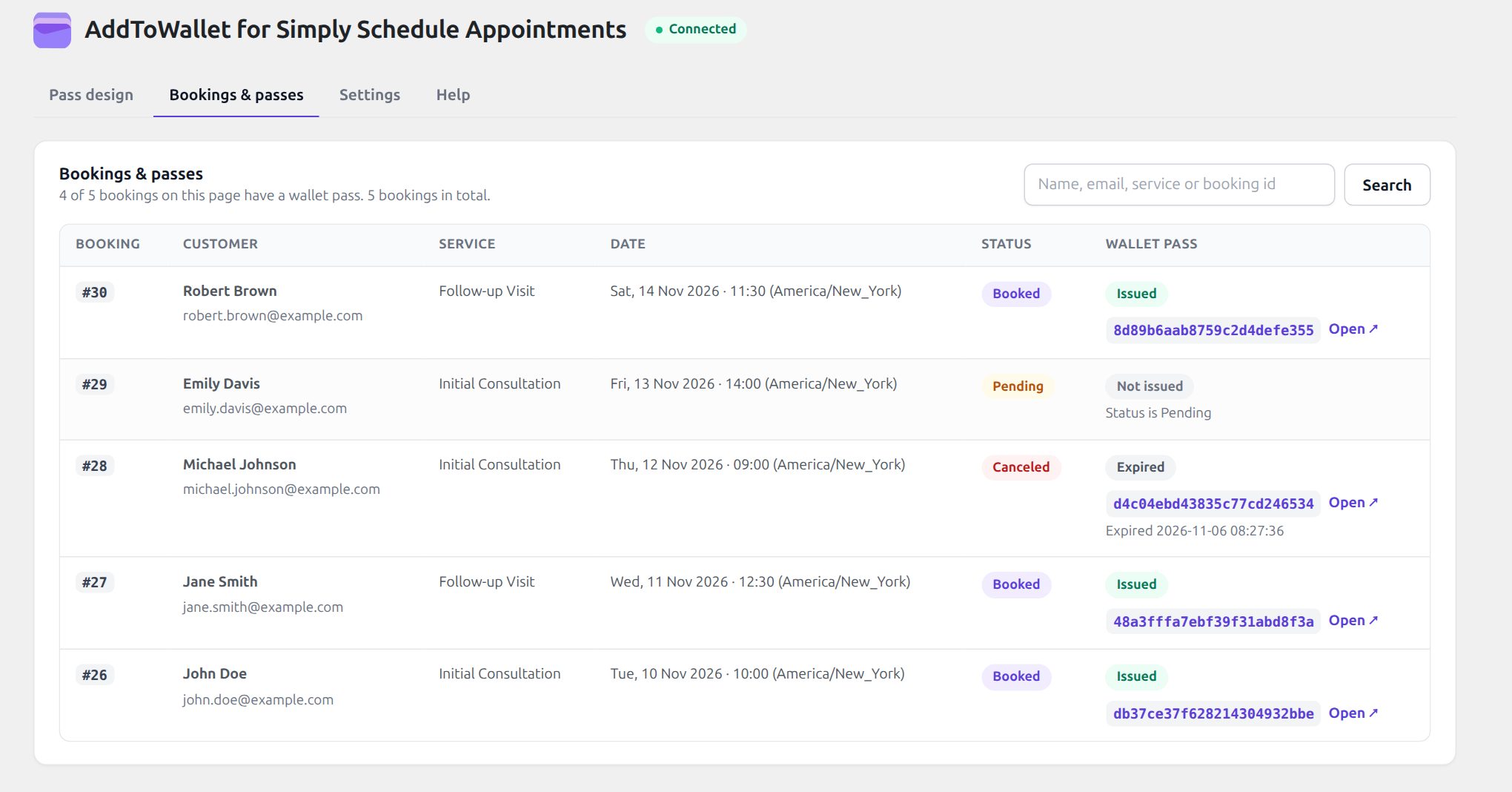
When an appointment is canceled, by you or through the customer’s own cancel link, the
pass in their wallet is marked expired straight away. When it is rescheduled, the pass is
updated to the new date and time.
Requirements
- Simply Schedule Appointments (free or paid editions)
- An AddToWallet account and API key
External services
This plugin connects to the AddToWallet API at https://app.addtowallet.co to create and
expire Apple Wallet and Google Wallet passes. Without this service it cannot issue passes.
When a customer’s appointment qualifies for a pass, the plugin sends the details you put on
the pass from your server to AddToWallet. With the default design that is the appointment
type, the appointment date and time, the customer’s name, the appointment id, your business
name, email and phone (from Simply Schedule Appointments’ settings), and the logo, image
and colors you configured. The customer’s own email address or phone number is only sent
if you add it to the pass design. It also sends your API key to authenticate the request. When an appointment is
cancelled, it sends the pass id so the pass can be expired; when it is rescheduled, it sends
the pass id with the updated pass details. Your API key is never sent to
the customer’s browser.
The service is provided by AddToWallet: Terms of Service,
Privacy Policy.
Details

Related plugins
Plugins that also contain the tag apple-wallet
EpassCard

WalletPassBuilder – Passes for Apple Wallet and Google Wallet

TrackIt for WooCommerce

Tesserina for WooCommerce

MKM Digital Connector for passFLY.PRO


About
Plugin for that tries to help you find the WordPress plugin you are looking for.
| Please enjoy an image of Crush (this awesome turtle) and have a lovely day! |  |
We do not own any plugin listed on this site and do not work for or work with WordPress.com or it's associated companies. We simply provide a searchable list of the available WordPress plugins.