



Burnpedia Pin Scheduler for Pinterest
Writing the post is the work. Remembering to pin it, three days later, is the part that quietly stops happening.
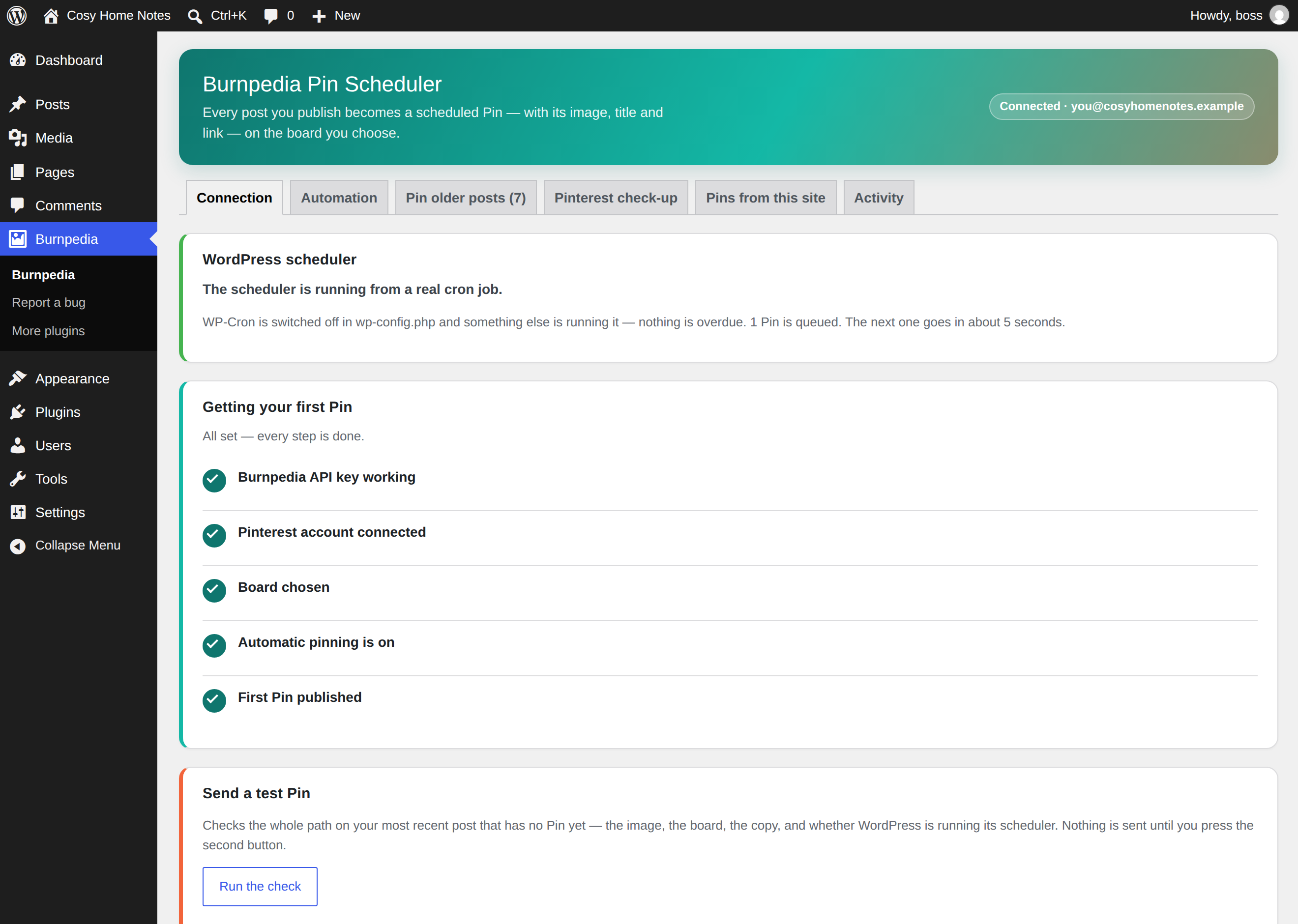
This plugin schedules Pinterest Pins for you, automatically, from the posts you already publish. Burnpedia Pin Scheduler connects your WordPress site to your Burnpedia account; when a post goes live, it builds a Pin from that post’s image, title and link and hands it to Burnpedia to publish on a schedule — to the board you picked, at a sensible time, without you opening Pinterest.
What it does
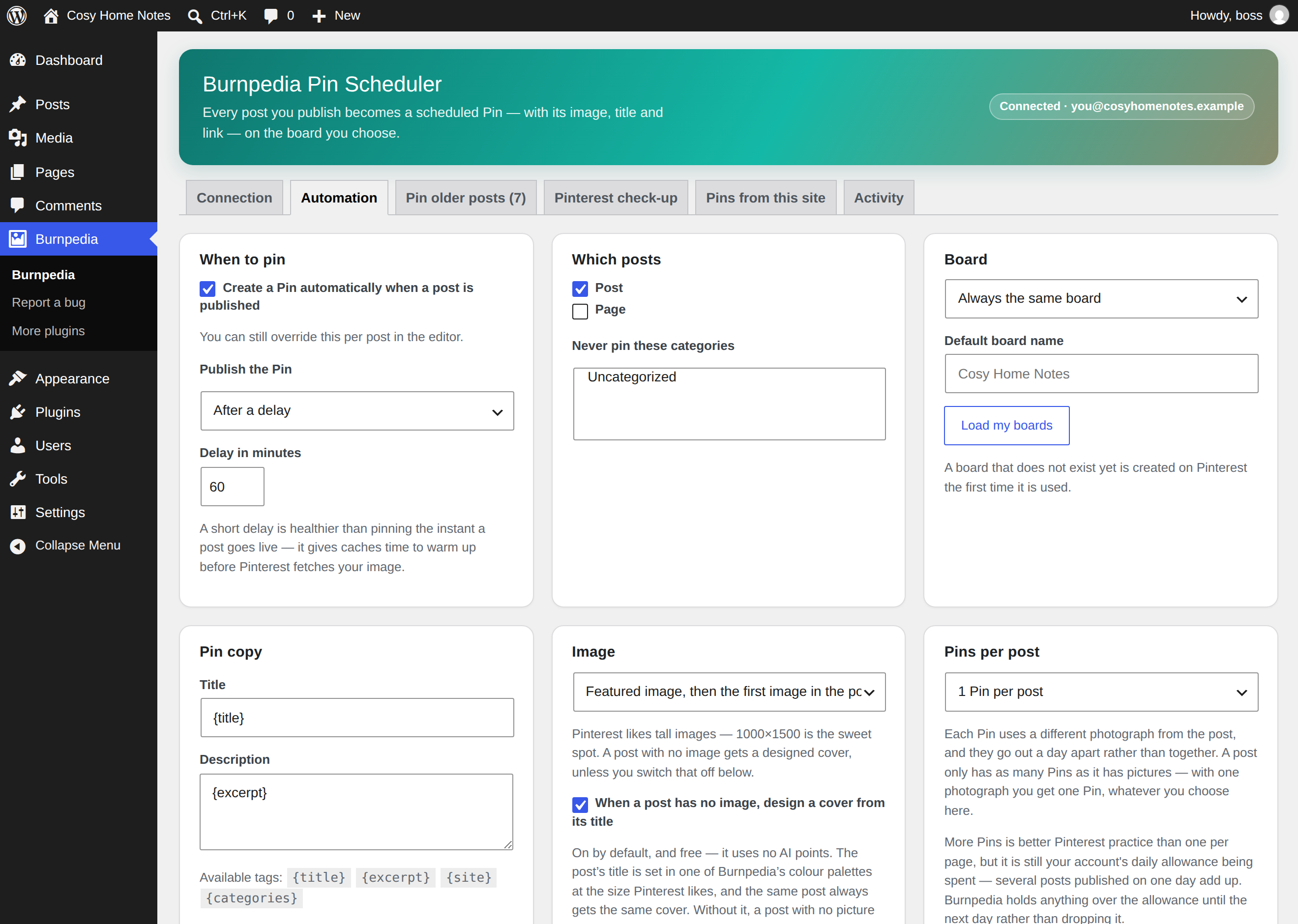
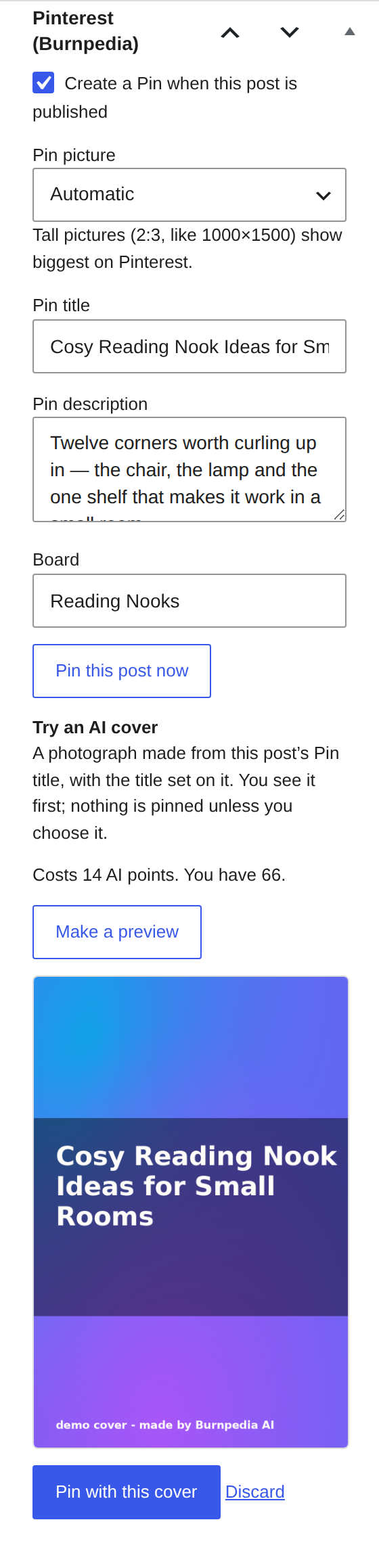
- Creates a Pin automatically when a post is published — or only for the posts you tick.
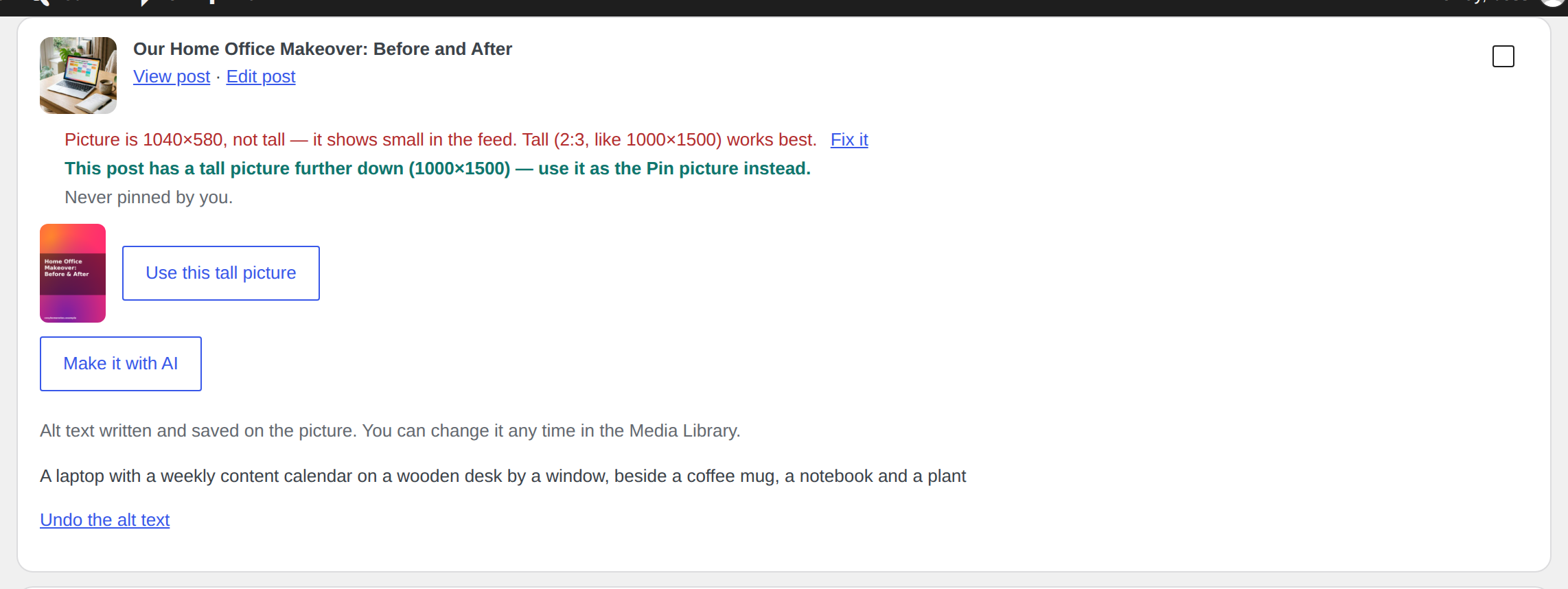
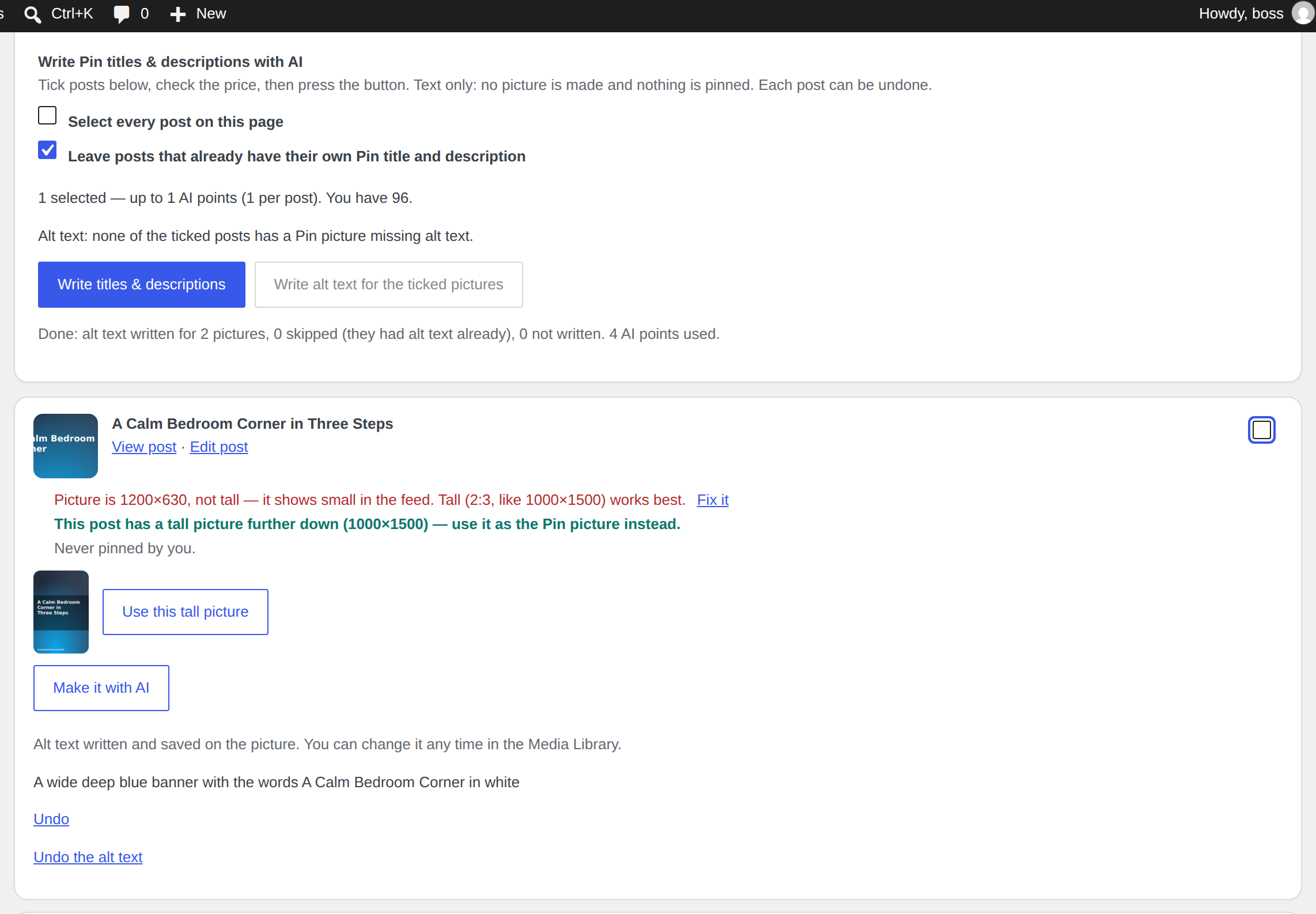
- Uses the featured image, or the first image in the post if there is no featured image.
- Sends the Pin to one fixed board, a board per category, or a board named after your site. A board that does not exist yet is created for you.
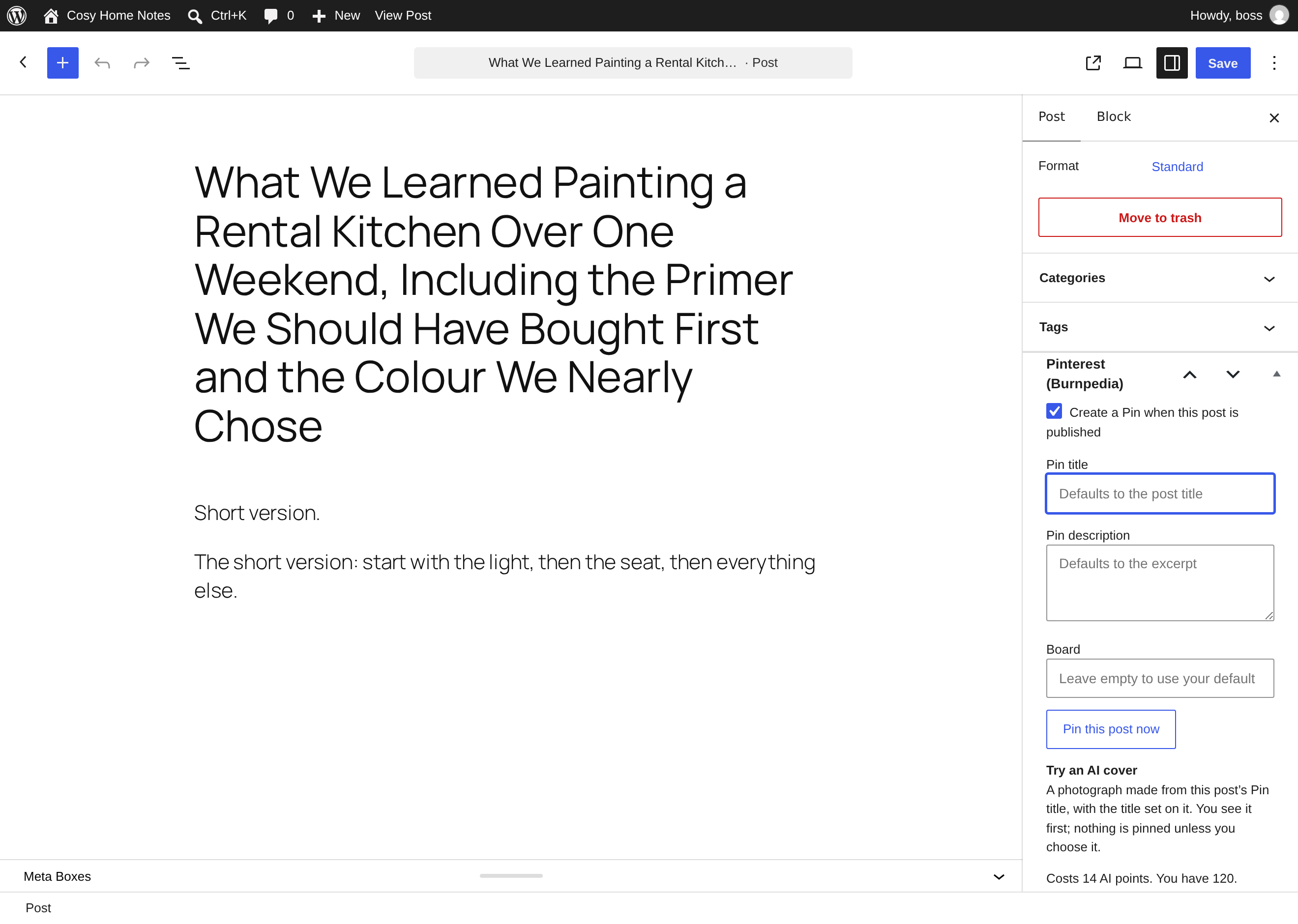
- Writes the Pin title and description from templates with
{title},{excerpt},{site}and{categories}tags — editable per post. - Adds campaign tags to the link (
utm_source=pinterest…) so Pinterest traffic is visible in your analytics. Links that are already tagged are left alone. - Schedules with a delay, so your caches and CDN are warm before Pinterest fetches the image.
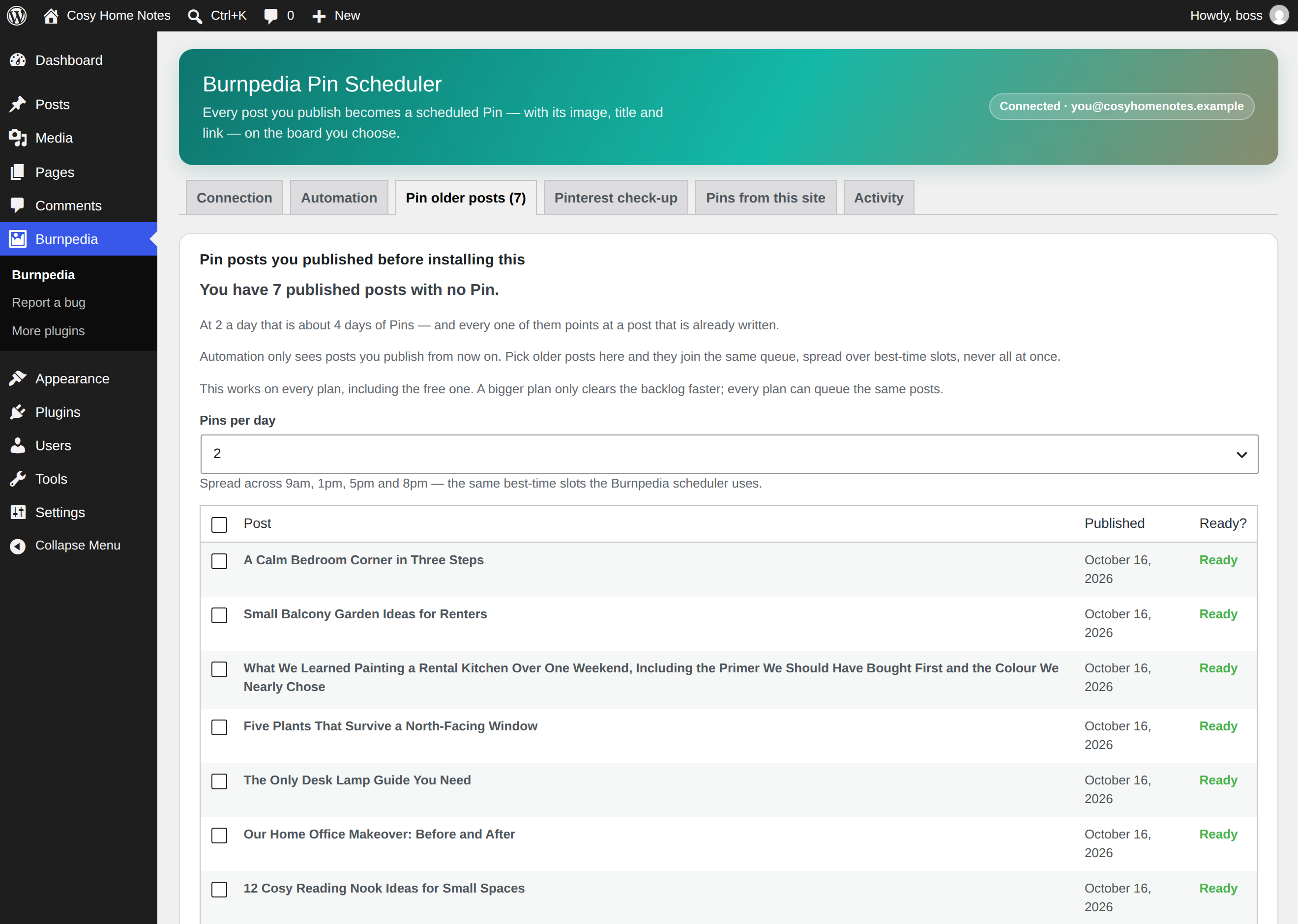
- Retries by itself when something goes wrong, and waits for the reset when you have used up the day’s allowance.
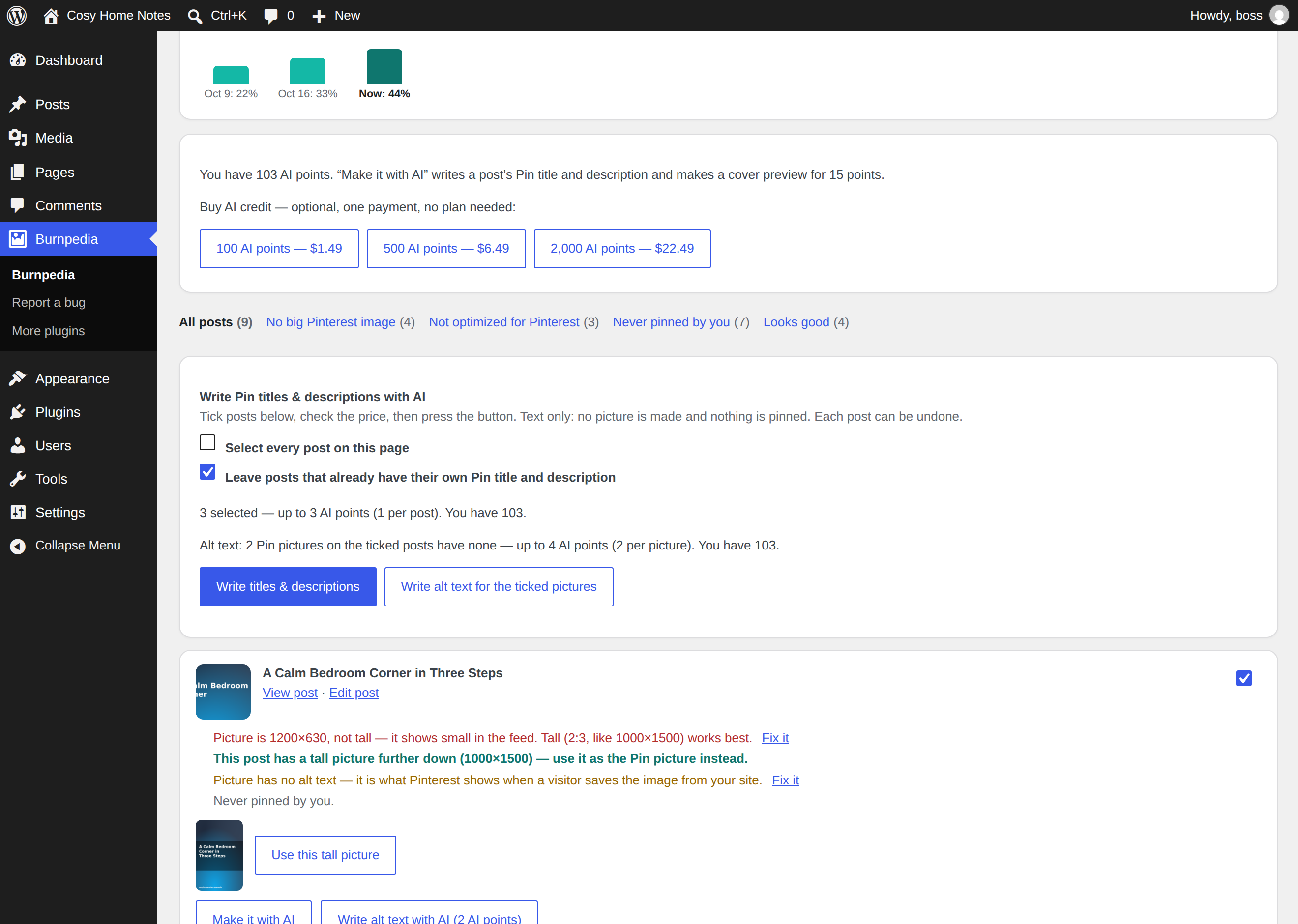
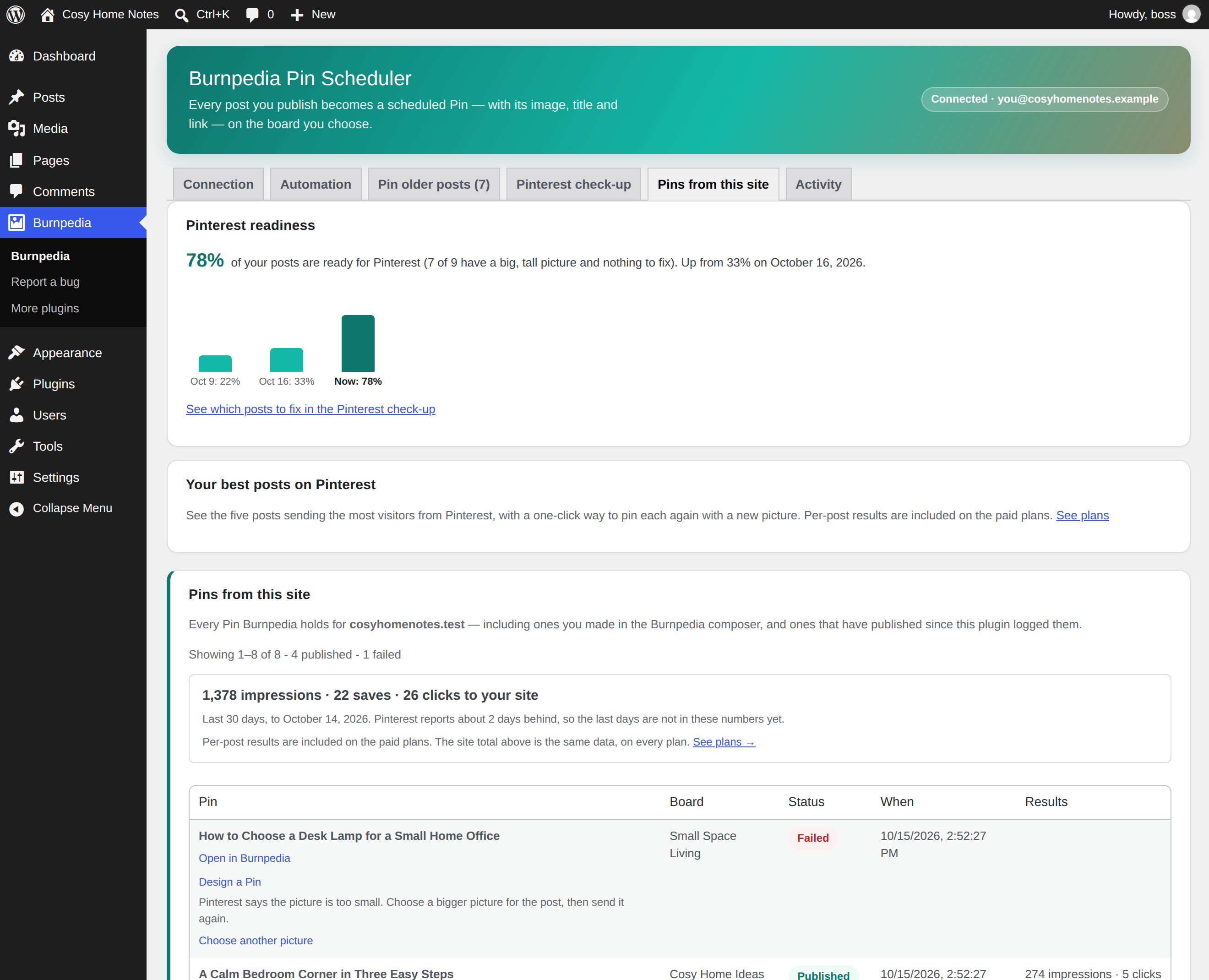
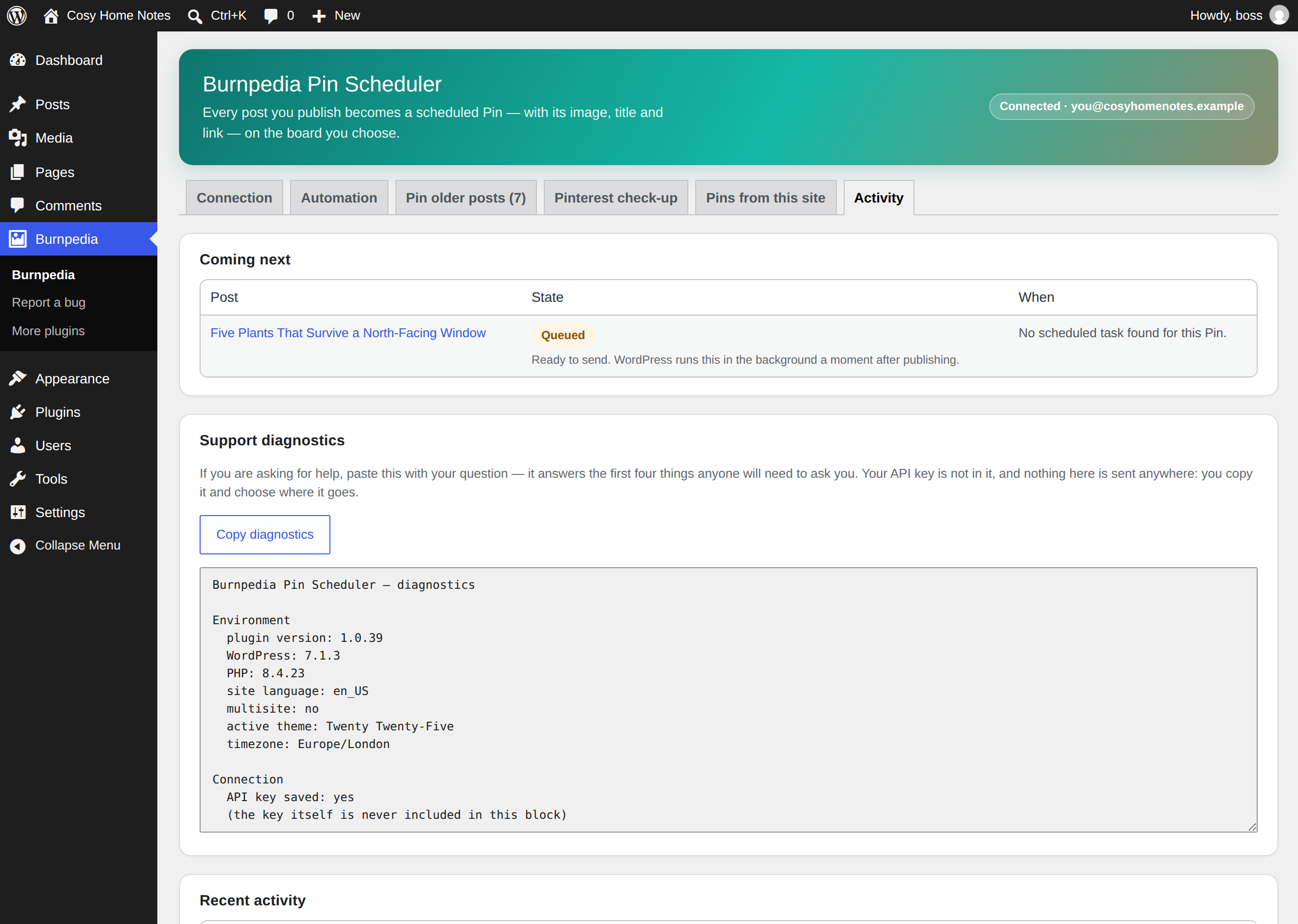
- Shows what happened, per post, in an Activity log — including the posts it skipped and why.
Works on the free plan
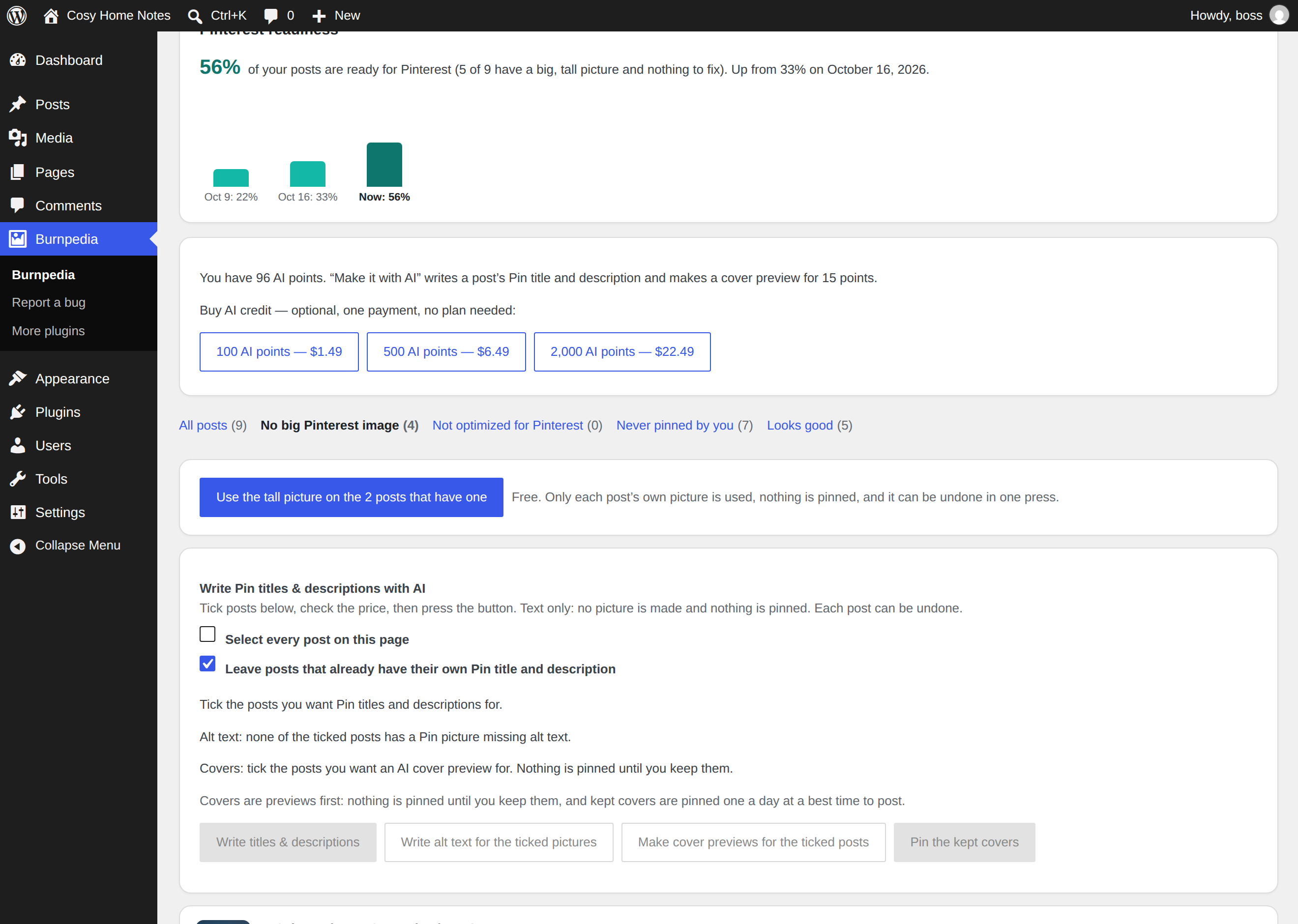
Nothing here is locked, time-limited, or waiting for an upgrade. A free Burnpedia account publishes up to 3 Pins a day, and the plugin’s every feature works on it. Paid plans raise the daily allowance and add AI-written Pin copy and AI images; the plugin behaves identically either way. See burnpedia.app/pricing.
You keep your Pinterest password
The plugin never sees your Pinterest credentials. You connect Pinterest once inside Burnpedia, on Pinterest’s own login screen, over the official Pinterest API.
Open source
The plugin is GPL. Its source, and the API it talks to, are documented at burnpedia.app/developers.
External services
This plugin is a client for Burnpedia, a Pinterest scheduling service run by Burnpedia at https://burnpedia.app. The plugin cannot work without it: WordPress has no way to publish to Pinterest on its own, and Burnpedia is what holds the Pinterest connection.
Nothing is sent anywhere until you save a Burnpedia API key. With no key saved, the plugin makes no outbound request of any kind.
Once a key is saved, the plugin contacts https://burnpedia.app/api/v1 in these situations:
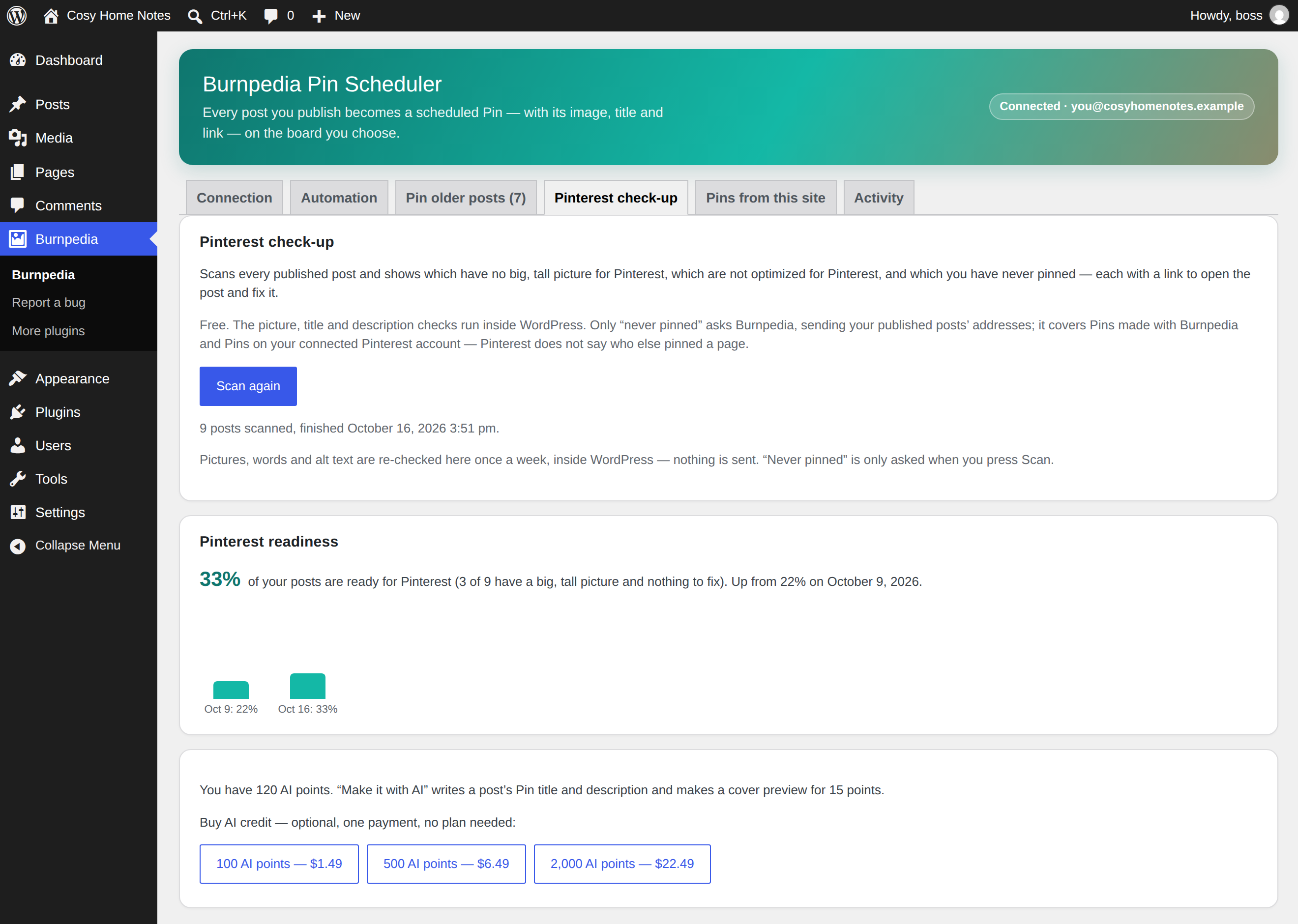
- When you open the plugin’s settings screen or press “Check connection” — a
GET /api/v1/merequest that returns your Burnpedia plan, the Pinterest accounts connected to it, and how much of today’s Pin allowance you have used. Sent: your API key. - When you press “Load my boards” — a
GET /api/v1/boardsrequest. Sent: your API key. - When a post is published (with automatic pinning on), or you press “Pin this post now” — a
POST /api/v1/pinsrequest. Sent: your API key, the Pin title, the Pin description, the post’s public permalink, the URL of the post’s image, the board name or id, and the time the Pin should be published. - Only if you switch on “When a post has no image, let Burnpedia generate one with AI” — a
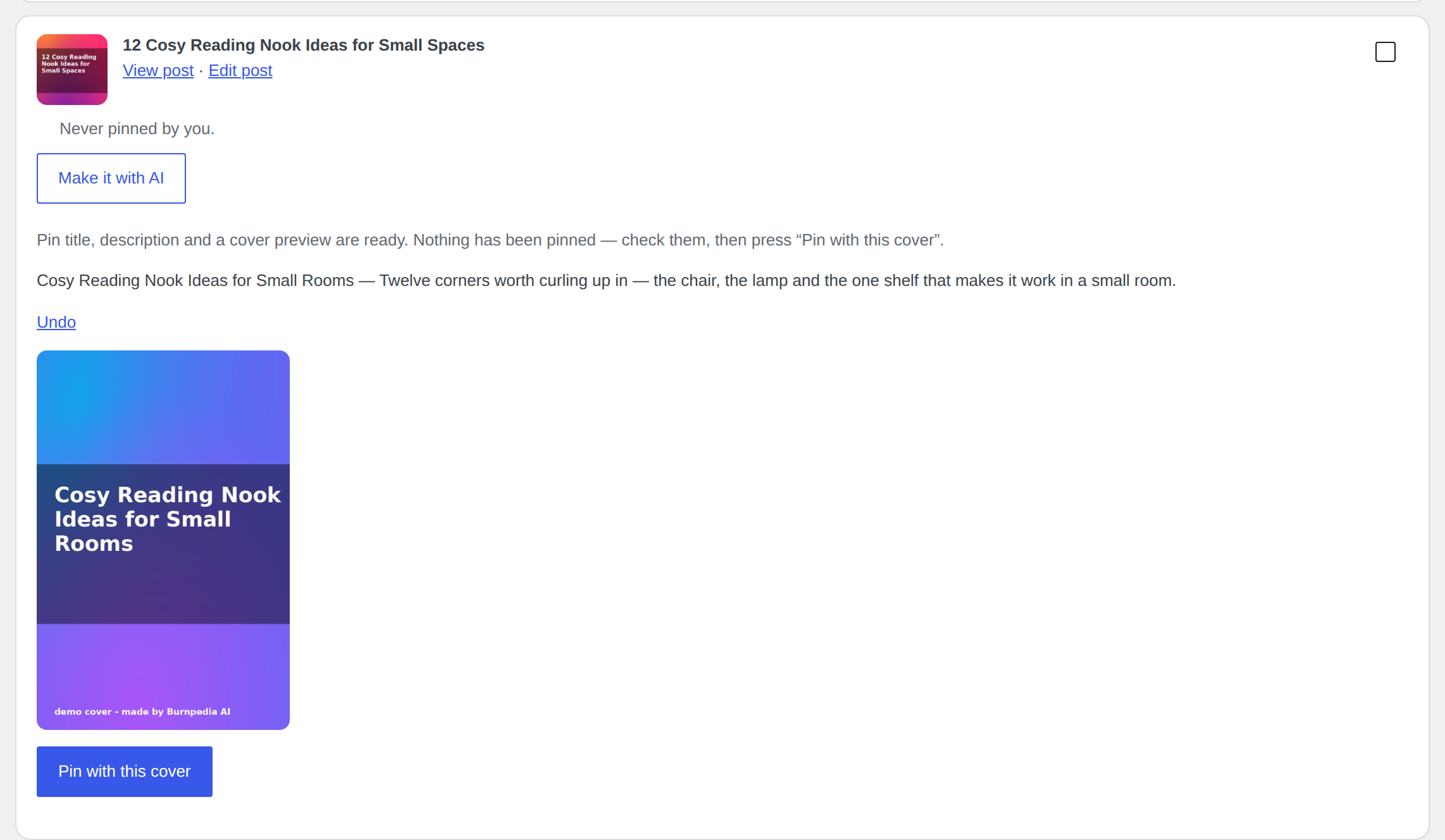
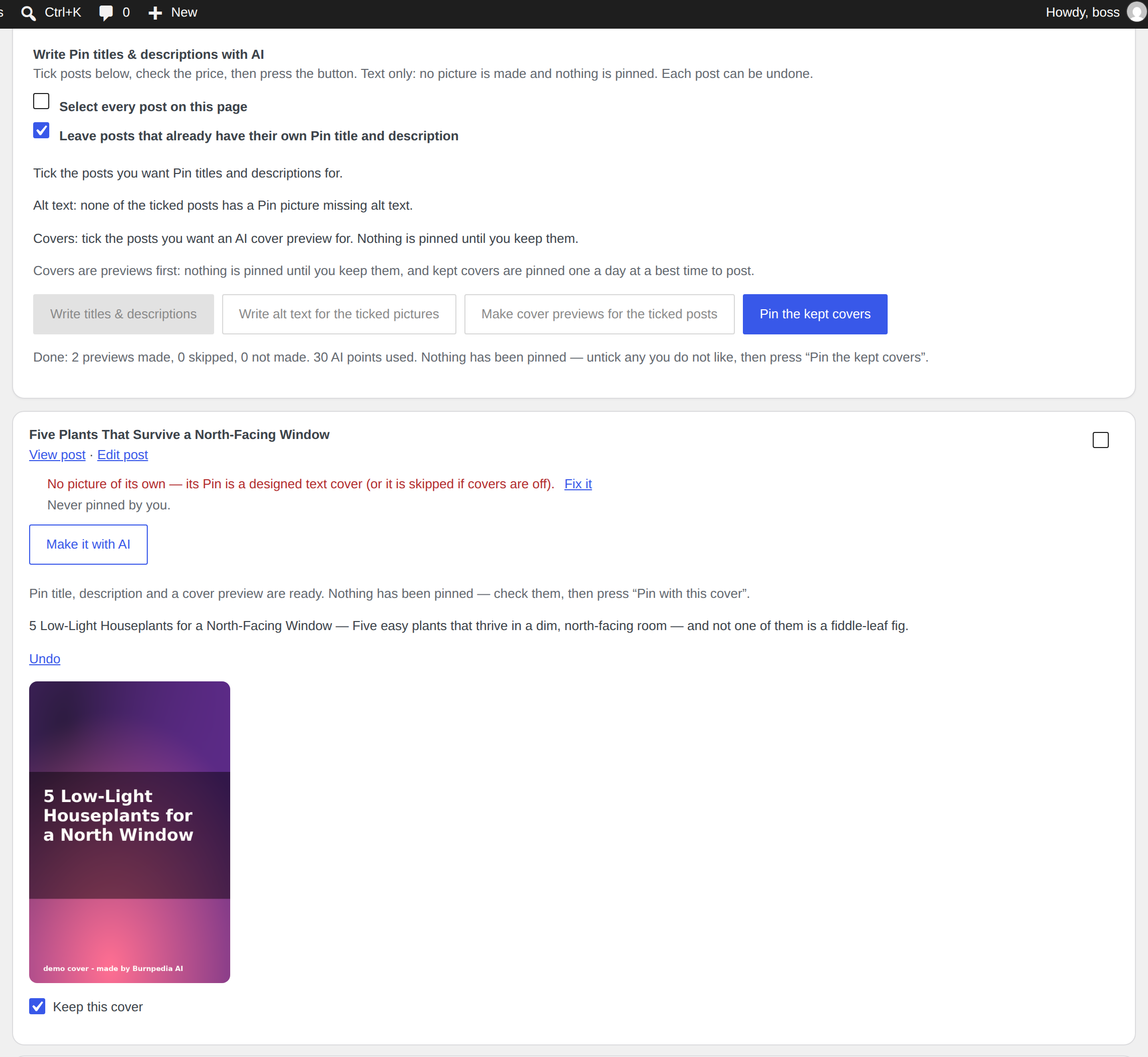
POST /api/v1/imagesrequest, made for a post that has no featured image and no image in its content. Sent: your API key and the post title, which is used as the description of the picture to draw. This setting is off unless you turn it on, it spends AI points on your Burnpedia account, and nothing is charged when a generation fails. Every generation is written to the plugin’s Activity log. - When you open the “Pins from this site” tab — a
GET /api/v1/pinsrequest. Sent: your API key and this site’s address, so that Burnpedia returns only the Pins that link to this website rather than every Pin on your account. - When you open the “Pins from this site” tab, or the posts list in WordPress — a
GET /api/v1/analytics/siterequest. Sent: your API key and this site’s address. It returns the impressions, saves and clicks Burnpedia has already recorded for your Pins; it does not ask Pinterest anything, so it cannot use up your Pinterest rate limit.
Every request also carries a header naming the plugin and its version (for example wordpress/1.0.0), the same way a browser identifies itself, so that support and compatibility questions can be answered.
No visitor data, no analytics, no usage statistics and no content beyond the fields listed above are transmitted. The plugin has no telemetry of its own: it never reports your traffic, your other plugins, or anything about your visitors. Your site’s address is sent only as part of a Pin’s own link, and when looking up this site’s Pins as described above.
Your use of the service is covered by Burnpedia’s terms and privacy policy:
- Terms of service: https://burnpedia.app/terms
- Privacy policy: https://burnpedia.app/privacy
Pinterest itself is contacted by Burnpedia’s servers, not by your site. Note that Pinterest downloads your image from your own site, so the image URL has to be publicly reachable — the settings screen warns you when it looks like it is not.
Details
Related plugins
Plugins that also contain the tag auto-publish
Auto Publish for Google My Business

WP LinkedIn Auto Publish

Social Media Auto Poster – Schedule & Publish to Buffer

Post to Social Media – WordPress to Hootsuite
Auto Publish Drafts

ParrotPoster – Auto Post to Social Media


About
Plugin for that tries to help you find the WordPress plugin you are looking for.
| Please enjoy an image of Crush (this awesome turtle) and have a lovely day! |  |
We do not own any plugin listed on this site and do not work for or work with WordPress.com or it's associated companies. We simply provide a searchable list of the available WordPress plugins.