

Disable Commands – Custom Key Binding in Command Palette
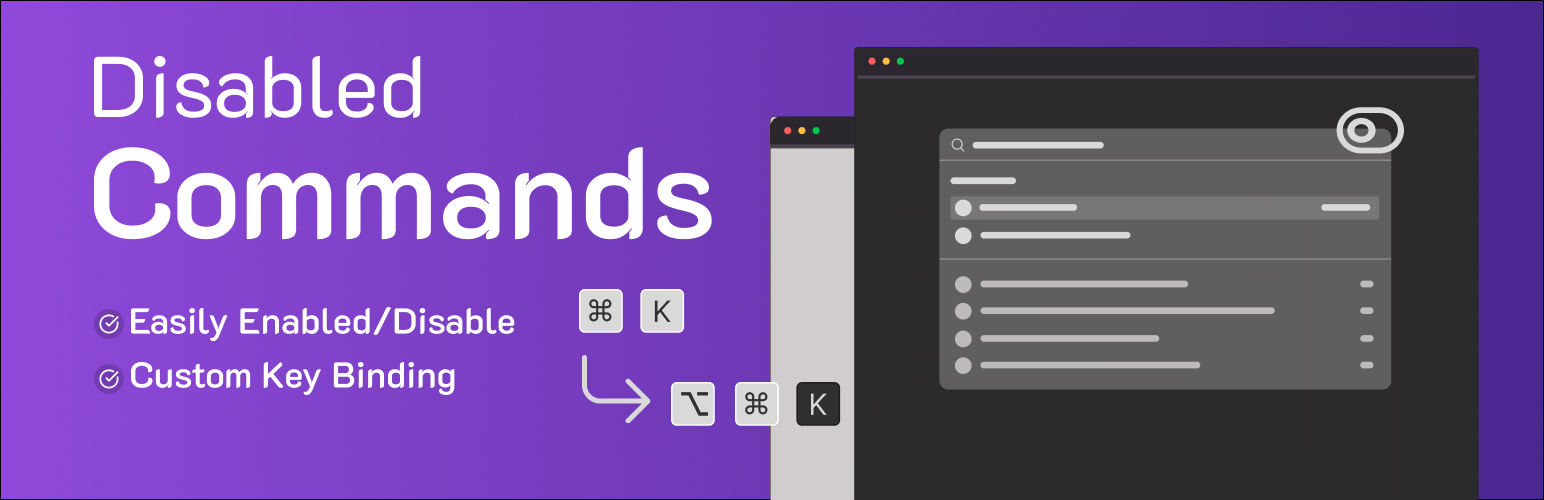
Disable Commands – Custom Key Binding gives you full control over the WordPress Command Palette (introduced in WordPress 6.9).
This plugin is essential if you need to:
* Resolve keyboard shortcut conflicts with other software or browser extensions.
* Simplify the admin interface for yourself or your clients.
* Prevent the accidental triggering of the command palette.
* Customize the default shortcut to better fit your personal workflow.
Features include:
1. Disable Command Palette: A simple toggle to completely disable the wp-commands script.
2. Custom Key Binding: Remap the command palette shortcut to any combination of modifier keys (Ctrl/Cmd, Alt, Shift) and a single letter, number, or punctuation key. For example, use Ctrl + Shift + P instead of the default Ctrl/Cmd + K.
All settings are managed from a single, user-friendly page in the WordPress admin.
Configuration
On the plugin’s settings page, you will find two main sections:
1. Disable Command Palette
* Option: Check this box to disable the WordPress admin command palette (Cmd+K / Ctrl+K).
2. Custom Key Binding
* Override Default Shortcut: Check this box to activate the custom shortcut feature.
* Shortcut Combination: Use the checkboxes to select your desired modifier keys (Ctrl, Shift, Alt, Cmd/Meta) and the input field to define a single character key (e.g., ‘k’, ‘p’, ‘/’). The default combination is Ctrl/Cmd + K.
Details

Related plugins
Plugins that also contain the tag command-palette
Hoobert – AI Command Bar for WooCommerce

Flux One – Command Bar

Command Palette Tools

PowerStack – Admin Search and Quick Navigation

Dhruval Admin Command Palette


About
Plugin for that tries to help you find the WordPress plugin you are looking for.
| Please enjoy an image of Crush (this awesome turtle) and have a lovely day! |  |
We do not own any plugin listed on this site and do not work for or work with WordPress.com or it's associated companies. We simply provide a searchable list of the available WordPress plugins.