


Eizport
Eizport gives Tools Export a new screen, built like WordPress’s newest admin screens, and extends the WordPress Importer. Prefer WordPress’s Export screen untouched? One setting moves the new one to its own Tools item; another brings back the classic Export screen with the same choices added.
The Export screen
Built with DataViews and DataForm, it runs on the plugin’s abilities:
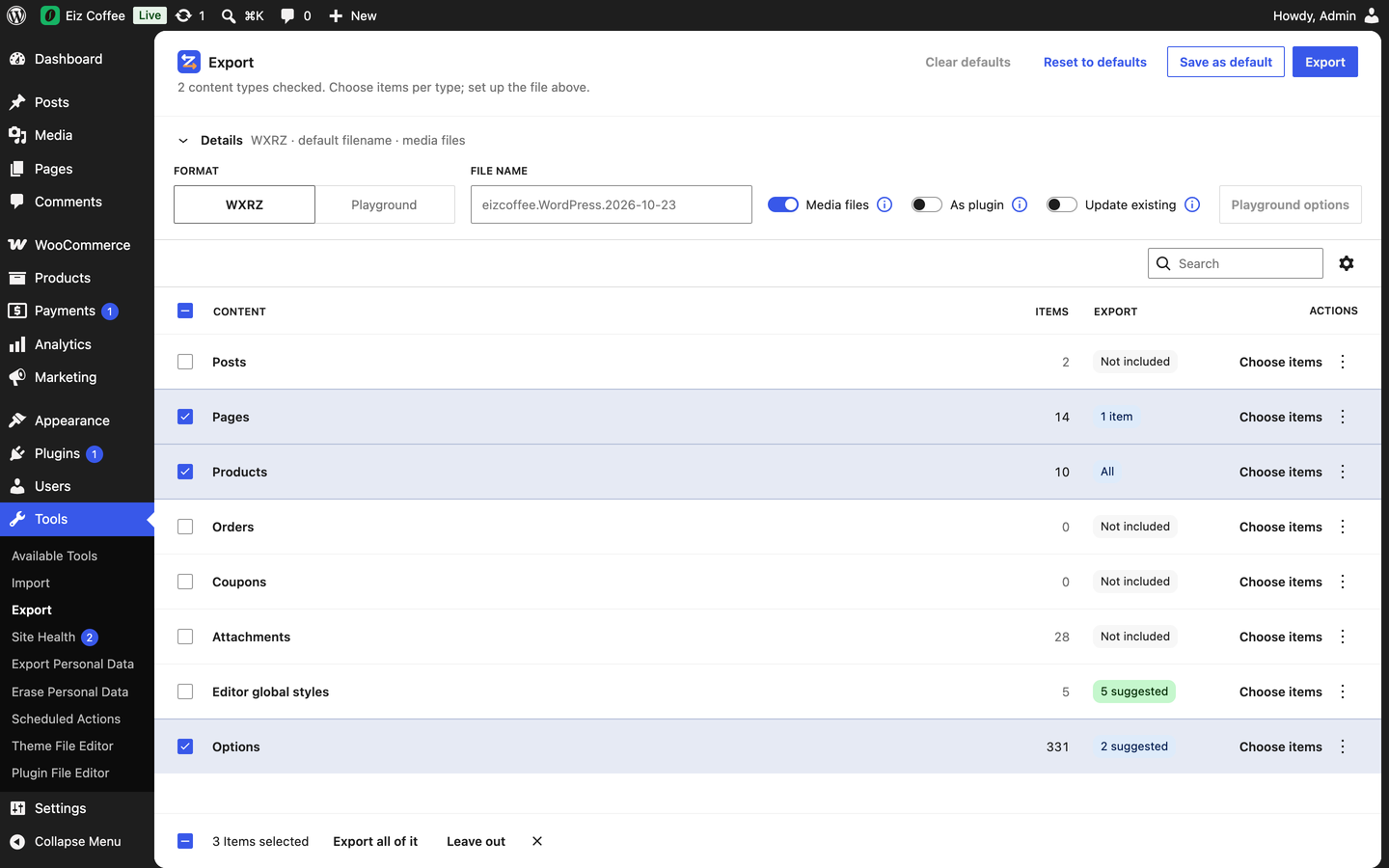
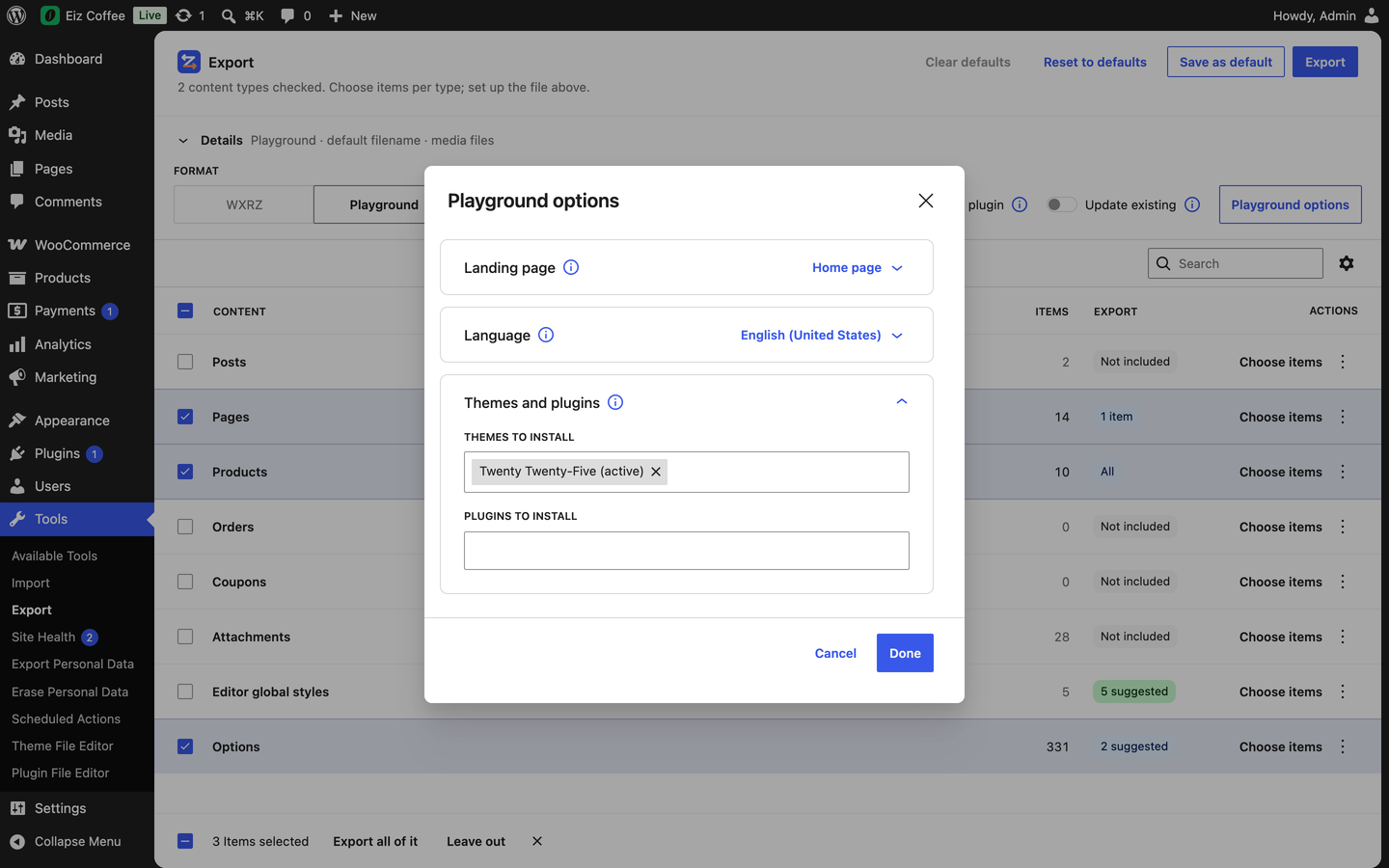
- One list: the content types, Attachments and Options. Check what to export; nothing checked exports all content.
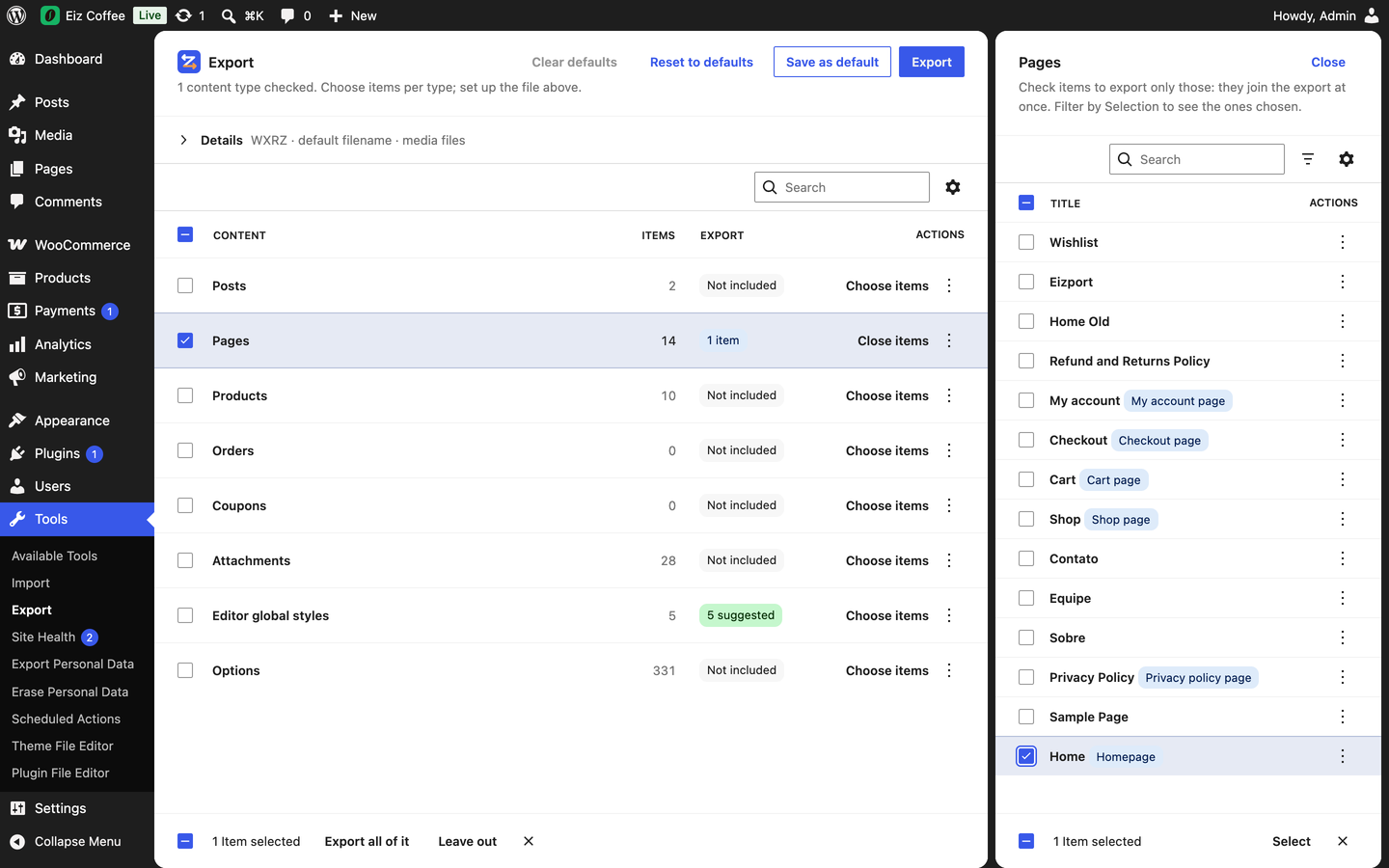
- Items in a side panel: each type’s items with search, filters and a checkbox per item; what you check joins the export at once, and a Selection filter shows the ones chosen. Items show their roles (Homepage, Posts page, Shop page…).
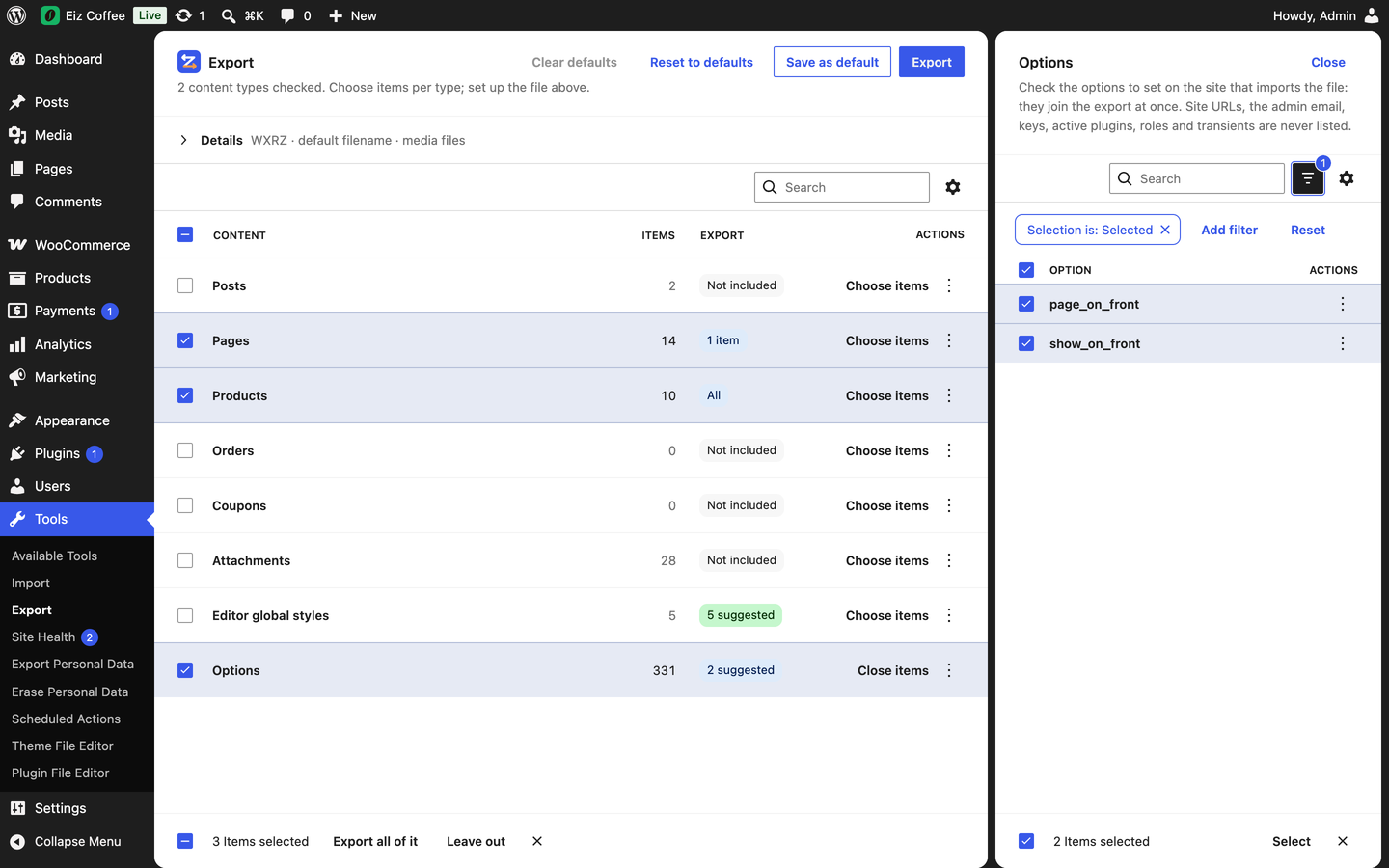
- Options: one by one in a side panel (Basics suggested). Settings that point to the items chosen (homepage, posts page, privacy policy page, site icon, WooCommerce pages) are suggested in the Options row and go with the export once it’s checked.
- The file in a panel above the list, summed up in a line until opened: format (WXR XML, or WXRZ once media files or settings go with it, or a Playground .zip), file name, media files, Playground themes and plugins.
- Save as default, Reset and Clear defaults: start with the same choices next time (yours, or the site’s), or go back to them.
On Tools Import WordPress
- .wxrz and .zip bundles (and gzipped WXR files) are accepted, with their media and content files.
- The importer looks like the Export screen — a header with the step’s main button, the steps in cards, a file button in the admin’s language — unless Settings General turns it off.
On the classic Tools Export
- Several content types at once: check pages and products, say, without posts — or keep “All content”. Posts, pages, media, products and other custom post types.
- By filters or by selection, per type: WordPress’s filters for posts, pages and media; for products and other custom post types, the same kind (dates, status, author, and each taxonomy, like product categories). Or check the exact items in a list (a tree for pages), with a box to filter it. Selected items bring their attachments and their children of other types, like a product’s variations; product reviews come with their product.
- Bundle (.wxrz, or .zip): download one compressed file with the WXR and, optionally, more. Without it, the export is WordPress’s usual .xml file, named as usual.
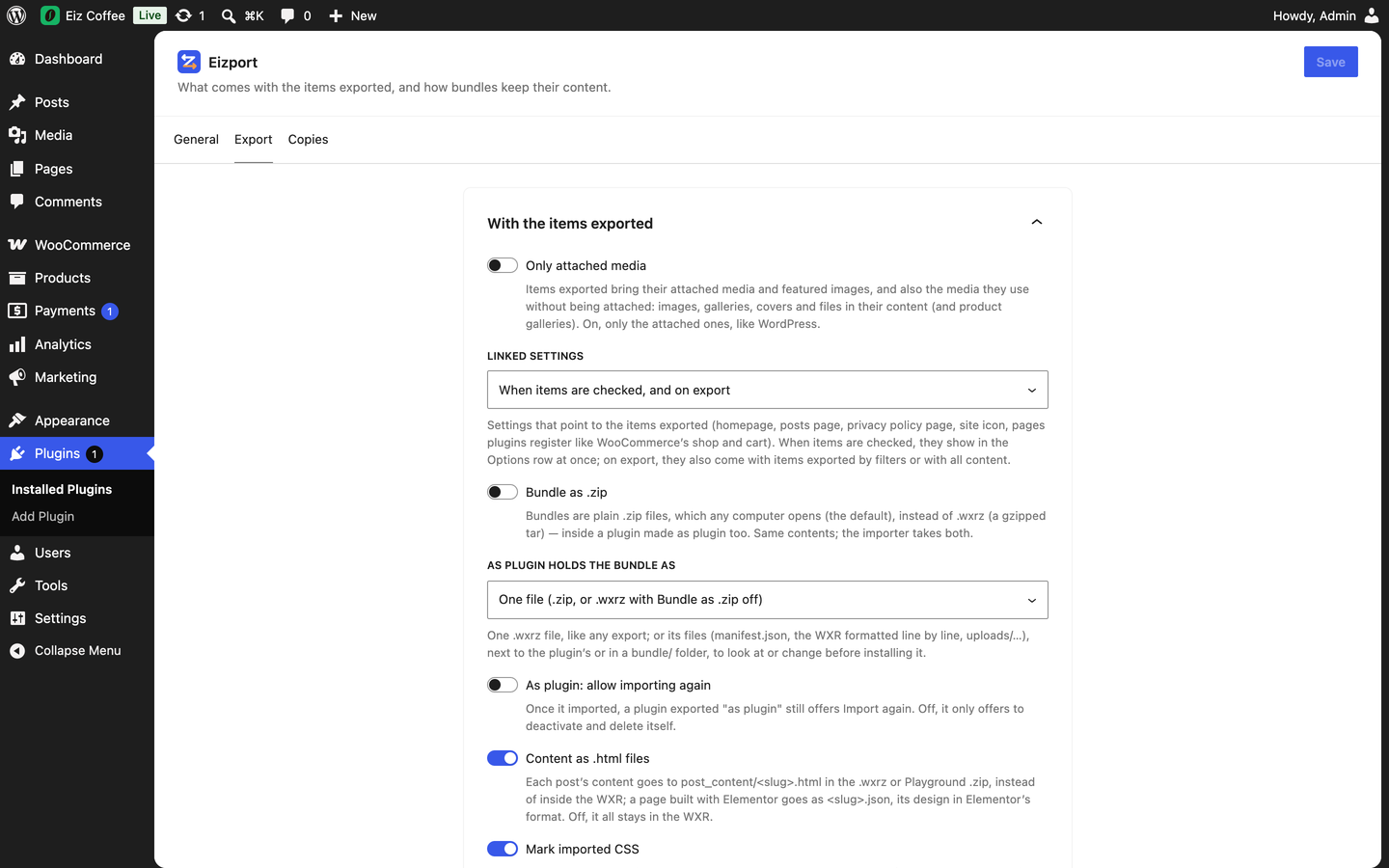
- Media used in content: items exported bring their attached media and featured images, as WordPress does, and also the images, galleries, covers and files their content uses without being attached (Settings Export “Only attached media” turns it off).
- Save these choices as default, and start with them next time.
Bundle options
- File name: of your choice; left empty, it’s WordPress’s usual
<site name>.WordPress.<date>. - Include media: the files of the exported attachments (images, PDFs…), so the importer doesn’t download them from the old site.
- Content as .html files (on by default, in Settings Export): each post’s content in its own
post_content/<slug>.htmlfile instead of inside the WXR — easy to read, edit and keep under version control. - Include settings: groups of options (Basics, suggested; Reading, General, Permalinks, Discussion, Media, privacy page, theme customizations, WooCommerce pages) and any other option by name, in an
options.json. When the homepage or the posts page is exported, they can be set as such on import. IDs in the settings (homepage, logo, menus…) are mapped to the imported items. Site URLs, the admin email, keys, active plugins, roles and transients are never exported. - Include a Playground blueprint: the download becomes a .zip ready for WordPress Playground:
blueprint.json, the plain WXR (.xml), the media and content files (as checked above) and the themes and plugins you check that aren’t in the WordPress.org directory (a child theme brings its parent; the directory’s are installed from there, in the version this site has). Playground installs them, activates the theme and imports the content. After the download, the screen shows the command that runs it (npx @wp-playground/cli@latest server --blueprint=./<file>.zip). - Keep a copy to open by link: with the blueprint, a copy of the .zip stays on the site for a while (a day by default), and a link opens it on playground.wordpress.net.
Settings, from the plugin’s row in Plugins (built with DataViews and DataForm)
- General: replace Tools Export (on by default; off, WordPress’s Export screen stays as it is and the new one is at Tools Eizport), or use the classic Export screen; whose saved defaults are (each user’s, or the site’s), and clearing them; how long copies are kept (1 hour, 12 hours, 1 day, 1 week or until deleted).
- Export: only attached media; when linked settings come along (when items are checked, on export, both, never); bundles as .zip instead of .wxrz; content as .html files.
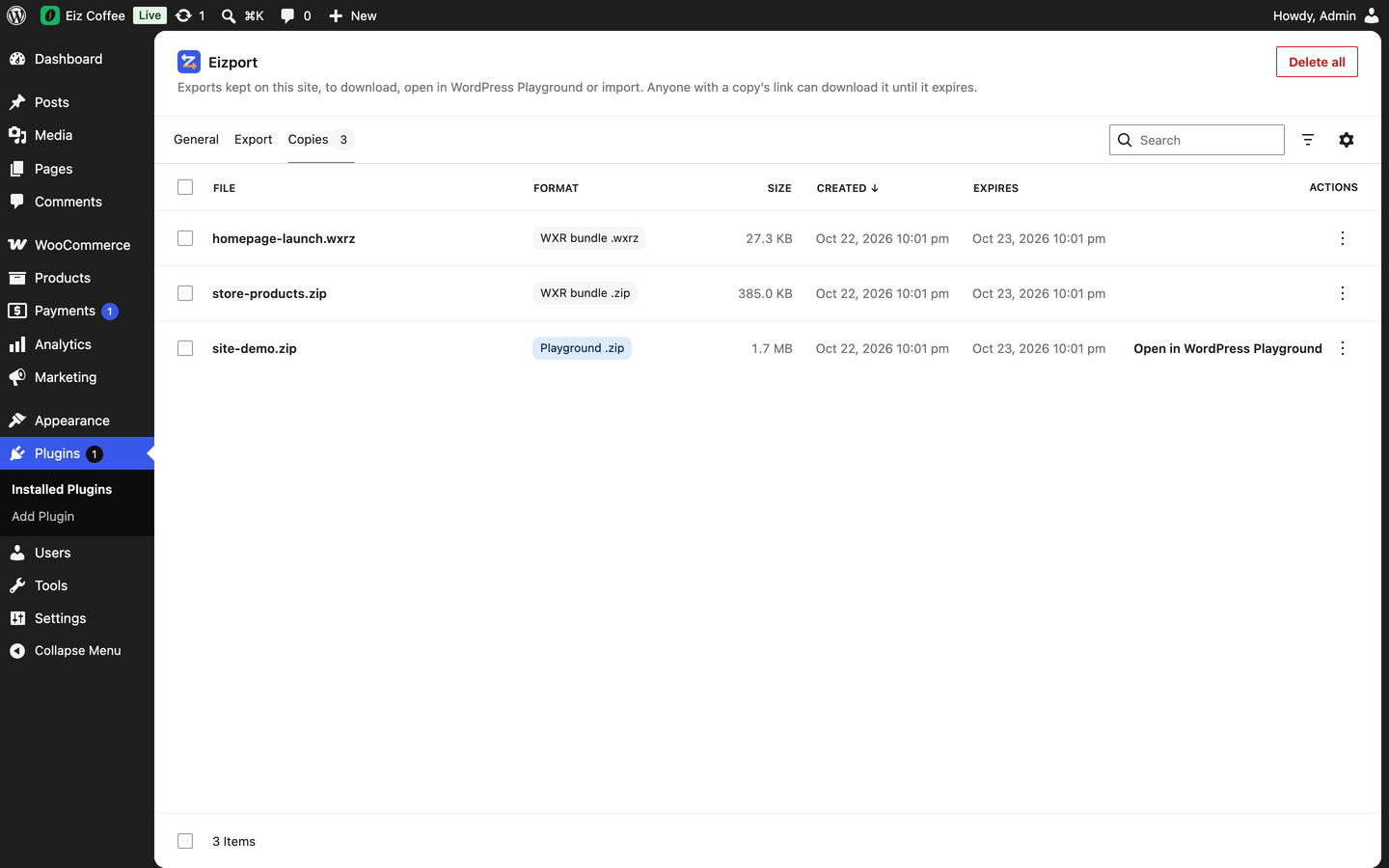
- Copies: the copies kept (bundles, WXR files and Playground .zip files), listed like the Media Library — search, sort, open in Playground, copy the link, download, import, and delete one, many or all.
On the WordPress Importer
Upload a .wxrz (or .zip) bundle like any WXR file. Its attachment files are taken from the bundle, so nothing is downloaded from the old site, which doesn’t even need to be online. Attachments, image sizes and featured images are created by the importer as usual. Content files are put back into the WXR before the import starts. Gzipped WXR files (.xml.gz) are accepted too.
The .wxrz format
A .wxrz file is a gzipped tar archive:
manifest.json— format version, the WXR file name and which attachment URL each media file belongs to;- the WXR file;
uploads/…— the attachment files, in the same folders as on the exporting site;post_content/<slug>.html— post contents, when exported as files;options.json— settings, set when the import ends.
You can open it with any tool that reads .tar.gz files. With Settings Export “Bundle as .zip”, bundles are plain .zip files with the same entries, which any computer opens.
Abilities
The same export and import, for AI agents and scripts, through the WordPress Abilities API (/wp-json/wp-abilities/v1/abilities/<name>/run, and as tools with the MCP adapter):
eizport/get-export-options— what can be exported: content types with their terms, statuses and counts, settings groups, themes and plugins, the homepage and posts page.eizport/get-items— a page of one type’s items (search, sort, the same filters as the export), to pick what to export.eizport/get-options— the site’s options one by one (search,group, pages), with their size and whether they hold post IDs; options never exported are left out.eizport/export— exports to a temporary copy (a .wxrz or .zip bundle, WordPress’s plain .xml withbundle: false, or a Playground .zip withblueprint) and returns its link:types(post type =>idsorfilters),media,media_used,post_content,zip,options(groups,names,front_pages,linked, orall),blueprint(themes,plugins),filename.eizport/get-export-defaults,eizport/save-export-defaultsandeizport/clear-export-defaults— the choices saved as default (the site’s needmanage_options).eizport/get-copies— the copies kept, with their links and expiry.eizport/delete-copies— deletes copies bynames, orall.eizport/import— imports acopykept on this site, or anattachment_idof a .wxrz, .zip or .xml file, with media and settings.eizport/get-settingsandeizport/update-settings— the plugin’s settings (see Settings above);manage_options.
They follow the same rules as the screens: the export capability for exporting and copies, import for importing. Only one export runs per request.
For developers
eizport_post_content— filter the content an imported item gets from a bundle ($content,$itemwith originalid,typeandslug,$dir).eizport_wxrz_max_bytes— the largest size a .wxrz may expand to when imported (default 512 MB).eizport_playground_blueprint— filter the blueprint of a Playground .zip ($blueprint,$wxr_name).eizport_linked_options— options that point to a post, with its role:option => array( 'label' => 'Shop page', 'with' => array( … ), 'when' => array( option => value ) ). They get the imported post’s ID on import, show on the items, and come with them.eizport_option_groups— the groups of options offered (key => array( 'label' => 'Name: what it holds', 'options' => array( … ) )).eizport_denied_options— more options never exported (a plugin’s keys, tokens or version numbers); WordPress’s own can’t be removed.eizport_media_used— attachments a post uses beyond its content ($used,$post), like a product gallery.eizport_register_compat— action, after all plugins load, where compatibilities hook those filters. The WooCommerce one ships with the plugin (includes/compat/woocommerce.php: pages, a group, version options, product galleries); a plugin can replace it with its own:remove_action( 'eizport_register_compat', 'Eizport\Compat\WooCommerce\register' );.eizport_post_id_options— options that hold a post ID (by default the linked options), mapped to the imported post on import.eizport_selection_limit— how many items each “By selection” list shows (default 1000, the latest).eizport_copy_lifetime— how long a Playground copy lasts, in seconds (default: the one chosen in the settings; 0 keeps copies until deleted).wp eizport import <file>— WP-CLI command that imports a .wxrz (or .xml.gz, or .xml) with the WordPress Importer, attachments included.
External services
Eizport doesn’t run a service of its own and sends nothing to its authors. A few features rely on WordPress.org services, as WordPress itself does, or on links you choose to open:
- WordPress.org plugin and theme API (api.wordpress.org). When you build a Playground .zip, Eizport asks WordPress for the update information it already keeps about your plugins and themes, to know which ones come from the directory: those are installed from there instead of being copied into the .zip. If WordPress doesn’t know one of them yet, it runs its usual update check, which sends the list of installed plugins and themes with their versions, the WordPress and PHP versions, the site’s language and its address. On the other site, a plugin exported “as plugin” asks the same API whether Eizport is in the directory, when its screen is opened and Eizport isn’t installed: the request carries the name “eizport” and what WordPress sends with every such request (its version, the site’s language and address). WordPress.org privacy policy: https://wordpress.org/about/privacy/
- WordPress.org downloads (downloads.wordpress.org). “Install Now” installs Eizport or the WordPress Importer from there, through WordPress’s own installer, only when you click it. Inside WordPress Playground, the blueprint installs the directory’s plugins and themes, in the versions your site has, from there too. Same privacy policy.
- WordPress Playground (playground.wordpress.net), a WordPress.org project that runs WordPress in the browser: https://wordpress.org/playground/. “Open in WordPress Playground” opens it in your browser, only when you click it, with the link of a copy kept on your site; Playground then downloads that .zip, with the content you exported, from your site into your browser. The
$schemaaddress in blueprint.json is only a reference for editors; nothing is requested from it. Same privacy policy. - The site the content came from. Like the WordPress Importer, an import downloads the media files a plain WXR points to, or that a bundle doesn’t include, from their original addresses. The files a bundle includes are served from your own server.
- GitHub (github.com/eizport/eizport). When Eizport isn’t installed, a plugin exported “as plugin” also shows a “Download Eizport” link to its releases there; nothing is sent unless you click it. Terms: https://docs.github.com/en/site-policy/github-terms/github-terms-of-service — privacy: https://docs.github.com/en/site-policy/privacy-policies/github-general-privacy-statement
Details
Related plugins
Plugins that also contain the tag export
Customizer Export/Import
WP All Export – Drag & Drop Export to Any Custom CSV, XML & Excel

Import and export users and customers
WP Import Export Lite

Export media with selected content (by DKZR)

Export Media Library


About
Plugin for that tries to help you find the WordPress plugin you are looking for.
| Please enjoy an image of Crush (this awesome turtle) and have a lovely day! |  |
We do not own any plugin listed on this site and do not work for or work with WordPress.com or it's associated companies. We simply provide a searchable list of the available WordPress plugins.