

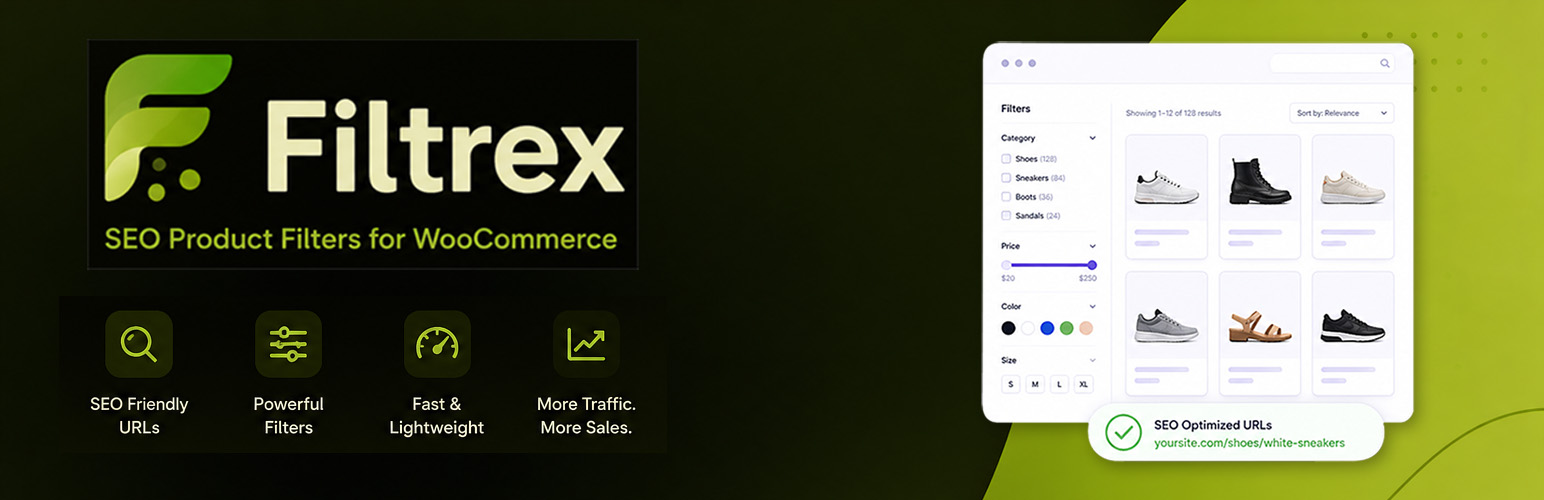

Filtrex — SEO Product Filters for WooCommerce
Filtrex – SEO Product Filter for WooCommerce is a plugin built around one principle: every filtered page should be a page search engines can understand, crawl, and index correctly.
The Plugin generates clean, hierarchical URLs — /product-category/clothing/color-red/size-m/ — without extra path segments or tracking parameters. Each URL can carry its own robots meta tag and canonical URL, configured separately per filter scenario directly in the plugin settings.
Beyond URL structure and crawl control, the plugin gives store owners a complete toolset for on-page SEO of filtered pages: dynamic title tags, dynamic H1 headings, dynamic meta descriptions, and integration with all major SEO plugins.
SEO-Friendly WooCommerce Product Filter URLs
Filter selections are encoded directly into the URL path:
/product-category/clothing/color-red/
/product-category/clothing/color-red/size-m/
/product-category/clothing/price-100-500/
In AJAX mode, the browser URL updates silently via the HTML5 History API as the customer applies filters. The resulting URLs are shareable, bookmarkable, and navigable with the browser back and forward buttons.
Robots Meta Tag and Canonical URL Control for Filtered Pages
The plugin provides individual robots and canonical settings for each type of filtered page. You can configure these scenarios separately:
Unfiltered pages:
- Category page — first page
- Category page — paginated
- Shop page — paginated
Filtered pages:
- Single filter, single value — on shop page or on category page
- Brand filter only — on shop page or on category page
- Brand plus one additional filter with a single value — on shop page or on category page
- Two filters, one value each — on shop page or on category page
- Single filter with multiple values selected
- Multiple filters (three or more) or multiple values combined
- Price filter only
- Paginated filtered pages
- Pages with
?orderby=sort parameter
Robots options: index,follow / noindex,follow / noindex,nofollow
Canonical options: current URL / first page of the filter / category page / shop page
Granular noindex per attribute and per term — you can mark individual attribute terms as noindex without affecting the rest of the attribute. For example: noindex pages filtered by pa_color = black while keeping all other color filter combinations indexable.
Integration with SEO Plugins
The plugin is compatible with Yoast SEO, Rank Math, The SEO Framework, SEO Press and All in One SEO. The plugin detects which SEO plugin is active and hooks into its robots, title tag and canonical output filters. If no SEO plugin is present, the plugin outputs the meta tags directly in wp_head as a fallback.
Robots and canonical settings configured in the SEO tab take effect regardless of which SEO plugin handles the page output.
Dynamic SEO Titles and Meta Descriptions for Filtered Pages
Title tag and H1 heading — both are generated dynamically from a configurable list of components. Available components: category name, shop name, up to two attribute values and separator text elements. The component order is fully configurable via drag-and-drop, and you can set capitalization rules (as-is, sentence case, title case, or uppercase) and an optional suffix for the title tag only.
Meta description — configure a template for each filter scenario using placeholders: {category}, {attribute}, {price}, {filters}, {category_in}. Dynamic descriptions can apply to all filtered pages or to indexed pages only.
A live preview of the generated title is available directly in the SEO settings tab before saving.
Grammatical inflection for Slavic and other inflected languages — you can assign grammatical gender to categories and custom taxonomies, and store inflected forms per term. The title and H1 generation system uses the correct inflected form when building the output. Languages with predefined support: Serbian, Croatian, Bosnian.
WooCommerce Product Filter Types
The plugin supports five filter types:
Price filter — range-based with a dual-thumb slider, input fields, or both combined. Minimum and maximum values are calculated from products within the current category context.
Product categories — hierarchical tree with subcategory indentation and product counts. Clicking a category navigates to that category page rather than applying a checkbox filter.
Product attributes — all WooCommerce product attributes. Each attribute has an independent display style setting. Product counts update dynamically when other filters change.
Brands — WooCommerce product brands with color swatch or image swatch support.
Custom taxonomies — public product taxonomies beyond WooCommerce defaults display as hierarchical link trees, following the same pattern as categories.
All filter types support:
- Enable or disable individually
- Custom label override
- Default collapsed or expanded state
- Drag-and-drop reorder across all filter types
- Product count display with dynamic recount on filter change
Display Styles for the AJAX WooCommerce Product Filter
AJAX mode updates the product list without a page reload. During filtering, the product grid, pagination, active filter chips, and browser URL all update without leaving the page.
Page reload mode is also available for setups where AJAX is not preferred.
Filter logic — choose AND (products must match all active filter groups) or OR (products match any group). The setting applies across all filter types.
Each attribute and the brand filter can use one of five display styles:
- Checkboxes — standard list with labels and counts
- Chips — pill-shaped toggle buttons
- Toggle buttons — rectangular button-style toggles
- Color swatches — circular colored elements with a hex color picker per term
- Image swatches — thumbnail images uploaded per term via the WordPress media library
A search box can appear inside any attribute filter above a configurable item count threshold. A “Show more / Show less” control limits the visible number of items.
Ghostblock Pagination
The plugin replaces the standard WooCommerce sequential pagination with Ghostblock pagination on all shop and product category pages — for both AJAX mode and page reload mode.
Standard pagination links pages 1, 2, 3, 4… sequentially. On a store with 200 pages, pages beyond the first few are never linked from page 1 and receive almost no PageRank from internal linking. Ghostblock fixes this by displaying two blocks of 10 pages on every paginated page:
- Primary block — the 10-page window that contains the current page (e.g. pages 1–10 when browsing page 5)
- Ghost block — a jump-ahead window at
current_page × 10 + 1(e.g. pages 51–60 when browsing page 5)
The ghost block links are displayed with reduced opacity to signal to users that they are secondary navigation, while still being fully crawlable and clickable.
This ensures that every page on the store is reachable within a small number of clicks from any other page, distributing internal PageRank to deep catalog pages that would otherwise be inaccessible to search engine crawlers.
Ghostblock pagination is enabled by default. It can be disabled in the Display settings tab if standard WooCommerce pagination is preferred.
Variation Image and Price Matching
When the variation image matching feature is enabled for an attribute, the product card in the grid swaps its image and displayed price to match the variation that corresponds to the currently selected attribute values. This applies to WooCommerce variable products.
Active Filters Bar
Active filter selections appear as removable chips. Each chip shows the filter label and value; clicking it removes that filter immediately. A “Reset all” link clears all active filters at once. The bar can be positioned above the product grid or below the filter panel.
Mobile WooCommerce Product Filter Panel
On mobile, the filter panel opens as a slide-in drawer. The trigger button position (left, center, right), width (full or auto), label text, and all panel colors (background, text, accent, overlay) are configurable individually via the Display settings tab using a color picker.
The Apply and Reset buttons stay fixed at the bottom of the panel outside the scrollable filter area, so they remain accessible regardless of how far the customer has scrolled through the filters.
Gutenberg Block and Shortcode
Gutenberg block — add the “Product Filter” block via Appearance > Widgets, in the sidebar widget area of your theme. Each block instance has its own settings for title text, which filters to show or hide, and initial collapsed or expanded state per filter.
If you add the block directly in the WordPress page or post block editor (not the widget area), only the category and custom taxonomy filters will be displayed. Price, attribute, and brand filters require a WooCommerce shop or category archive context to generate correct URLs.
Shortcode: [spfwsp_filter]
Available parameters:
show="price,categories"— show only the listed filtershide="brands,pa_color"— hide the listed filterstitle="Filter Products"— override the filter titlecollapsed="price,brands"— start these filters in collapsed statelayout="full_width"— force full-width off-canvas layout for this shortcode instance, rendering both the open button and the filter panel; useful when the theme does not call the standard WooCommerce hook
All parameters can be combined freely.
No jQuery Dependency
All frontend functionality — AJAX requests, URL updates, filter interactions, mobile panel, active chips — is written in vanilla JavaScript. No jQuery is loaded or required.
Theme Compatibility for Dynamic H1 Headings
The plugin is tested and confirmed compatible with the following themes:
- Astra
- Kadence
- Neve
- OceanWP
- Blocksy
- GeneratePress
- Storefront
- Virtue
Dynamic H1 headings work differently across themes because each theme has its own way of rendering the WooCommerce page title. For other themes, the standard WooCommerce title filters are used.
If a theme is not listed here, the dynamic H1 heading feature may or may not work depending on how the theme renders the page title — check the plugin settings to enable it and verify the output on your store. If H1 is not updating, check which filter hook your theme uses for the page title and enter it in the Custom H1 filter hook field in the SEO settings tab.
Details


Related plugins
Plugins that also contain the tag ajax
zipaddr-jp

SearchWP Live Ajax Search

AJAX Thumbnail Rebuild

WPC AJAX Add to Cart for WooCommerce

Ajax Cart AutoUpdate for WooCommerce

Load More Anything


About
Plugin for that tries to help you find the WordPress plugin you are looking for.
| Please enjoy an image of Crush (this awesome turtle) and have a lovely day! |  |
We do not own any plugin listed on this site and do not work for or work with WordPress.com or it's associated companies. We simply provide a searchable list of the available WordPress plugins.