


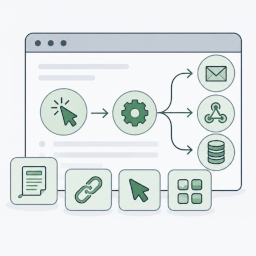
GlocalSaino Automations Based on Triggers
GlocalSaino Automations Based on Triggers lets you build automations without writing code. Each automation has a trigger (the event that starts it), optional conditions, and one or more actions that run when the trigger fires. Everything is free: no license key, no locked features, no usage caps.
Documentation: step-by-step guides for every trigger, condition and action, shortcode reference and FAQ at glocalsaino.com/automationsbasedontriggers/documentacion.
Triggers
- Click on a link – the plugin gives you a tracked link (and a shortcode). Each click runs the automation and takes the visitor to the destination you set in the back end. Values added to the link (e.g.
&email=…) become fields. - Click on a button – insert a button with a shortcode; its text, style, message after the click and destination are set in the back end.
- WordPress user events – a user registers, logs in or changes their password.
- CSV or Excel file uploaded – upload a CSV (any separator, any common encoding) or Excel .xlsx file from the back end, or let your users upload it from the website with the [glocalsaino_aat_upload] shortcode (logged-in users, specific roles or anyone, with anti-spam). Run the automation once for the whole file or once for each row. Files are read and discarded, never stored.
- Embeddable widget on other websites – a button, link or form with fields that other websites show by pasting a small piece of code. When a visitor uses it there, the automation runs on your site.
- Contact Form 7 submission – fire when a specific form is submitted, or only when a specific field of that form is submitted with a specific value (or with any value).
- Data received through a webhook – the plugin generates a unique webhook URL for the automation. Define the keys you expect, and the values the external system sends under those keys (as query string, form body or JSON body, via GET, POST or PUT) become available to the actions.
Tables
Create tables under Automations Tables: give them columns (text, number, date, link or email), or read the columns from a CSV / Excel file. Show them anywhere with the [glocalsaino_aat_table id=”…”] shortcode, with search, sorting by column, pagination and an optional CSV download. Choose who can see each table: everyone, logged-in users, specific roles or only administrators. Browse, export or delete the rows from the back end. Exported values are protected against spreadsheet formula injection.
Embeddable widget for other websites
Give a partner, client or another site of yours a widget instead of a webhook URL:
- Button, link or form with text, email, number, phone, long text, drop-down, checkbox and privacy-consent fields, validated on your server.
- Your design: colors, font and corner radius, plus, optionally, your site’s own Additional CSS (written in WordPress, not in the plugin). It lives in its own iframe, so the other site’s styles never break it.
- Easy to paste: a one-line script that adjusts the height automatically and can take the visitor to another page after sending, or a plain iframe where scripts are not allowed.
- Where it is shown: browsers only display it on the websites you list (frame-ancestors). This controls where the widget appears, not who can send data: like a webhook, anyone who knows its address can send submissions directly, so treat the received values as untrusted.
- Abuse protection: every submission needs a single-use code issued when the widget loads, plus a minimum time to send, a hidden anti-spam field, a per-connection hourly limit, a per-automation hourly limit for all anonymous visitors together and an optional hCaptcha. Rejected submissions are logged with the reason.
- Statistics per website: views, submissions, conversion and rejected submissions over the last 30 days, plus a live preview in the editor.
Webhook security
The webhook URL contains a random key, and you can add up to three extra protections, all free:
- Authentication token in a header – you generate a token and give it to the sender together with the URL; calls without it are rejected (
Authorization: Bearer …is supported too). - IP allowlist – only accept calls from specific IPv4 / IPv6 addresses or CIDR ranges. Works behind proxies and Cloudflare (configurable in Settings).
- HMAC signature verification – ready-made presets for Stripe, Shopify, WooCommerce and GitHub, plus a custom mode (header, SHA-256 / SHA-512 / SHA-1, hex or Base64, optional timestamp). Timestamped signatures also reject replayed calls.
Every rejected call is recorded in Webhook Logs with its error code and reason.
Conditions
- Field conditions – compare any trigger value: equals, contains, starts / ends with, is empty, greater / less than…
- WordPress user conditions – the visitor has (or has not) logged in; the user is a registered user; the user is a specific registered user (searchable list). The user can be the logged-in visitor, or the user whose email or username was sent in a field.
Combine them with “all the conditions” or “any of the conditions”.
Actions
- Calculator – write operations with the trigger values or your own numbers, e.g.
({{price}} * {{quantity}}) * 1.21, with rounding and functions (round, min, max, abs…). The result can be used by the next actions, e.g. in an email. - Format data – first or last word, first letter, initials, upper / lower case, shorten, extract or replace text, keep only digits, round or format a number (1.234,56), format a date, default value… The result can be used by the next actions.
- Redirect the user – send the visitor to a page after clicking a link or button, sending a Contact Form 7 form, logging in or registering.
- Add rows to a table – store values from any trigger (a whole uploaded file, a Contact Form 7 form, a webhook, a widget…) in a table you define, adding rows or replacing them all.
-
Wait – schedule the actions that follow it to run minutes, hours, days or weeks later (for example, a reminder email two days after a form is sent). Scheduled actions can be run now or cancelled from Logs Scheduled actions.
-
Send data to an external webhook – call any API with GET, POST, PUT, PATCH or DELETE. Edit the URL, the key / value pairs to send (as JSON or form data) and optional headers. Values can include any field received by the trigger.
- Send an email – configure the recipient, Reply-To, subject and message. All of them can include any field received by the trigger.
Each automation can run several actions, in the order you choose; the results of calculations and formats are passed on to the actions below them. Insert trigger values anywhere with the Insert field… picker; they are written as {{field_name}}.
Admin screens
- Automations – list of all automations with their name, trigger, actions, number of completed runs, status (active / inactive) and creation date. Activate, deactivate, duplicate or delete them individually or in bulk.
- New Automation – name, trigger (with optional webhook security), actions, field and WordPress user conditions, status, maximum number of runs or unlimited, and start / end dates or never expires.
- Logs – every execution: the event, the executed actions, whether each one succeeded, and the date. Click an entry to see the event data, the data sent and the external server’s response. Retry the failed actions of an execution (one by one or in bulk): only the actions that failed run again, with the original event data.
- Webhook Logs – every call received by your webhook URLs and widgets. Click an entry to see the URL used, the HTTP method, the caller IP and the received field / value pairs, or the error message and code when the call was rejected (for example, when no data was received).
- Settings – email notifications to the administrator when an automation fails (recipients, also on partial failures, at most one email per automation every N minutes), how the caller IP is detected (direct, proxy or Cloudflare), how many days to keep the automation logs and the webhook logs (older entries are deleted automatically every day), the hourly limit of runs of each automation for anonymous visitors (links, buttons, upload forms and widgets), and whether to delete all data when the plugin is deleted.
Failure notifications
When an automation fails (or, optionally, when only some of its actions fail), the plugin emails the site administrator — or the addresses you choose — with the failed actions, the error messages and a link to retry them. A configurable pause per automation prevents a flood of emails when an external service is down.
For developers
The plugin is extensible: add-ons can register new trigger and action types, add settings, editor cards and admin pages, and hook into every execution. The built-in triggers and actions use the same API. See “For Developers” in the plugin documentation.
External services
This plugin does not connect to any external service by itself.
Only when you configure a “Send data to an external webhook” action does the plugin send an HTTP request, at the moment the automation’s trigger fires, to the URL you entered. The request contains exactly the key / value pairs and headers you configured for that action, which may include data submitted by your visitors (for example, Contact Form 7 field values) or data received by your webhook URL. The terms of use and privacy policy of that destination are those of the service you choose to send the data to.
The webhook trigger works the other way around: external systems you choose send data to a URL on your own site.
hCaptcha (optional). Only when you add hCaptcha keys in Settings and choose the captcha for an embeddable widget, the widget loads the hCaptcha script, which shows the challenge to the visitor and may collect information about their browser and device. When the visitor sends the widget, your site sends the challenge response and the visitor’s IP address to hCaptcha to verify it. Nothing is sent to hCaptcha otherwise. Terms of Service, Privacy Policy.
Details


Related plugins
Plugins that also contain the tag automation
OttoKit: All-in-One Automation Platform

Zapier for WordPress

Uncanny Automator – Easy Automation, Integration, Webhooks & Workflow Builder Plugin

MailerLite – WooCommerce integration

WP Webhooks – Automate repetitive tasks by creating powerful automation workflows directly within WordPress

Thrive Automator


About
Plugin for that tries to help you find the WordPress plugin you are looking for.
| Please enjoy an image of Crush (this awesome turtle) and have a lovely day! |  |
We do not own any plugin listed on this site and do not work for or work with WordPress.com or it's associated companies. We simply provide a searchable list of the available WordPress plugins.