


HDWebmobile Shipment Tracking
HDWebmobile Shipment Tracking adds a simple “Shipment Tracking” section to the WooCommerce order edit screen. Pick a carrier, enter the tracking number, and the customer sees it on their order page (both the classic My Account view and the thank-you page) and receives a “Your order has shipped” email with a direct link to track their package.
Two real 2026 vulnerabilities were researched in this exact plugin category: a stored XSS in a competing “Shipment Tracker” plugin caused by unescaped tracking-number/carrier input, and a SQL injection in a competing plugin’s CSV bulk-import feature. This plugin closes both by construction — every tracking field is strictly allowlist-sanitized on save and escaped on every output, and there is no bulk-import feature at all in this version.
Key Features
- Add a carrier and tracking number directly on the order edit screen — no separate settings page needed
- Predefined carrier list with automatic tracking-link generation: USPS, UPS, FedEx, DHL, GHN, GHTK, Vietnam Post, plus a custom-URL option for any other carrier
- Automatic “Your order has shipped” email the moment a tracking number is first added, with a manual resend option any time after
- Tracking shown on the customer’s My Account order page and the order-received/thank-you page
- Strict allowlist sanitization on every field, escaped on every output — closes the exact stored-XSS class found in a competing plugin
- Zero bulk-import surface — closes the exact SQL-injection class found in a competing plugin’s CSV import feature
Limitations (please read before installing)
- One tracking number per order — no multi-package/partial-shipment support in this version
- No bulk CSV import — a deliberate security tradeoff, not an oversight; see above
- No live carrier-API status polling (“in transit” / “delivered” webhooks) — just a link to the carrier’s own tracking page
- No tracking column on the My Account orders list — tracking is shown on the individual order page only
How to Use
1. Add tracking to an order
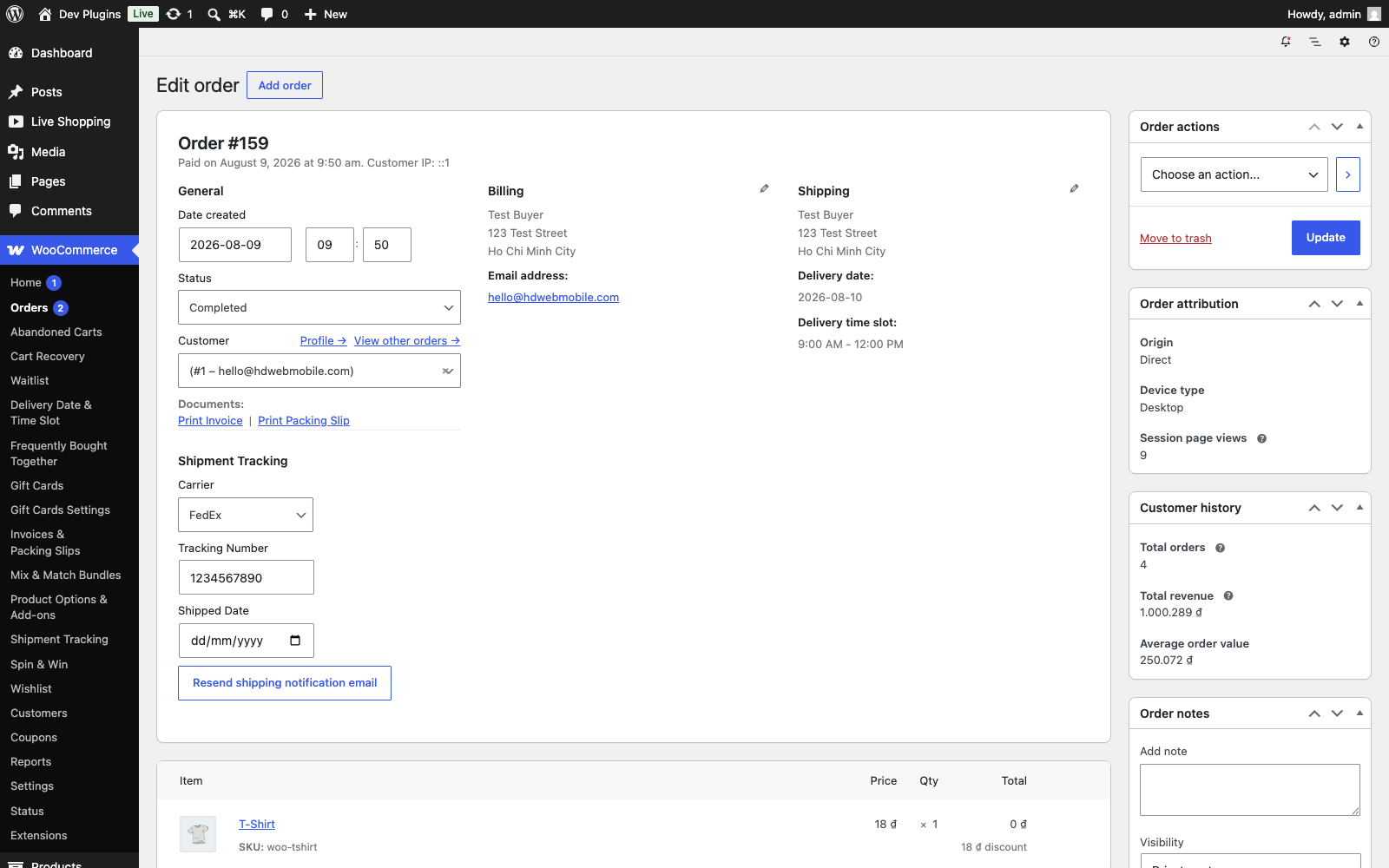
Open an order’s edit screen (Screenshot 1), scroll to the “Shipment Tracking” section, choose a carrier, enter the tracking number, and click Update.
2. The customer is notified automatically
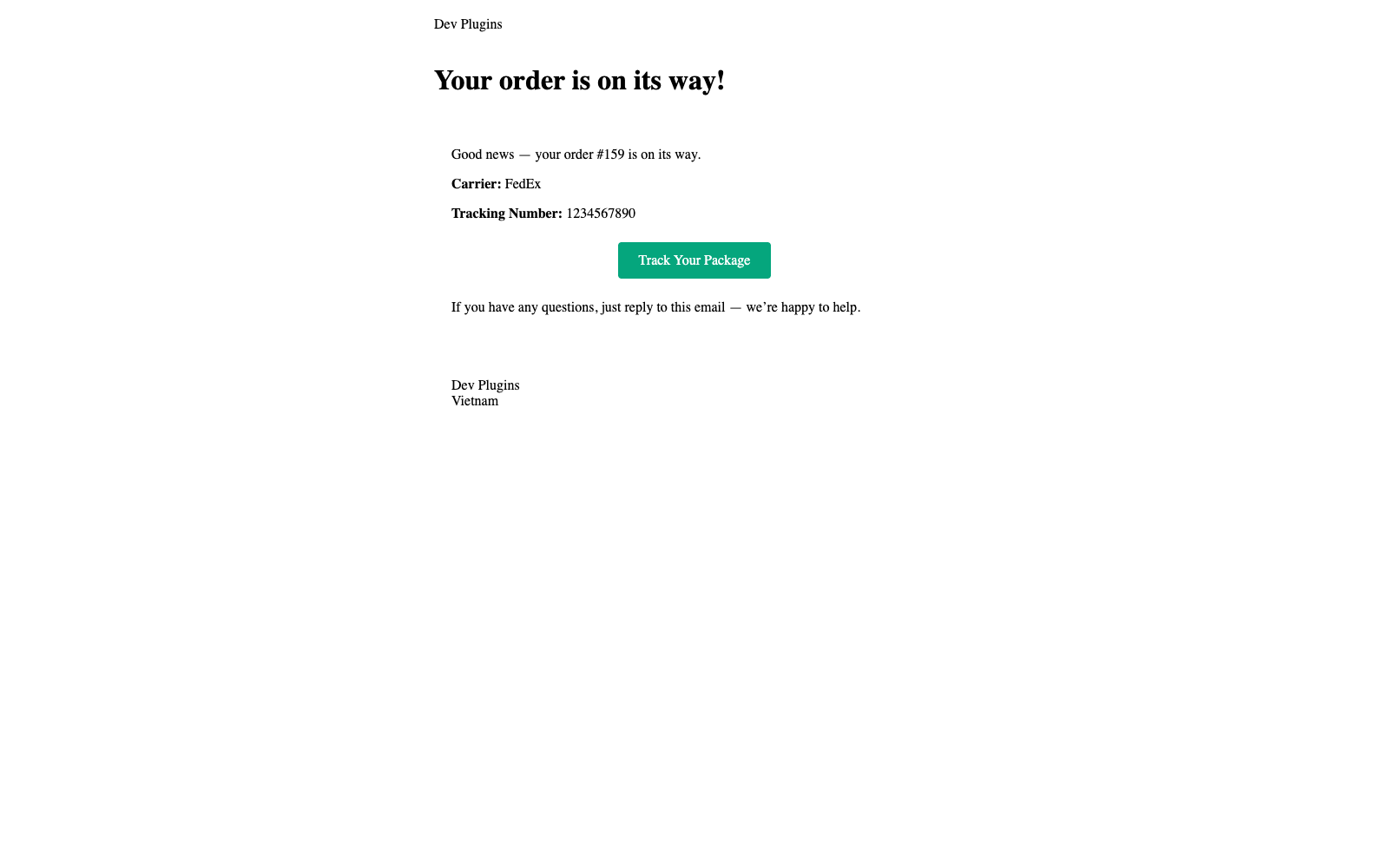
The first time a tracking number is saved for an order, a “Your order has shipped” email (Screenshot 2) is sent automatically with a direct tracking link.
3. The customer can see it anytime
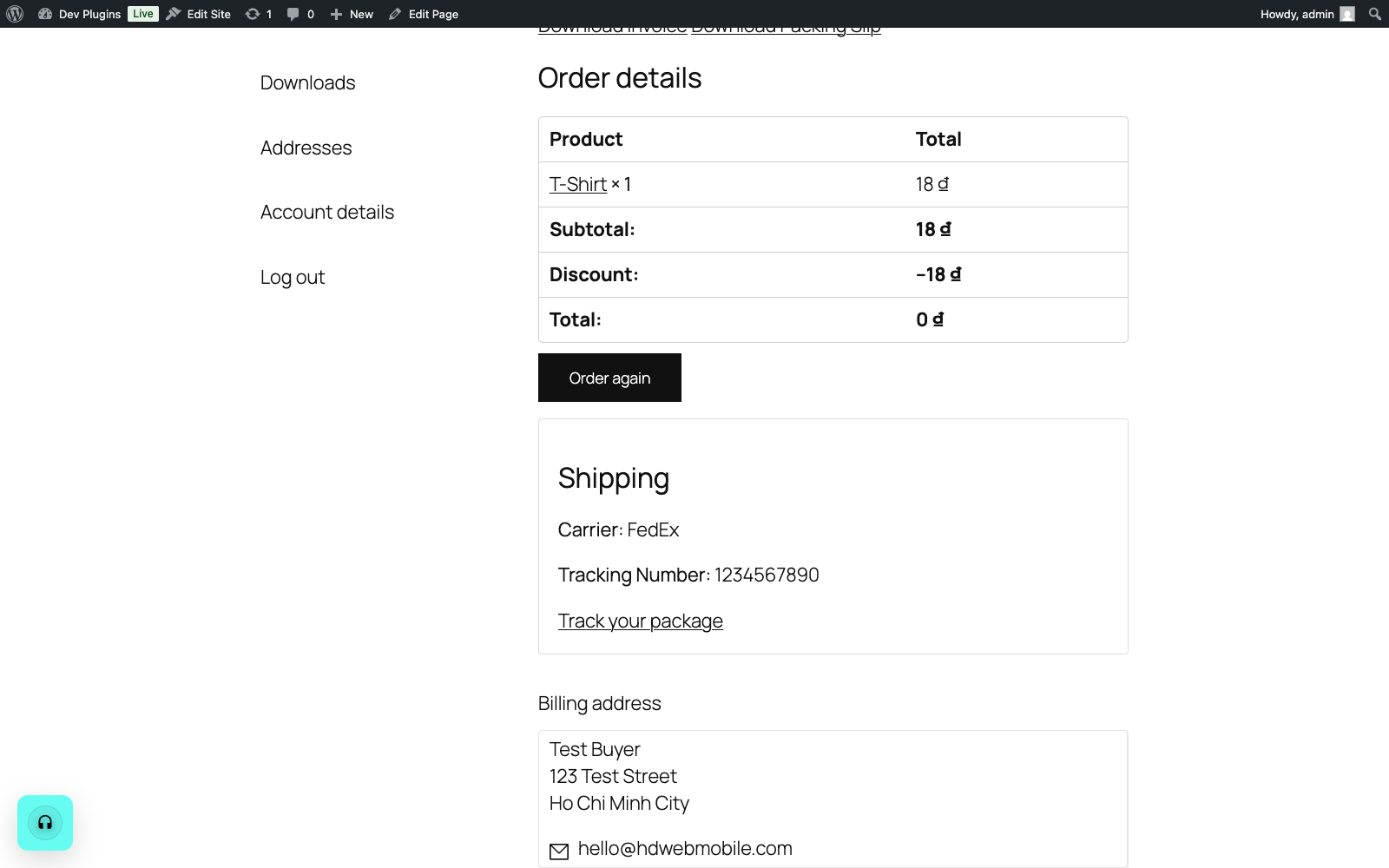
The tracking info also appears on the customer’s My Account order page (Screenshot 3) and the order-received/thank-you page, for as long as they’re logged in or hold the order key.
4. Resend the notification
If you need to resend the shipped email (e.g. the customer says they never got it), click “Resend shipping notification email” on the order edit screen — no need to re-enter the tracking number.
Details
Related plugins
Plugins that also contain the tag carrier
Calculation Shipping

Dewa Kirim – WooCommerce Gojek / Gosend

ShipFlow Connector

Ziyegó Shipping

Weels Same-Day Delivery


About
Plugin for that tries to help you find the WordPress plugin you are looking for.
| Please enjoy an image of Crush (this awesome turtle) and have a lovely day! |  |
We do not own any plugin listed on this site and do not work for or work with WordPress.com or it's associated companies. We simply provide a searchable list of the available WordPress plugins.