



KuDesign ImageIO
KuDesign ImageIO helps WordPress sites generate modern WebP and AVIF image files from existing Media Library uploads.
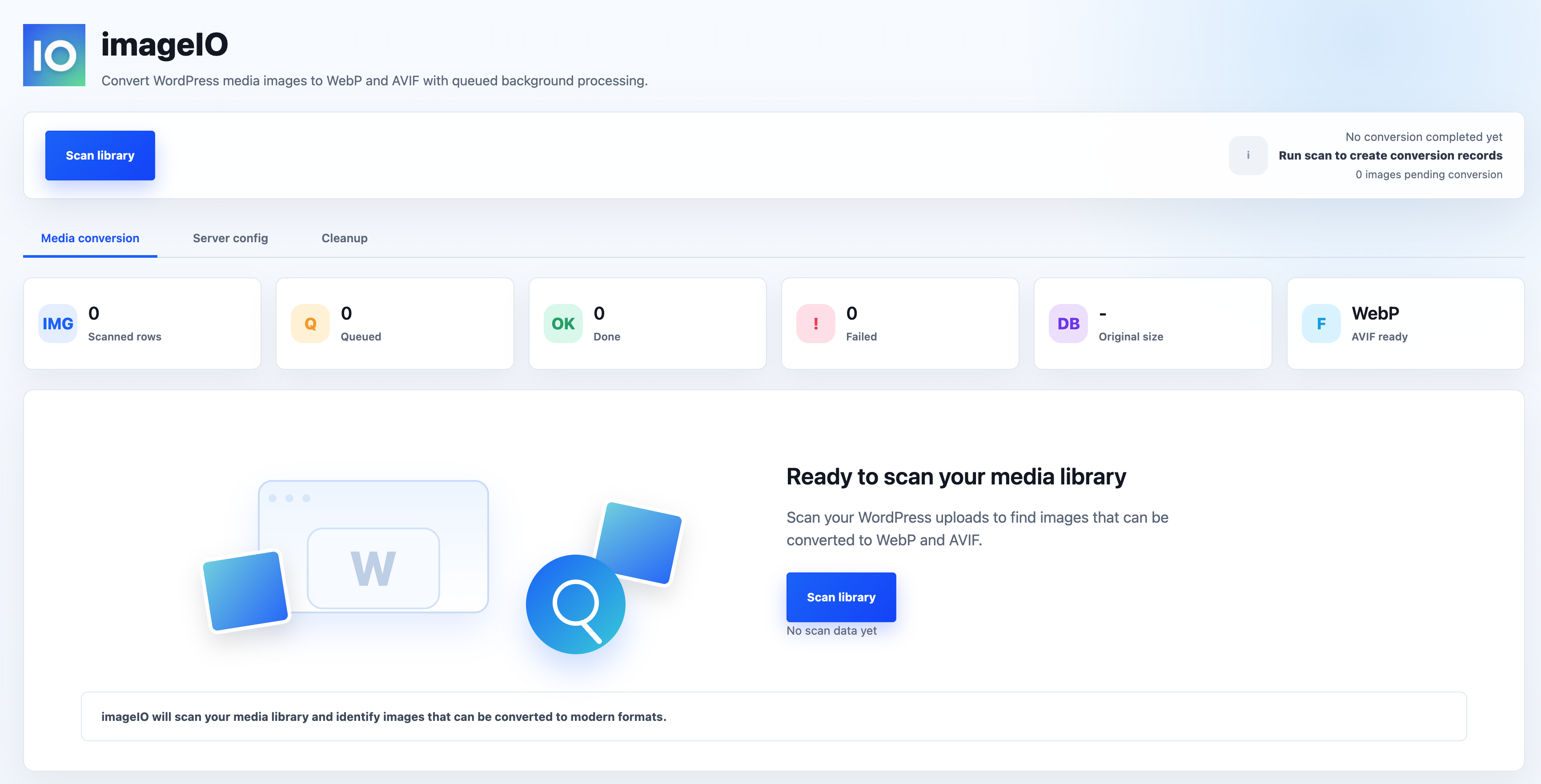
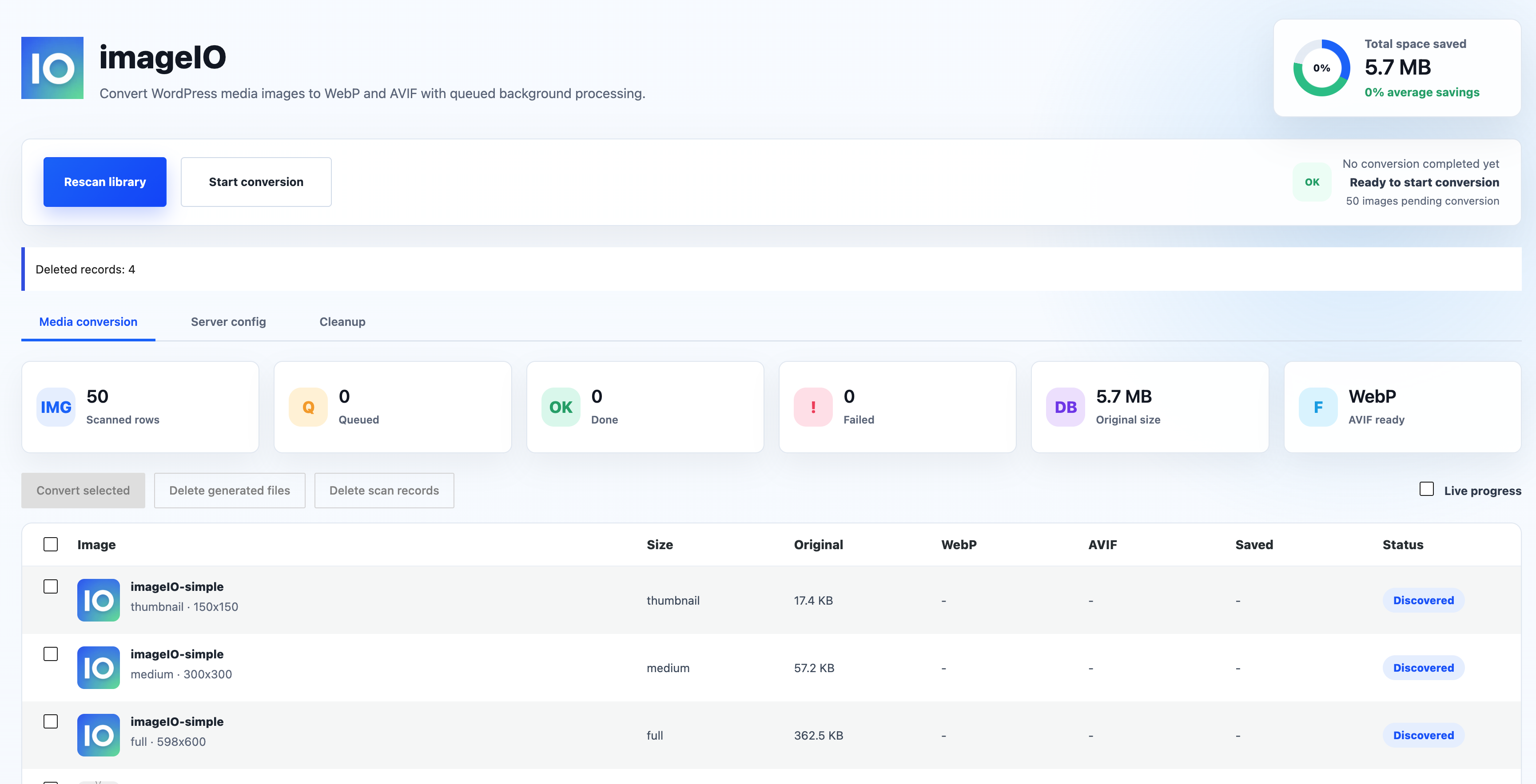
The plugin scans your Media Library, records original images and WordPress-generated image sizes, then lets you convert images through a controlled queue. Generated files are stored separately under /wp-content/uploads/imageio/, so your original JPG and PNG files remain untouched.
KuDesign ImageIO is designed for site owners who want a simple, transparent image optimization workflow without replacing the WordPress Media Library or changing original upload files.
Free version features:
- Scan WordPress Media Library images in stable resumable batches.
- Detect original JPG/PNG files and generated WordPress image sizes.
- Generate WebP and AVIF files through a queue-based conversion process.
- Store generated files separately under
/wp-content/uploads/imageio/webp/and/wp-content/uploads/imageio/avif/. - Track original size, generated file size, savings ratio, processing time, and conversion status.
- Convert all scanned images or selected images only.
- View queue progress from the admin page, with WP-Cron continuing queued work in the background.
- Delete generated WebP/AVIF files without deleting original Media Library files.
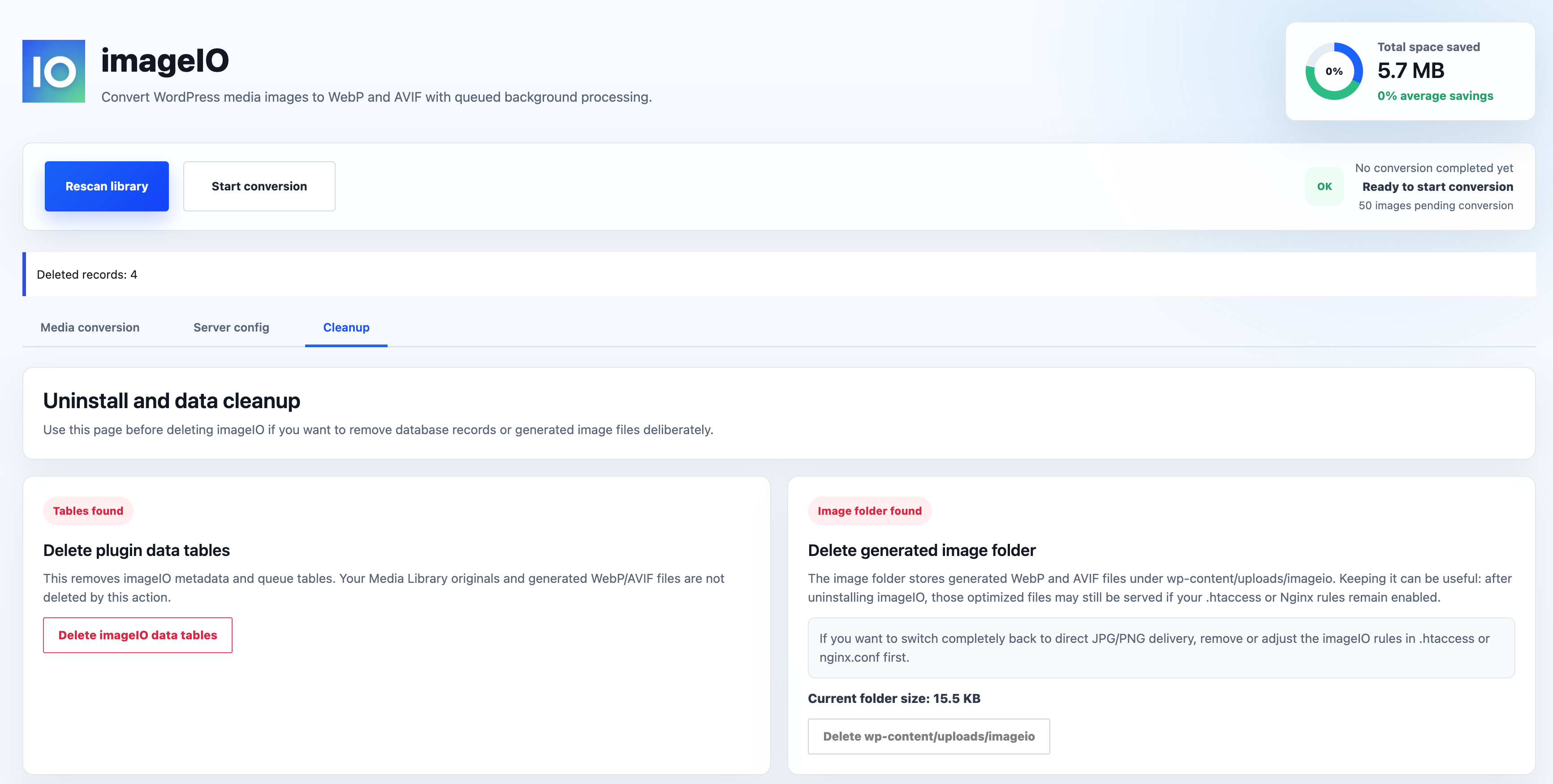
- Clean up plugin data tables and optionally remove generated image files before uninstalling.
- Use Apache
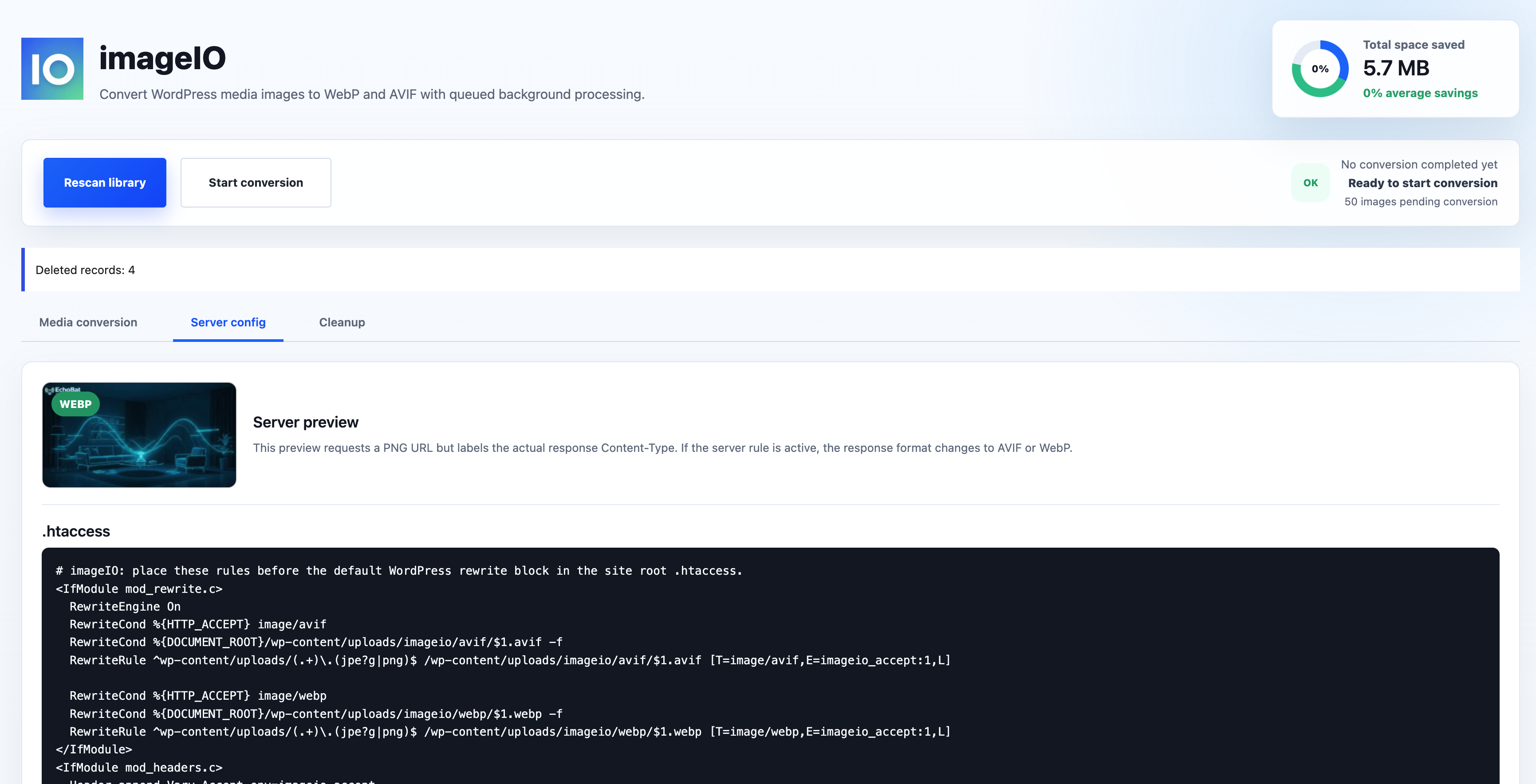
.htaccessor Nginx configuration examples to serve WebP/AVIF from original image URLs. - Preview whether your server configuration is returning PNG, WebP, or AVIF responses.
KuDesign ImageIO does not send your images, site data, or usage data to external services. All scanning and conversion happens inside your WordPress installation using the image libraries available on your server.
Important server note
Generating WebP and AVIF depends on your server’s WordPress image editor support, usually GD or Imagick. Some hosting environments may support WebP but not AVIF.
To serve generated WebP/AVIF files from original JPG/PNG URLs, you must add the provided Apache or Nginx rules from the Server config tab.
Notes
Actual WebP and AVIF support depends on the image editor libraries available to WordPress on the server.
Privacy
KuDesign ImageIO does not send media data, site data, or usage analytics to external services. All scanning and conversion work happens inside your WordPress installation using the image editing libraries available on your server.
Uninstalling
WordPress runs uninstall.php without rendering a user interface. During plugin deletion, KuDesign ImageIO removes its metadata table, queue table, database version option, and scheduled cron hook.
Generated files under /wp-content/uploads/imageio/ are intentionally preserved by default. Keeping them can be useful because WebP and AVIF files may continue to be served by existing .htaccess or Nginx rules after the plugin is removed.
To remove generated files before uninstalling, open Settings > imageIO > Cleanup. Delete the data tables first, then use the generated image folder button. If you want to switch completely back to direct JPG/PNG delivery, remove or adjust the KuDesign ImageIO rules in .htaccess or nginx.conf.
Details
Related plugins
Plugins that also contain the tag avif
Modern Image Formats

Perfect Images: Regenerate Thumbnails, Image Sizes, WebP & AVIF

CompressX — AVIF & WebP Converter, Media Replacement

Plus WebP or AVIF

AVIF Uploader

Modern Images WP

About
Plugin for that tries to help you find the WordPress plugin you are looking for.
| Please enjoy an image of Crush (this awesome turtle) and have a lovely day! |  |
We do not own any plugin listed on this site and do not work for or work with WordPress.com or it's associated companies. We simply provide a searchable list of the available WordPress plugins.