



MCP Server Status
Your customers and their AI agents rely on your MCP server. When it goes down, they notice first – unless you do.
MCPServerStatus (https://mcpserverstatus.com) is an uptime monitoring service for Model Context Protocol (MCP) servers. It runs regular health checks against MCP endpoints, records availability, and sends downtime alerts when a server stops responding. This plugin brings that live server status onto your WordPress site as a small, honest status badge: operational, degraded, down or unknown.
Show visitors that your MCP server, AI tools or API endpoints are up – or show the status of the MCP servers your own product depends on.
Features
- Live status badge – operational, degraded, down or unknown, updated from the latest checks.
- Shortcode:
[mcp_status slug="github"]– place the badge in any post or page. - Block: “MCP Server Status Badge” in the block editor.
- Classic widget: “MCP Server Status Badge” for sidebars and footers.
- Footer badge: optional and off by default – turn on “Show badge in footer” in Settings > MCP Server Status.
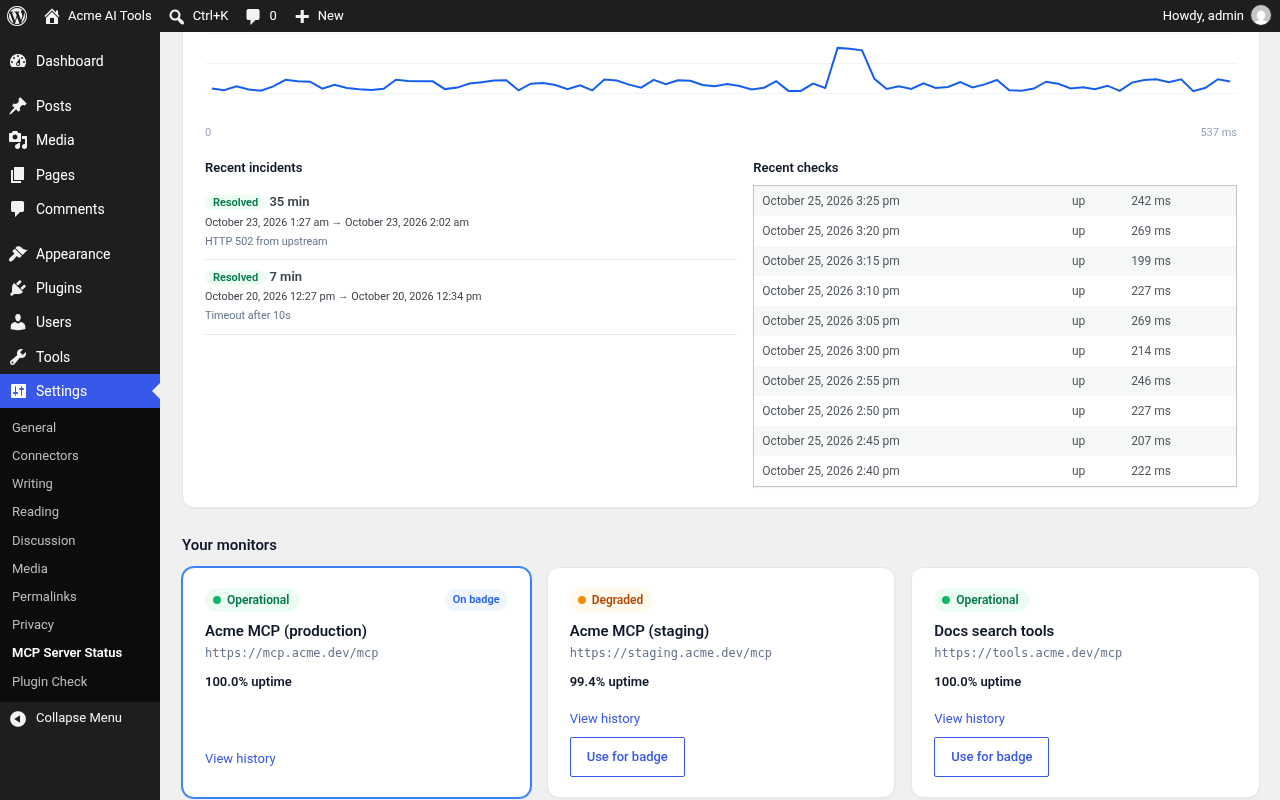
- Connect your account (optional): click “Connect to MCPServerStatus”, sign in or create a free account, and pick one of your monitors from a dropdown – or add a new MCP server right from WordPress. Shows the monitor’s status, last check and uptime on the settings page.
- Easy setup: paste a server slug or a full mcpserverstatus.com server URL and the plugin works out the slug. Use a monitor public ID from your MCPServerStatus dashboard to show your own monitor.
- Lightweight: the badge is a plain, CDN-cached image. Unless you connect your account, the plugin makes no server-side requests, and it never adds tracking.
How it works
- MCPServerStatus monitors MCP servers from its own infrastructure. The free plan includes hourly uptime checks and email outage alerts; paid plans check more often.
- You pick a server (from the public directory of thousands of MCP servers, or your own monitor) in the plugin settings.
- The plugin displays the badge. Clicking it opens that server’s public status page on mcpserverstatus.com, with uptime history and incident details.
The plugin itself only displays the badge. All monitoring, health checks and alerts are done by mcpserverstatus.com, so nothing extra runs on your WordPress server.
Who it’s for
- Teams and developers who run an MCP server and want to show its availability to users.
- SaaS and API companies offering AI agent integrations who want a visible trust signal.
- Bloggers, docs sites and directories that list MCP servers or AI tools and want live status next to each one.
External services
This plugin uses MCPServerStatus (https://mcpserverstatus.com), an MCP server uptime monitoring service, in two ways.
1. Status badge image (always, wherever the badge is shown). The badge image is loaded by your visitors’ browsers from MCPServerStatus. It is needed to show the live status of the MCP server you choose.
- What is sent: when a page with the badge is viewed, the visitor’s browser requests the image from
https://mcpserverstatus.com/badge/<slug>.svg(or/badge/m/<monitor-id>.svg). As with any image request, this includes the visitor’s IP address, user agent and the referring page URL. No other data is sent. - When: only on pages where the badge is shown (shortcode, block, widget, or the footer if you enabled it), and on the plugin settings page for the preview.
2. Account connection API (optional, only after you click “Connect to MCPServerStatus”). If you never click Connect, your WordPress server makes no requests to MCPServerStatus.
- When you click Connect, your browser is sent to
https://mcpserverstatus.com/connect/wordpresswith your site’s URL (home URL), the URL of this plugin’s settings page (to return to) and a random one-time security code. You sign in there and approve access; MCPServerStatus then returns an access token that the plugin stores in your WordPress database. - While connected, your WordPress server calls
https://mcpserverstatus.com/api/wp/monitorswith that token to list your monitors (when you open the plugin settings page; results are cached for 5 minutes), and to add a server when you submit “Add new server” – this sends the server URL and optional name you enter. - When you open a monitor’s history panel on the settings page, your WordPress server calls
https://mcpserverstatus.com/api/wp/monitors/<id>/historywith that token to fetch uptime, latency, incidents and recent checks for the selected time range. Nothing about your site is sent. - When you click Disconnect, the plugin calls
https://mcpserverstatus.com/api/wp/disconnectto revoke the token and deletes it locally. Deleting the plugin also deletes the token. -
No visitor data, user accounts, posts or other site content are ever sent.
-
Terms of service: https://mcpserverstatus.com/terms
- Privacy policy: https://mcpserverstatus.com/privacy
Details



Related plugins
Plugins that also contain the tag downtime
Smart Maintenance Scheduler

StatusCake

Moniliza – Uptime Monitor

Offair – Branded Error Pages

iDownAlert

YoPingMe


About
Plugin for that tries to help you find the WordPress plugin you are looking for.
| Please enjoy an image of Crush (this awesome turtle) and have a lovely day! |  |
We do not own any plugin listed on this site and do not work for or work with WordPress.com or it's associated companies. We simply provide a searchable list of the available WordPress plugins.