

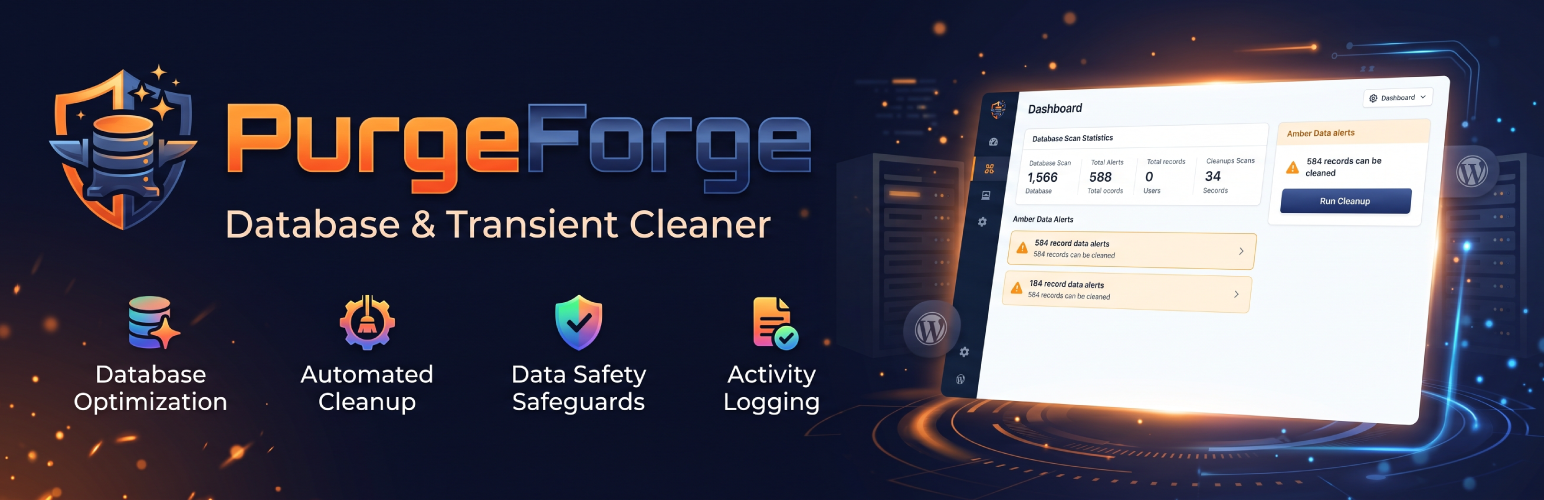
PurgeForge – Database & Transient Cleaner
PurgeForge cleans the leftovers that slowly bloat a WordPress database. It scans first, shows you exactly what it found, and deletes only when you click Clean.
Every deletion runs in small batches of at most 500 rows (100 for posts) with a short pause in between. Large tables are never locked for long, and a cleanup that is interrupted can simply be run again.
What it cleans
- Expired transients. Temporary cached options that are past their expiry time, together with their timeout records. Transients that have not expired are never touched.
- Expired WooCommerce sessions. Customer session rows in the WooCommerce sessions table that are past their expiry time. This item only appears as available when WooCommerce’s sessions table exists.
- Orphaned post meta. Post meta rows that belong to a post that no longer exists.
- Orphaned comment and term meta. Comment meta rows whose comment no longer exists, and term meta rows whose term no longer exists.
- Stale oEmbed caches. Embed results (video, social posts and similar) that WordPress cached in post meta. They are fetched again the next time an embed is displayed.
- Orphaned user meta. User meta rows whose user no longer exists.
- WooCommerce webhook logs. Delivery logs of WooCommerce webhooks older than 30 days. Customer download permissions are not logs and are never touched.
- Abandoned checkout drafts. Draft orders that the WooCommerce checkout block created and that were never completed, untouched for 30 days. Deleted through WooCommerce, and only on request.
- Completed Action Scheduler tasks. Background tasks older than 7 days that finished successfully, with their log entries. WooCommerce and many other plugins use Action Scheduler, and its tables can grow to hundreds of megabytes on a busy store.
- Failed and canceled Action Scheduler tasks. Failed or canceled tasks older than 7 days, with their log entries. Pending and running tasks are never touched.
- Posts of unregistered post types. Posts whose type is not registered by WordPress, the active theme or an active plugin. These include the posts of a plugin that is only deactivated, so they are listed for review, with the types found, and removed only on request.
- Old post revisions. Revisions beyond the newest N of each post. You choose N in Settings (default 5), so editors keep their recent safety backups. The autosave is never touched.
- Old trashed and auto-draft posts. Posts that have been in the trash, or saved as auto-drafts, for more than 30 days. These are deleted permanently with WordPress’s own
wp_delete_post(), so terms, comments and attachments are cleaned up in the normal way. - Spam and trashed comments. Every comment marked as spam or moved to the trash, whatever its age. These are deleted permanently with WordPress’s own
wp_delete_comment(), so comment meta, replies and comment counts are handled in the normal way.
Scheduled cleanups, as many as you like
Create any number of scheduled tasks. Each one picks the safe items to clean and runs daily, weekly, monthly or every N hours with WP-Cron. Every run is recorded in an execution log (time, items, rows purged, duration and status) that keeps the last 20 runs and can be cleared in one click. Posts, revisions and comments are never cleaned automatically.
Options
The Options section shows how much data WordPress loads from the database on every page view (the autoloaded options), with a gauge against the 800 KB guideline, and lists the largest autoloaded options so you can turn autoload off for the ones you do not need. It also lists options that are not part of WordPress and are not named after any installed plugin or theme. PurgeForge cannot tell which plugin an option came from, so this list is only a starting point: nothing is selected for you, WordPress’s own options can never be changed, and the most recent deletion can be undone.
Know your database
PurgeForge records the size of the database and the number of tables once a day and keeps 90 days of history. The Analytics section charts both over the last 7, 30 or 90 days, or over a range you pick, and highlights the days when tables were added or removed. Its Tables Analytics view shows how the size and row count of the largest tables grew or shrank, with a search box. The charts are plain SVG drawn by the plugin; no chart library is loaded. Analytics also lists the ten largest tables, splits the database into WordPress core tables and plugin or theme tables, and shows the autoload gauge. The Database Tables section shows the total size, the reclaimable overhead, the number of tables by storage engine, how the database has grown since an earlier snapshot, and the five heaviest tables.
Support and troubleshooting
The Info & Logs section has three views. System info is a short report of your WordPress, server, database and PurgeForge settings that you can refresh, copy or download as purgeforge-system-info.txt, ready to paste into a support request. Errors log lists the problems PurgeForge ran into while cleaning (the last 50). WP debug shows the newest lines of your debug.log, 100 at a time, when WP_DEBUG_LOG is on. Passwords, keys, salts and tokens are hidden in all three.
Tune it for your server
Choose how many rows each cleanup query handles at a time: 200 for shared hosting, 500 (the default) or 1,000 for a powerful VPS.
Reclaim disk space
After records are deleted, MySQL does not always hand the space back. The Database Tables card shows how much unused space (“overhead”) your tables hold and rebuilds them with OPTIMIZE TABLE when you click Optimize Tables. Only InnoDB and MyISAM tables that start with your site’s table prefix are touched.
How it works
- Go to PurgeForge DB Cleaner in the main admin menu.
- Click Scan Database. This is a dry run and deletes nothing. You see the number of records and an estimated size for each item.
- Click Run cleanup next to an item, or tick several items and click Run selected cleanups, then confirm. The cleanup runs in batches and reports how many records were removed.
- Optional: open Database Tables in the sidebar and click Optimize Tables to rebuild fragmented tables and reclaim disk space.
- Optional: open Cron / Automation, click Add task, choose the items and how often it should run, and save. Past runs appear under Execution logs.
- Optional: open Settings to change the batch size or how many revisions to keep.
Built for safety
- Only users with the
manage_optionscapability can use it, and every request is protected by a nonce. - All queries use
$wpdb->prepare(). - No tracking, no external requests, no ads and no upsells. Nothing runs in the background unless you switch on the optional schedule.
- It creates no database tables and loads its assets on its own screen only.
Icons are inline SVGs drawn from Lucide, released under the ISC licence.
Back up first. Cleanups delete data permanently. Take a database backup before running one on a site that matters.
Privacy
PurgeForge does not collect, store or transmit any personal data, and it makes no external requests.
Details
Related plugins
Plugins that also contain the tag cleanup
WP-Sweep

Delete Duplicate Posts

Simple Revisions Delete

AAA Option Optimizer

Freesoul Deactivate Plugins – Disable plugins on individual WordPress pages

Optimize Images Resizing


About
Plugin for that tries to help you find the WordPress plugin you are looking for.
| Please enjoy an image of Crush (this awesome turtle) and have a lovely day! |  |
We do not own any plugin listed on this site and do not work for or work with WordPress.com or it's associated companies. We simply provide a searchable list of the available WordPress plugins.