


seljeBackup
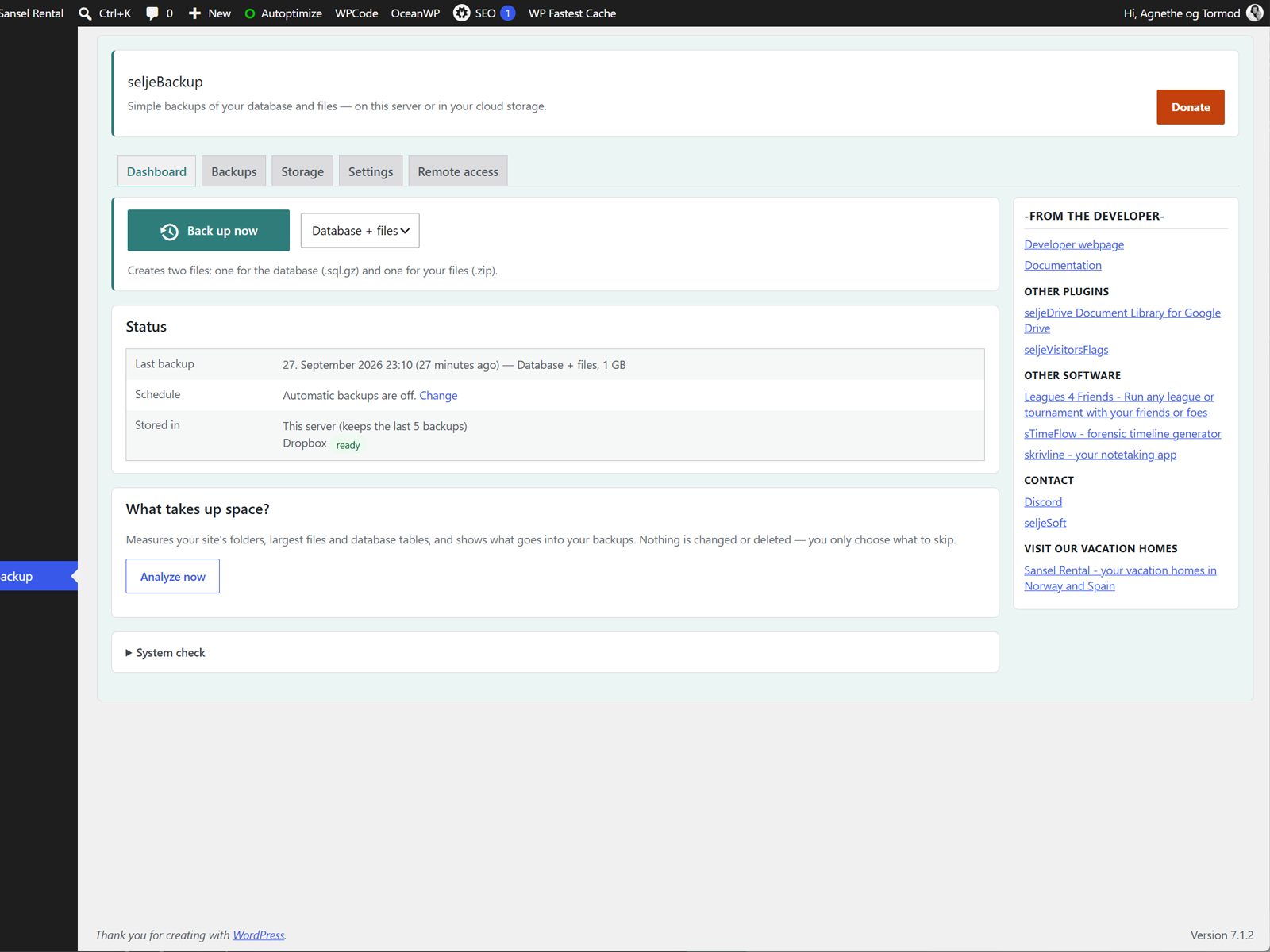
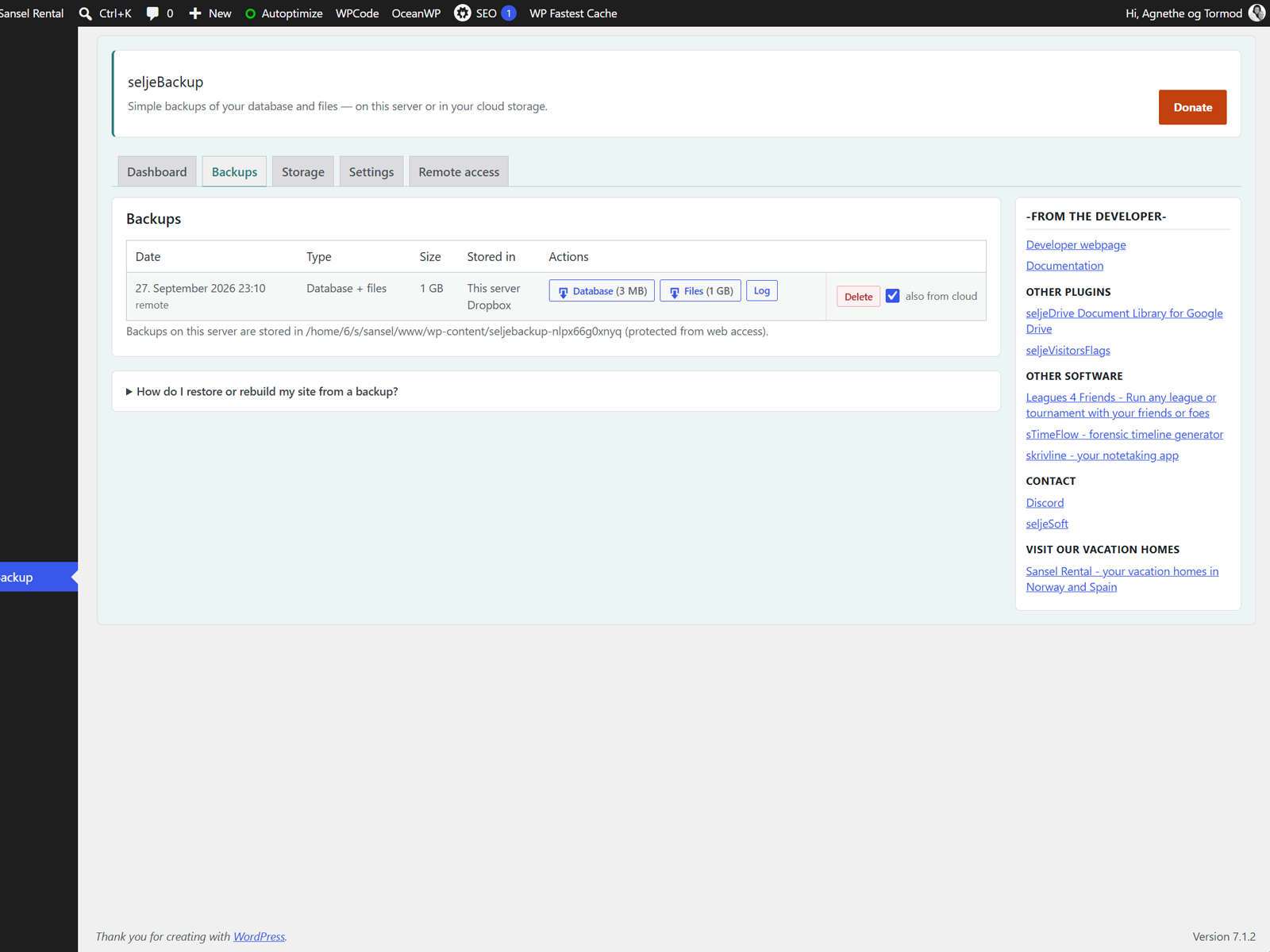
seljeBackup backs up your WordPress database and files with one click, or automatically every day, week or month. Every backup is two ordinary files, a .sql.gz for the database and a .zip for your files, that you can open without this plugin.
Find this free plugin useful? Please support my work with a one-time donation (50% of the proceeds go to Ukraine).
Key features:
- “Back up now” button and a 3-question quick setup
- Daily, weekly or monthly backups; keeps the last N backups
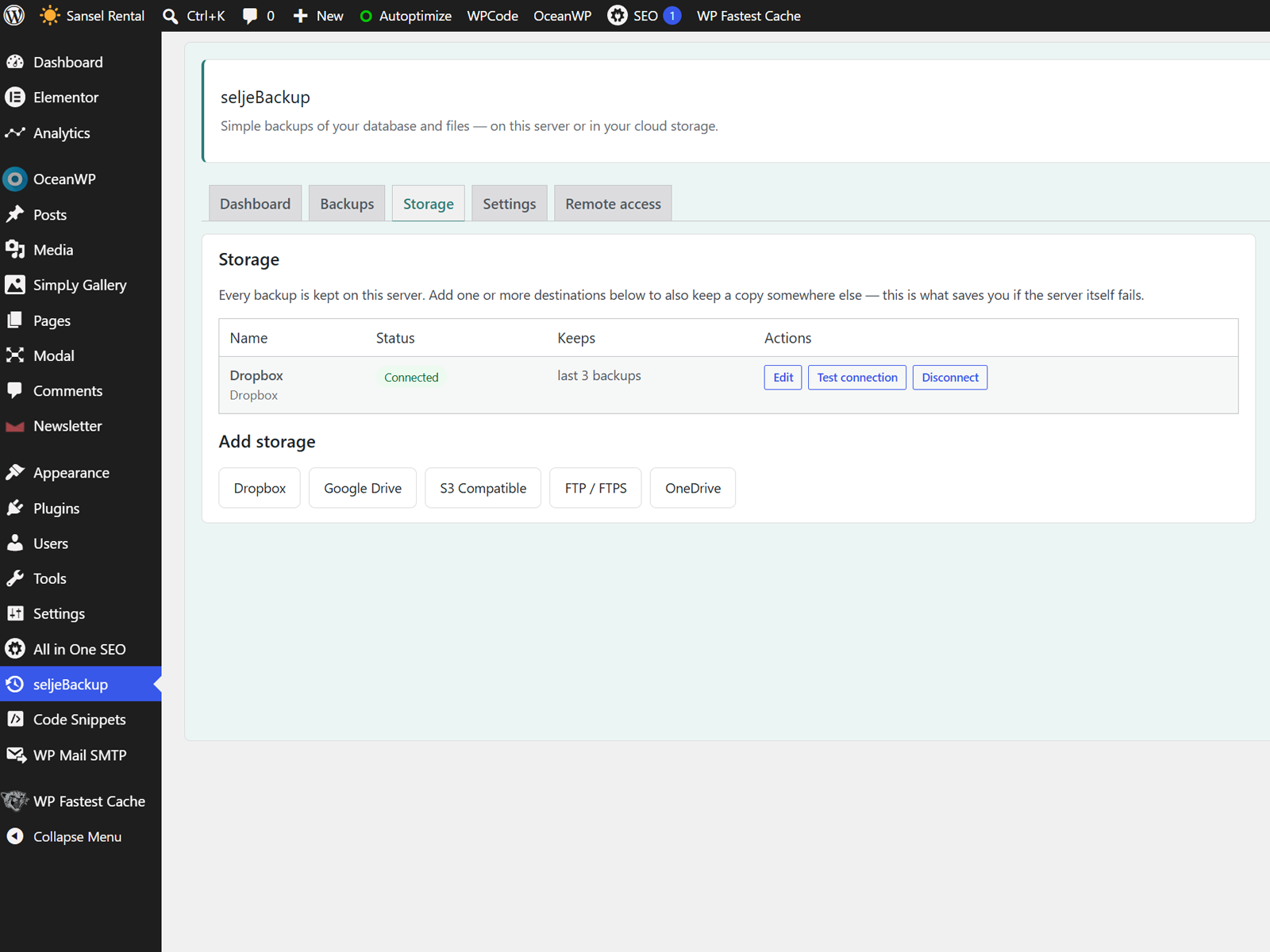
- Off-site copies in Google Drive, OneDrive, Dropbox, S3-compatible storage (Amazon S3, Backblaze B2, Wasabi, Cloudflare R2, …) and FTP/FTPS
- Built for shared hosting: short, resumable steps that survive PHP time limits
- Handles large sites (ZIP64, chunked database dump)
- “What takes up space?” with tips and one-click “Skip in backups”
- Email alerts when something goes wrong
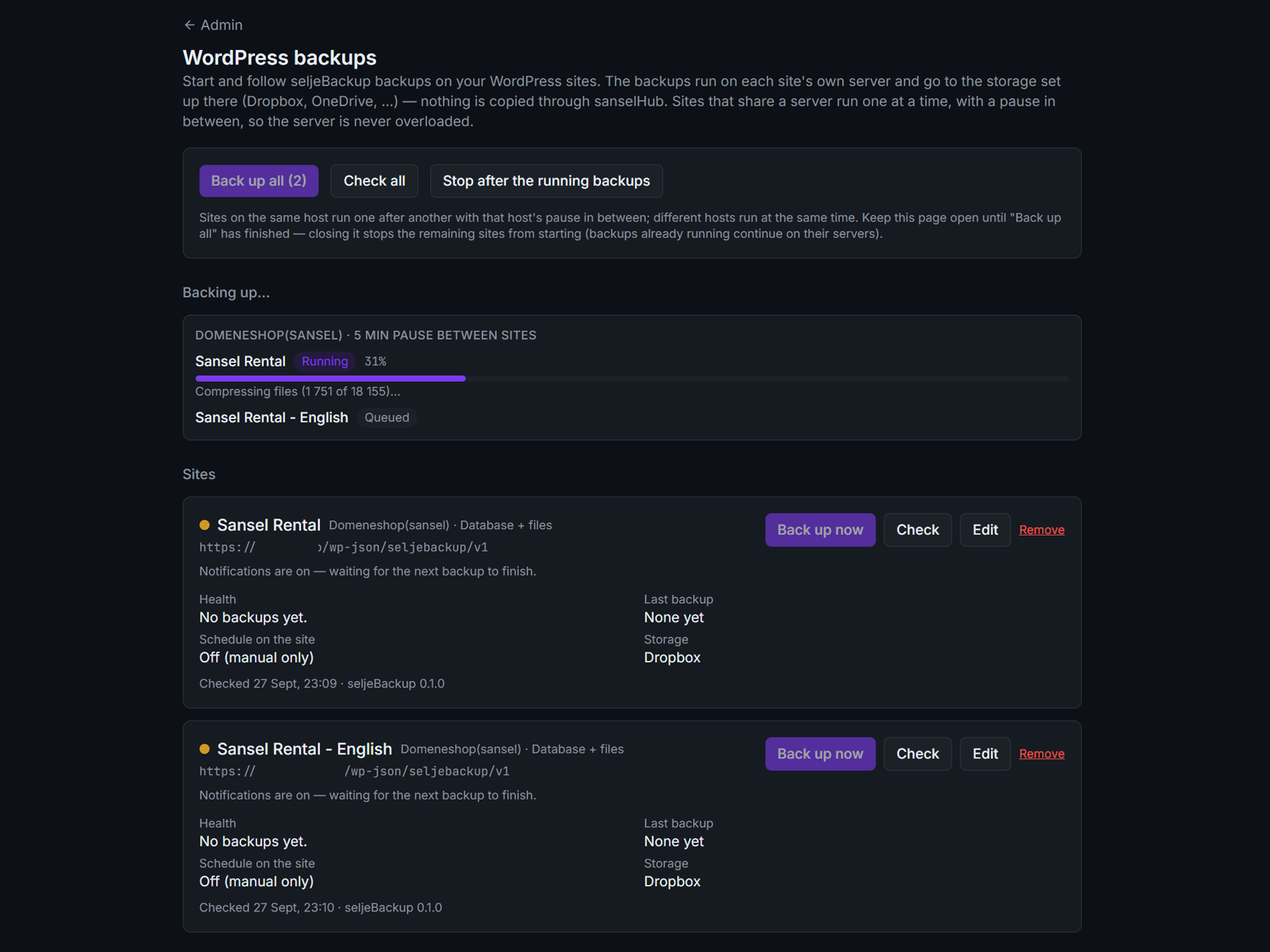
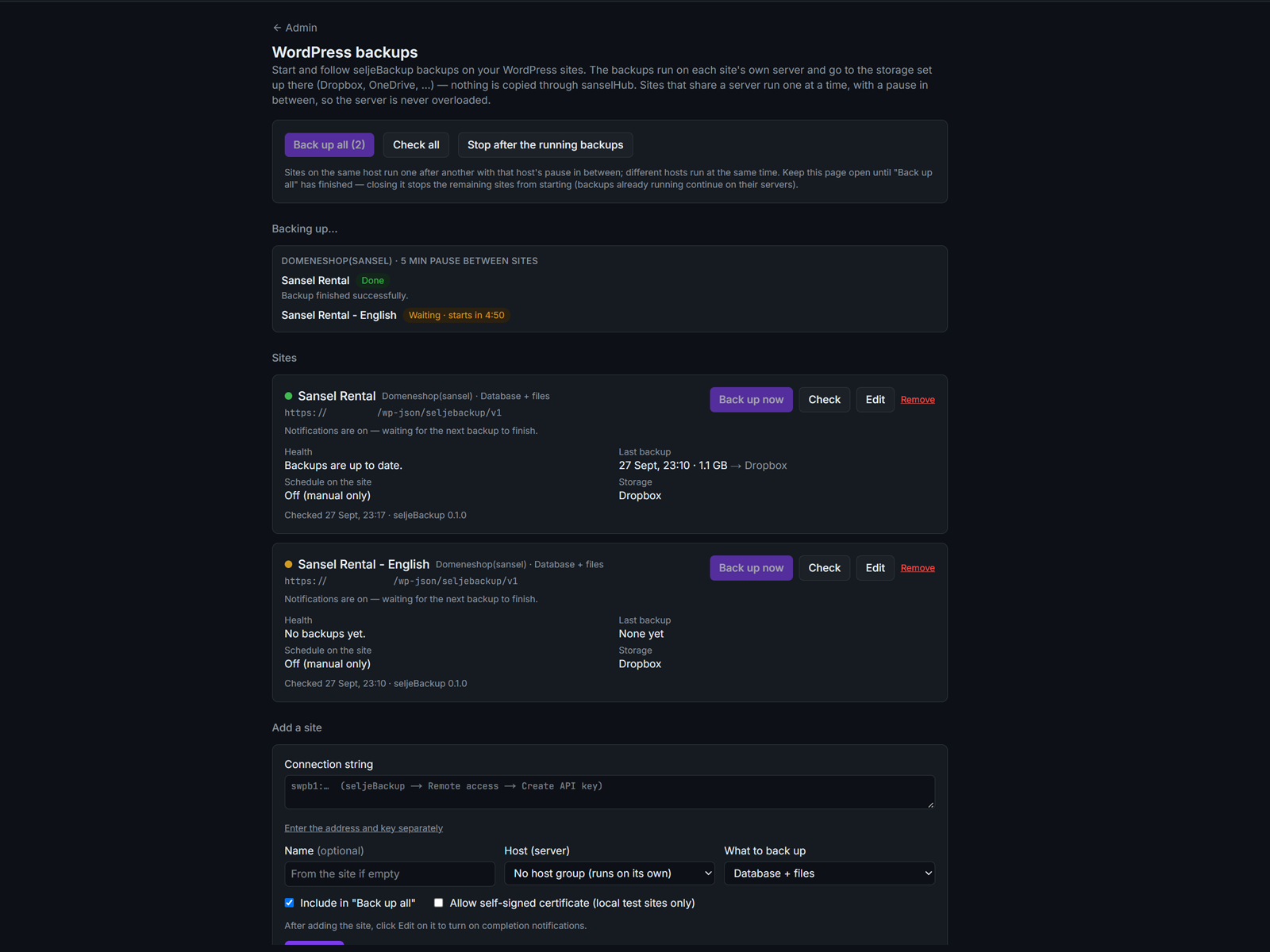
- Remote API: connect your own dashboard with one connection string; signed webhook; cron URL
- Encrypted credentials and a protected backup folder
- Translation-ready
Privacy
This plugin does not send any data to the plugin developer. Nothing is sent anywhere unless you add a cloud storage destination, a webhook, or use the donate link.
Backups contain your site’s database and files, including personal data and the database password in wp-config.php (the security keys and salts are never included). Store them only in places you trust.
Google Drive is a trademark of Google LLC. OneDrive is a trademark of Microsoft Corporation. Dropbox is a trademark of Dropbox, Inc. Amazon S3 is a trademark of Amazon.com, Inc. This plugin is not affiliated with or endorsed by any of them.
WordPress is a trademark of the WordPress Foundation. This plugin is not affiliated with or sponsored by the WordPress Foundation.
Third Party Services
The plugin connects to a third-party service only when you configure that service as a storage destination (or webhook). Each site owner uses their own app/account credentials; there is no relay server between your site and the provider.
Google (Google OAuth + Google Drive API)
What it is used for: uploading backups to your Google Drive and deleting old backups there.
When data is sent:
- When an administrator clicks Connect and completes authorization
- When a backup is uploaded, an old backup is deleted (retention), or Test connection is clicked
- When the plugin refreshes an expired access token
What data is sent: OAuth client ID/secret, redirect URI, state and authorization code (during connection); the OAuth access token, the backup folder name, and the backup files themselves (during uploads).
Endpoints: https://accounts.google.com/o/oauth2/v2/auth, https://oauth2.googleapis.com/token, https://www.googleapis.com/drive/v3, https://www.googleapis.com/upload/drive/v3
OAuth scope: https://www.googleapis.com/auth/drive.file (the plugin can only see files it created itself)
Google Privacy Policy: https://policies.google.com/privacy — Google Terms of Service: https://policies.google.com/terms — Google APIs Terms of Service: https://developers.google.com/terms
Microsoft (Microsoft identity platform + Microsoft Graph / OneDrive)
What it is used for: uploading backups to your OneDrive and deleting old backups there.
When data is sent: when an administrator clicks Connect, when a backup is uploaded or deleted, when Test connection is clicked, and when tokens are refreshed.
What data is sent: OAuth client ID/secret, redirect URI, state and authorization code; the OAuth access token, the backup folder path, and the backup files.
Endpoints: https://login.microsoftonline.com, https://graph.microsoft.com/v1.0 and the pre-authenticated upload URLs Microsoft returns for each upload.
OAuth scopes: Files.ReadWrite, offline_access, User.Read
Microsoft Privacy Statement: https://privacy.microsoft.com/privacystatement — Microsoft Services Agreement: https://www.microsoft.com/servicesagreement
Dropbox (Dropbox OAuth + Dropbox API)
What it is used for: uploading backups to your Dropbox app folder and deleting old backups there.
When data is sent: when an administrator clicks Connect, when a backup is uploaded or deleted, when Test connection is clicked, and when tokens are refreshed.
What data is sent: the app key, redirect URI, state, PKCE code challenge/verifier and authorization code; the OAuth access token, the backup folder path, and the backup files.
Endpoints: https://www.dropbox.com/oauth2/authorize, https://api.dropboxapi.com, https://content.dropboxapi.com
Dropbox Privacy Policy: https://www.dropbox.com/privacy — Dropbox Terms of Service: https://www.dropbox.com/terms
Amazon S3 or S3-compatible storage (provider chosen by you)
What it is used for: uploading backups to your bucket and deleting old backups there.
When data is sent: when a backup is uploaded or deleted, or Test connection is clicked.
What data is sent: requests signed with your access key (the secret key itself is never sent), the bucket and folder name, and the backup files.
Endpoint: the endpoint you enter (for Amazon S3: https://s3..amazonaws.com). Please see your provider’s privacy policy and terms, for example Amazon Web Services: https://aws.amazon.com/privacy/ and https://aws.amazon.com/service-terms/, Backblaze: https://www.backblaze.com/company/policy/privacy, Wasabi: https://wasabi.com/legal/privacy-policy, Cloudflare: https://www.cloudflare.com/privacypolicy/
FTP / FTPS server (chosen by you)
What it is used for: uploading backups to your own FTP server or NAS.
When data is sent: when a backup is uploaded or deleted, or Test connection is clicked.
What data is sent: your FTP username and password, and the backup files. With FTPS (default) the connection is encrypted; with plain FTP it is not.
Webhook (URL chosen by you)
If you enter a webhook URL under Remote access, the plugin sends a JSON message to that URL when a backup finishes or fails: site address and name, backup ID, type, status, times, error/warnings, backup file names and sizes, and storage names. No backup contents are sent.
Stripe (Donate link)
What it is used for: optional donations via a Stripe-hosted checkout page.
When data is sent: only when an administrator clicks the Donate button in the plugin admin page. The plugin itself does not send payment details; Stripe receives the data needed to load and process the checkout (such as your IP address, browser/user agent and anything you enter on the checkout page).
Stripe Privacy Policy: https://stripe.com/privacy — Stripe Terms / Legal: https://stripe.com/legal
Configuration
Quick setup
The first time you open the plugin, three questions set everything up: what to back up (everything, or database only), how often (daily, weekly, or manual), and where (this server, or a cloud storage you connect next). Click Back up now to make your first backup immediately.
Google Drive
- Go to https://console.cloud.google.com and create a project.
- APIs & Services -> Library: enable Google Drive API.
- OAuth consent screen: choose External, fill in an app name and your email, and add the scope
.../auth/drive.file. - Important: publish the app (Audience -> Publish app, status “In production”). Apps left in “Testing” lose access after 7 days, which stops scheduled backups.
drive.fileis a non-sensitive scope, so Google does not need to review the app. - Credentials -> Create credentials -> OAuth client ID, type Web application. Add the redirect URI shown in the plugin (your
/wp-admin/address) under Authorized redirect URIs. - In the plugin: Storage -> Google Drive, paste the Client ID and Client secret, click Save, then Connect, then Test connection.
OneDrive
- Go to https://entra.microsoft.com (or https://portal.azure.com) -> App registrations -> New registration.
- Supported account types: “Accounts in any organizational directory and personal Microsoft accounts” (or personal accounts only).
- Redirect URI: platform Web, value = the redirect URI shown in the plugin.
- API permissions -> Add a permission -> Microsoft Graph -> Delegated:
Files.ReadWriteandoffline_access. - Certificates & secrets -> New client secret. Copy the Value (not the Secret ID) and note the expiry date. Before it expires, create a new secret, paste it into the plugin and click Connect again.
- In the plugin: Storage -> OneDrive, paste the Application (client) ID and the secret value, choose the account type, Save, Connect, Test connection.
Dropbox
Requirement: Dropbox only accepts redirect URIs that start with https:// (except localhost). Enable HTTPS on the site first. The plugin shows a warning if it is missing.
1. Create the app at https://www.dropbox.com/developers/apps -> Create app
- Choose an API: Scoped access
- Choose the type of access you need: App folder (seljeBackup can then only reach its own folder, never the rest of your Dropbox)
- Name your app: any unique name, for example “seljeBackup-yourname” -> Create app
2. Settings tab (top to bottom)
- Status: leave Development. Only you connect to the app, so “Apply for production” is not needed.
- Development users: leave Only you.
- Permission type: must be Scoped App (App Folder).
- App folder name: the folder under Dropbox -> Apps where backups are stored. Change it if you like.
- App key: copy it into seljeBackup. The App secret is not used; keep it private.
- OAuth 2 -> Redirect URIs: paste the redirect URI shown in seljeBackup and click Add.
- Allow public clients (Implicit Grant & PKCE): must be Allow (the default). seljeBackup connects without the App secret, which requires this.
- Generated access token, Chooser / Saver / Embedder domains, Webhooks: leave empty.
3. Permissions tab
- Tick only
files.content.write(used to upload backups and delete old ones). Leave everything else as it is;account_info.readis already ticked and is used by “Test connection”. Click Submit. - If you change permissions after connecting, click Reconnect in seljeBackup.
- The Branding and Analytics tabs are optional and not needed.
4. In seljeBackup: Storage -> Dropbox, paste the App key, Save, Connect (approve in Dropbox), Test connection.
One app is enough for all your sites: add the redirect URI of every site to the same app and use the same App key everywhere. Each site stores its backups in its own folder. The same applies to Google Drive and OneDrive.
Amazon S3 and S3-compatible storage
- Create a private bucket with your provider.
- Create an access key limited to that bucket (list, read, write, delete).
- In the plugin: Storage -> S3 Compatible, enter the endpoint (leave empty for Amazon S3), region, bucket and keys, Save, Test connection.
Endpoint examples: s3.eu-central-003.backblazeb2.com (Backblaze B2), s3.eu-central-1.wasabisys.com (Wasabi), <account-id>.r2.cloudflarestorage.com with region auto (Cloudflare R2), fra1.digitaloceanspaces.com (DigitalOcean Spaces). Turn on “path-style URLs” for MinIO.
Tip: add a lifecycle rule to the bucket that aborts incomplete multipart uploads after a few days.
FTP / FTPS
Enter host, port, username, password and a remote folder, Save, Test connection. FTPS (explicit TLS) is on by default; plain FTP sends your password unencrypted.
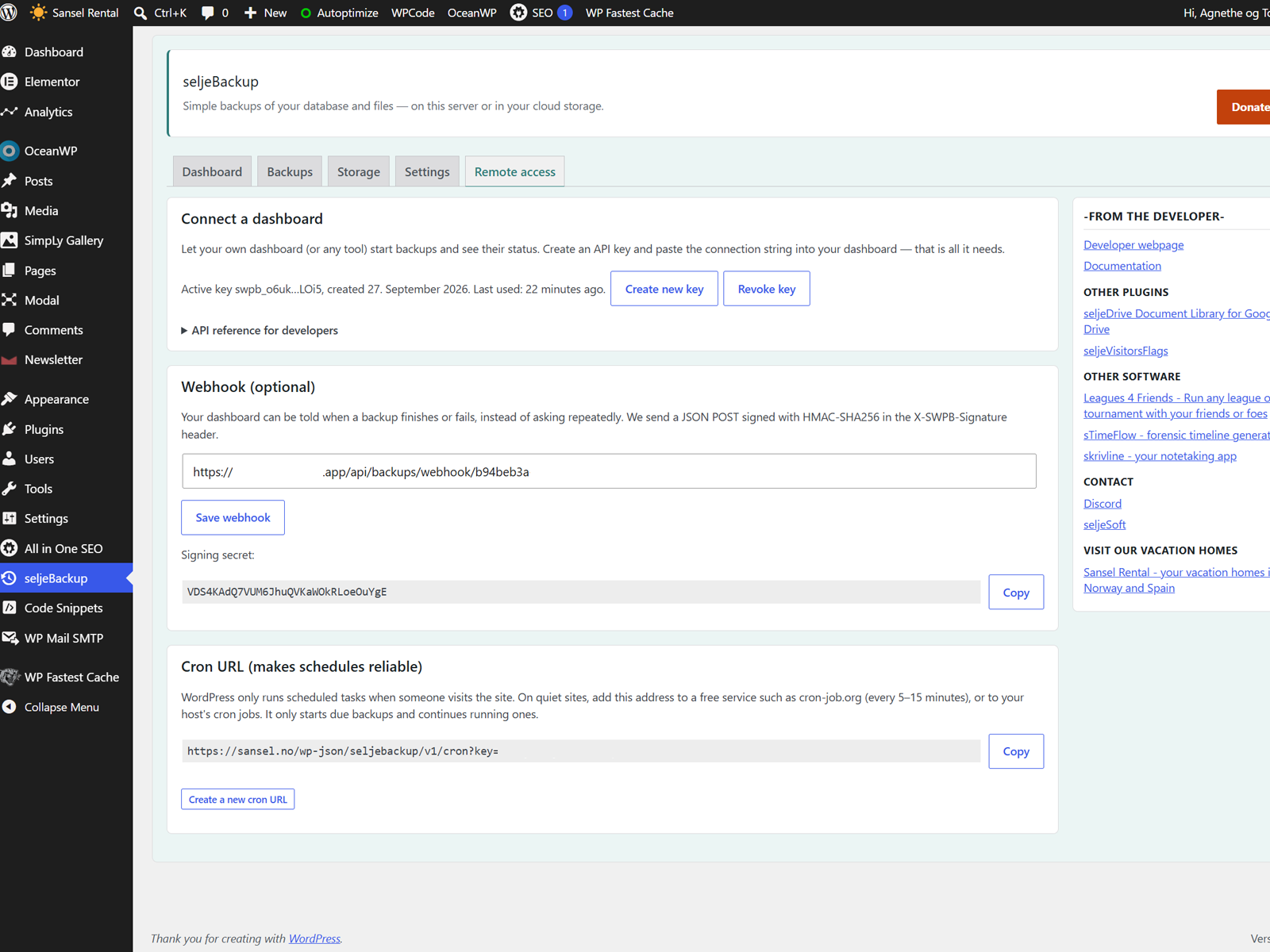
Remote access (connect your own dashboard)
- Remote access -> Create API key.
- Copy the connection string (it contains the API address and the key) and paste it into your dashboard. The key is shown only once. You can create a new one at any time, which disables the old one.
- Your dashboard sends the key in the header
Authorization: Bearer <key>(orX-SWPB-Key: <key>if your host strips Authorization headers).
Endpoints (under /wp-json/seljebackup/v1):
GET /status: health (ok / warning / error), last backup, running job, next scheduled run, storage statusPOST /backups: start a backup; optional JSON body{"type": "full" | "database" | "files"}. Returns 202, or 409 if a backup is already running.GET /job: progress of the current or last backupGET /backups: list of backups with sizes and storage locations
The connection string is swpb1: followed by base64url-encoded JSON: {"url": "<API address>", "key": "<API key>", "site": "<site name>"}.
A WordPress Application Password of an administrator also works instead of the API key.
Webhook: if you enter a webhook URL, the plugin POSTs JSON (event = backup.completed or backup.failed) with the header X-SWPB-Signature: sha256=<hex HMAC-SHA256 of the raw body, keyed with the signing secret>. Compare it in constant time before trusting the message.
Cron URL
WordPress runs scheduled tasks only when someone visits the site. On quiet sites (or if DISABLE_WP_CRON is set), add the Cron URL from the Remote access tab to a free service such as cron-job.org, or to your host’s cron jobs, every 5–15 minutes. It only starts backups that are due and continues running ones.
Plugin settings
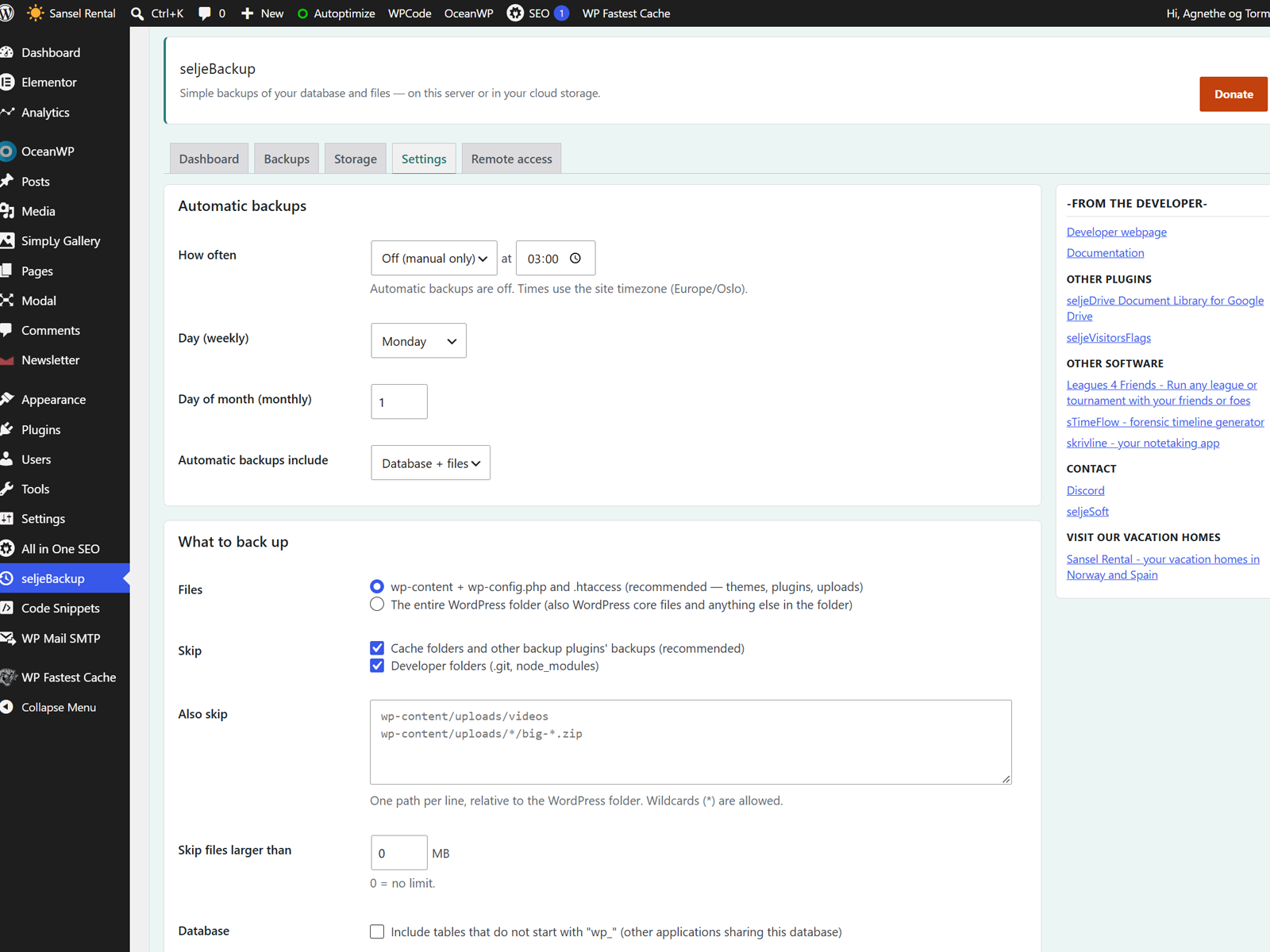
Automatic backups
How often / at
Daily, weekly, monthly, or off (manual only), at a time in the site’s timezone (Settings -> General).
Day (weekly) / Day of month (monthly)
Which day weekly or monthly backups run. Days 29–31 are not offered so that monthly backups run every month.
Automatic backups include
Database + files, database only, or files only.
What to back up
Files
“wp-content + wp-config.php and .htaccess” (recommended) contains your themes, plugins and uploads. WordPress core files can always be downloaded again. “The entire WordPress folder” also includes core files and anything else in that folder. With both options, wp-config.php (and copies such as wp-config.php.bak) is saved without its security keys and salts, which are replaced with WordPress’s placeholder text (WP_CACHE_KEY_SALT, used by object caches, gets a new random value instead). If a file cannot be cleaned with certainty, it is left out and the backup log says so.
Skip: cache folders and other backup plugins’ backups
Leaves out cache folders (cache, et-cache, litespeed, …) and backup folders of other plugins (UpdraftPlus, Duplicator, All-in-One WP Migration, WPvivid, BackWPup, …) so backups don’t contain other backups.
Skip: developer folders
Leaves out .git, .svn, .hg and node_modules folders.
Also skip
Your own exclusions, one path per line relative to the WordPress folder, for example wp-content/uploads/videos. Wildcards (*) are allowed.
Skip files larger than
Leave out single files above this size (MB). 0 = no limit.
Database: include tables that do not start with the table prefix
Off by default, so only this WordPress site’s tables are backed up. Turn on if other applications share the database and you want their tables too.
Skip tables
Full table names to leave out, one per line (for example large log tables).
Keeping backups and notifications
Keep on this server
How many of the most recent backups stay on this server. 0 removes the local copy as soon as it is safely uploaded to a cloud storage. How many to keep in each cloud storage is set per storage (“Keep”).
Email me / Email address
Only when something goes wrong (default), after every backup, or never. Leave the address empty to use the site admin email; separate several addresses with commas.
Advanced
Low-impact mode
Off (default), or a 5, 15 or 30 second pause between backup steps. The pause gives the server a break so busy or low-cost hosting stays responsive and CPU limits are not hit. Large backups take longer; small sites that finish in one step are not affected. Waiting uses no CPU.
Time per step
Backups run in short steps (default 20 seconds) so hosting time limits are never hit. After a failed step the plugin automatically halves the step size. Lower this if backups repeatedly fail with “stopped by the server”.
Split files archive every
0 = one single .zip (recommended). Set a size in MB if your storage has a maximum file size; each part is then a complete, separate .zip file.
Storage (per destination)
Name: label shown in the plugin. Keep: how many recent backups to keep in this storage (0 = keep all). Active: untick to pause uploads without removing the storage. Removing a storage never deletes the backups already stored there.
Details
Related plugins
Plugins that also contain the tag backup
All-in-One WP Migration and Backup

UpdraftPlus: WP Backup & Migration Plugin

Jetpack – WP Security, Backup, Speed, & Growth

ManageWP Worker

WPvivid — Backup, Migration & Staging

Backuply – Backup, Restore, Migrate and Clone

About
Plugin for that tries to help you find the WordPress plugin you are looking for.
| Please enjoy an image of Crush (this awesome turtle) and have a lovely day! |  |
We do not own any plugin listed on this site and do not work for or work with WordPress.com or it's associated companies. We simply provide a searchable list of the available WordPress plugins.