


Simple Menu Order Column
Every WP_Post (page, attachment, post, woo product) has a menu_order column and this plugin allows you to modify it directly on your dashboard listings.
Features
- Change menu order on WP_Post types like pages, attachments, posts & woo products.
Prerequisites
Pricing
Free
Configuration
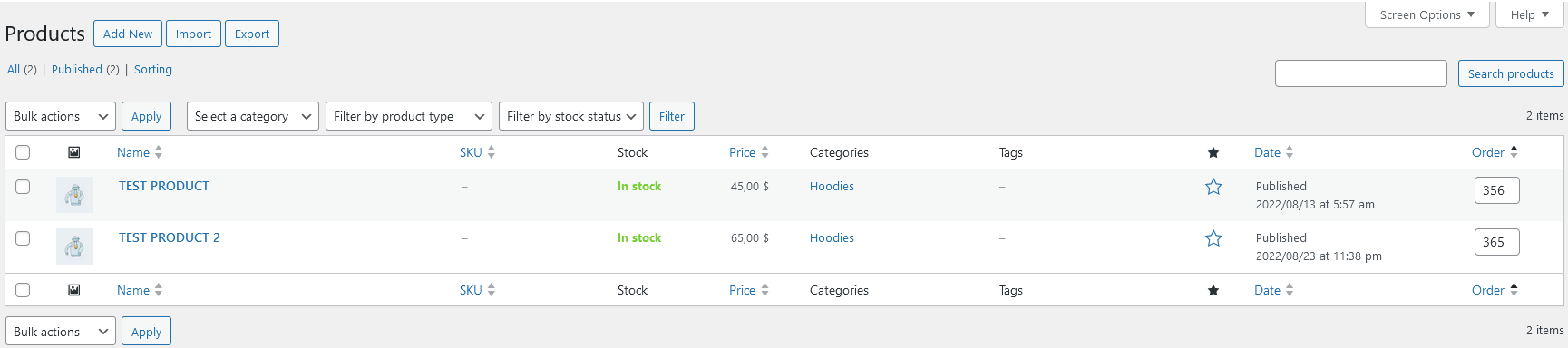
Once installed you will see an input box on every listing item.
To disable confirm prompt after menu order is updated visit Wordpres Settings->Writing and untick the option Enable confirmation on input exit
To disable tab to next on position update visit WordPress Settings->Writing and untick the option Enable Go to next field on update
Usage
- Access WordPress Admin: Log in to your WordPress admin dashboard. This is usually accessed by adding “/wp-admin” to the end of your website’s URL and entering your credentials.
- Navigate to Posts, Media, Pages or Products: After logging in, navigate to any listing page based on WP_Post, such as Posts, Media, Pages, or Products (if you’ve installed WooCommerce). You can find these sections in the left-hand menu of the WordPress admin dashboard.
- Reordering items: Each list item will have a new input box with a menu_order value *. Simply change the value and press Enter to reorder the items. Negative values are also acceptable. For example, -1 will be sorted before 1 or 0.
- If Order column is not present Manage screen options and enable Order Column.
Details


Related plugins
Plugins that also contain the tag media
Safe SVG

FileBird – WordPress Media Library Folders & File Manager

Media Cleaner: Clean your WordPress!

Default Featured Image

Media Library Assistant

Add From Server


About
Plugin for that tries to help you find the WordPress plugin you are looking for.
| Please enjoy an image of Crush (this awesome turtle) and have a lovely day! |  |
We do not own any plugin listed on this site and do not work for or work with WordPress.com or it's associated companies. We simply provide a searchable list of the available WordPress plugins.