


SEOmarketeer Bot Flagger
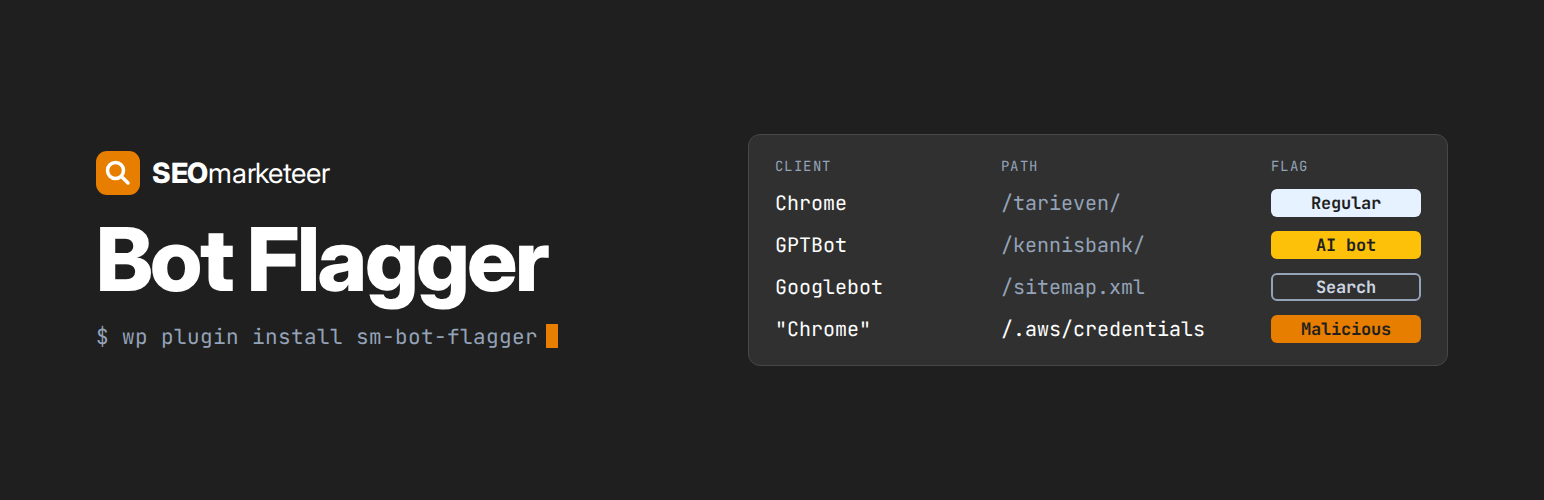
Most analytics trust what a visitor says it is. Attack tools know that, so they call themselves Chrome, or Googlebot, or an AI crawler, and walk straight past. SM Bot Flagger checks what they actually do: a request for your cloud credentials is an attack, whatever name it gives.
What it does
Each front-end request is written to its own table with:
- date and time, in site time and UTC
- IP address, stored whole or masked
- user agent
- referrer and referring domain
- requested path and query string
- HTTP status code
- whether the request started a new visit, which makes it a landing page
- the category and client name the rules assigned
- how long WordPress took to build the page
Nothing is written to postmeta, and there is one INSERT per request.
Categories
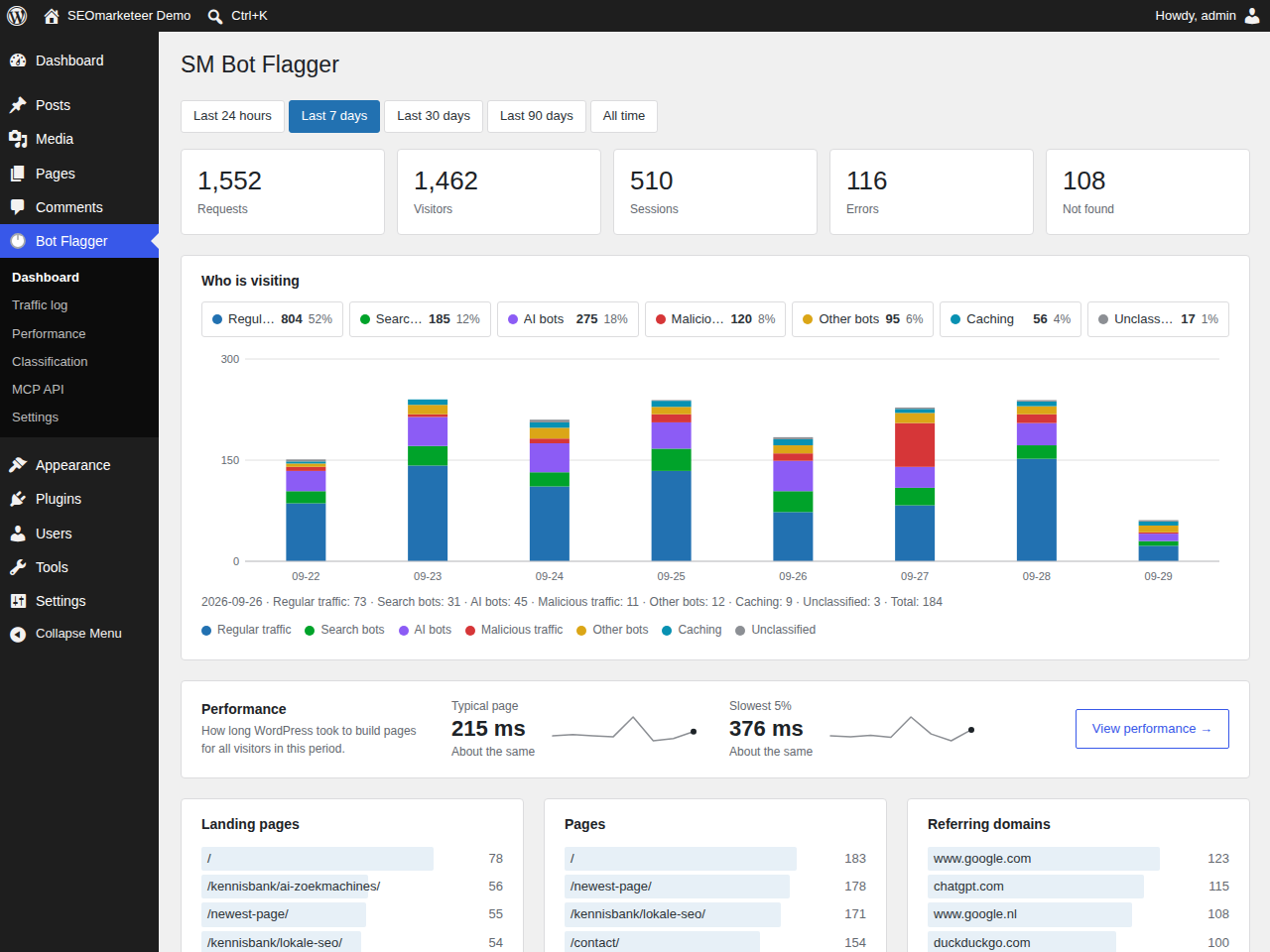
Traffic is sorted into six buckets:
- Regular traffic — looks like a person in a browser
- Search bots — Googlebot, Bingbot, DuckDuckBot and friends
- AI bots — GPTBot, ClaudeBot, PerplexityBot, Bytespider, CCBot and around thirty others
- Malicious traffic — sqlmap, Nikto, WPScan, plus around 75 path signatures:
config and env files, backup leftovers, SSH and private keys, AWS, Azure,
Google Cloud, Oracle, OVH, Linode and Hetzner credentials, Docker and
Kubernetes, Terraform state, Vite and Spring Actuator file disclosure, path
traversal and SQL injection, and credential files for AI coding agents - Other bots — SEO crawlers, uptime monitors, link previews, HTTP libraries
- Caching — your own cache plugins warming pages: WP Rocket preload and bot,
WP Fastest Cache, LiteSpeed crawler, W3 Total Cache, WP Super Cache,
FlyingPress, NitroPack, Cache Enabler, Swift Performance, Cloudflare Always
Online - Unclassified — empty or unrecognised user agents
Cache warming is the site requesting its own pages, so it is not a visit and it
is not really a bot either. Keeping it separate stops preload runs from inflating
the traffic numbers. Filter the log to Caching to check a preload actually ran.
Settings has a “Do not log” row where you can tick categories to discard. Those
requests are still classified, then dropped before anything is written, so they
cost one pass over the rules and no database queries at all. This is worth doing
for Caching on a busy site, where a preload run can easily be the largest source
of requests. Nothing is stored, so skipped traffic cannot be recovered later and
will not show up in the log, the charts or the API.
A rule matches on one of three things: the user agent, the request path, or the
IP address. User agent and path patterns match anywhere in the value, with *
as a wildcard and an optional regular expression. Address patterns understand an
exact address, a prefix such as 203.0.113, a wildcard such as 203.0.113.*, and
CIDR ranges such as 203.0.113.0/24 or 2001:db8::/32. Prefixes only match on a
boundary, so 192.168.1 will not match 192.168.10.4.
This is how you handle a crawler that lies about its user agent, or a scraper
running from one hosting range: match the address instead. It is also how you
mark an internal monitoring path or a staging endpoint as something other than
real traffic.
Rules live under SM Bot Flagger Classification. Each rule matches a substring
or a regular expression against the user agent, the path or the IP. They are
evaluated top to bottom and the first match wins, so put narrow rules above broad
ones. You can edit, reorder, disable, delete and restore them.
Privacy
SM Bot Flagger processes personal data in the sense of the GDPR, because an IP
address is personal data. The defaults are chosen to keep as little as
possible:
- IP addresses are masked before storage, to /24 for IPv4 and /48 for IPv6.
Full addresses are stored only if you switch that on. - Visitors are counted through a hash of the masked address, the user agent
and a secret that changes every day, so nobody can be followed from one day
to the next. - Values that look like secrets in URLs, such as password reset keys and
tokens, are removed before a row is written. - Administrators are not logged by default.
- Entries are deleted after 90 days by default.
- Nothing leaves your server. There is no tracking script, no external
service, no call home. The plugin author never sees your data.
The plugin adds suggested text to your site’s privacy policy guide under
Settings > Privacy > Policy Guide. Adapt it to your configuration. If you
store full addresses or keep entries longer, say so there, and check your
legal basis: for most sites that is a legitimate interest in security, which
should be recorded in your processing register.
The optional MCP endpoint lets a tool you connect read the log. Whoever holds
a token can read the same data you can, so treat tokens as passwords and
revoke the ones you no longer use.
The MCP endpoint
Enable it under Settings, then create a token under MCP API.
Endpoint: https://your-site.tld/wp-json/sm-bot-flagger/v1/mcp
Transport: streamable HTTP, JSON-RPC 2.0 over POST
Auth: Authorization: Bearer <token>, or X-MCP-Token: <token> if a proxy
strips the Authorization header
Tools:
get_traffic_summary— totals and the category split for a periodget_timeseries— hourly or daily counts per categoryget_top— ranks pages, landing pages, referrers, referring domains, user
agents, clients, categories, status codes, IPs, rules or hour of daysearch_hits— individual requests, with filtersclassify_user_agent— test a user agent against the current ruleslist_classification_rules— the rules in evaluation orderupsert_classification_rule— add or change a rule, write token onlydelete_classification_rule— remove a rule, write token only
Read tokens can only read. Give a token write access only if you want the client
to change how traffic is categorised.
If Authorization never arrives, add this to .htaccess on Apache:
SetEnvIf Authorization "(.*)" HTTP_AUTHORIZATION=$1
Hooks
Extension points for add-ons:
sm_bot_flagger_categories (array) — add your own traffic categories. They appear in the
rules editor, the charts, the filters and the MCP schemas automatically.
sm_bot_flagger_classification (array) — override the category, label or rule for a
request, after the rules have run.
sm_bot_flagger_mcp_tools (array) — register MCP tools. Include a callback key and the
free plugin will dispatch to it.
sm_bot_flagger_stats_where (array) — append conditions to every stats query.
sm_bot_flagger_admin_menu (action) — add a submenu page under SM Bot Flagger.
sm_bot_flagger_dashboard_cards / sm_bot_flagger_dashboard_panels (actions) — add to the dashboard.
sm_bot_flagger_log_columns (array) and sm_bot_flagger_log_column (action) — add columns to the log.
sm_bot_flagger_settings_fields (action) and sm_bot_flagger_sanitize_settings (array) — add settings.
SM_Bot_Flagger_Logger::current_classification() classifies the current request once and
caches it, so an add-on can act on a crawler early rather than at shutdown.
sm_bot_flagger_should_log (bool) — return false to skip logging a request.
sm_bot_flagger_hit_data (array) — change the row before it is written, or return an empty
array to drop it. Useful for adding a country lookup.
sm_bot_flagger_mcp_tools (array) — add your own MCP tools. Give each one a handler named
tool_ on a class of your choosing and hook tools/call accordingly.
Notes on accuracy
- Logging happens on
shutdown, so requests served entirely from a page cache
or a CDN never reach PHP and are not counted. On a cached site, treat these
numbers as a lower bound. - Bot detection relies on self-reported user agents. Anything determined to look
like a browser will be counted as regular traffic. - Only pick a proxy header for the IP if a proxy actually sets it. A client can
send X-Forwarded-For itself, which would let anyone forge their address.
Security notes
- Query string values for parameters like key, token, code, password and nonce
are replaced with [redacted] before a row is written, so password reset links
and OAuth callbacks do not end up sitting in the log table. - CSV exports prefix any cell starting with =, +, – or @ with an apostrophe, so
a crafted user agent cannot run as a formula when the file is opened. - The MCP endpoint blocks an address for 15 minutes after 20 failed token
attempts. - Tokens are not accepted as a ?token= query parameter by default, because
query strings leak into access logs and referrers. Enable it with the
sm_bot_flagger_mcp_allow_query_token filter if a client cannot send headers. - A regular expression that does not compile is switched off rather than being
treated as literal text, so a typo cannot silently widen what a rule matches. - Rule patterns are matched against at most the first 1000 characters of a
header, which bounds the cost of a badly written expression.
A write-scoped MCP token can change classification rules, and those rules run on
every front-end request. Treat a write token as trusted, and hand out read
tokens for anything that only needs to look at the numbers.
Behaviour rules
Pattern rules judge a request on what it looks like. Behaviour rules judge a
client on what it has been doing. They run at log time, because they need the
response status and a short memory, and they need a stored IP address, so they
do nothing when IP storage is off. Confirmed search and AI crawlers are never
demoted by them.
Random paths. A 404 on a single path segment of 4 to 12 alphanumeric characters
with no vowels and mixed case, such as /6bXX29bt, is treated as scanning. Real
slugs contain vowels; generated tokens do not. The 404 is required, so a short
consonant heavy page of your own is never caught.
Repeated 404s. Flagged on both a count and a share: by default 8 misses within
10 minutes, and at least half of that client’s requests in the window missing.
The share is what makes this safe. A busy legitimate client can collect a
handful of 404s among hundreds of good requests, and counting alone would flag
it. Scanners miss on almost everything they ask for.
Login attempts. A cumulative count of requests to wp-login.php and xmlrpc.php,
10 per hour by default. Deliberately not a rate: credential stuffing is usually
slow and spread over many addresses, so a per-second limit never sees it.
Request rate, off by default. On real traffic the fastest clients are usually
legitimate, while scanners and credential stuffing run slowly enough to pass any
threshold worth setting. Counting 404s separates the two far better than
counting requests. Measure your own traffic before switching this on.
Once a client trips a rule it stays flagged for an hour by default, and what it
already did in that window is recategorised too.
Path precedence
A user agent is a claim the client makes about itself. Anything can send
“OAI-SearchBot” or “Googlebot”, and plenty of attack tooling does, because it
gets past naive filtering.
Settings has “Trust the path”, on by default, which tests path and address rules
before user agent rules. A request for /root/.aws/credentials is then recorded
as an attack whatever it claims to be, and your genuine crawler rules stay
correct for genuine crawlers.
Turn it off if you would rather rules were evaluated strictly in the order shown
on the Classification screen.
Filtering
Dashboard tiles toggle categories, and several can be combined. Rows in the top
lists are links: click a page, landing page, status code, client or referring
domain to open the traffic log filtered to it.
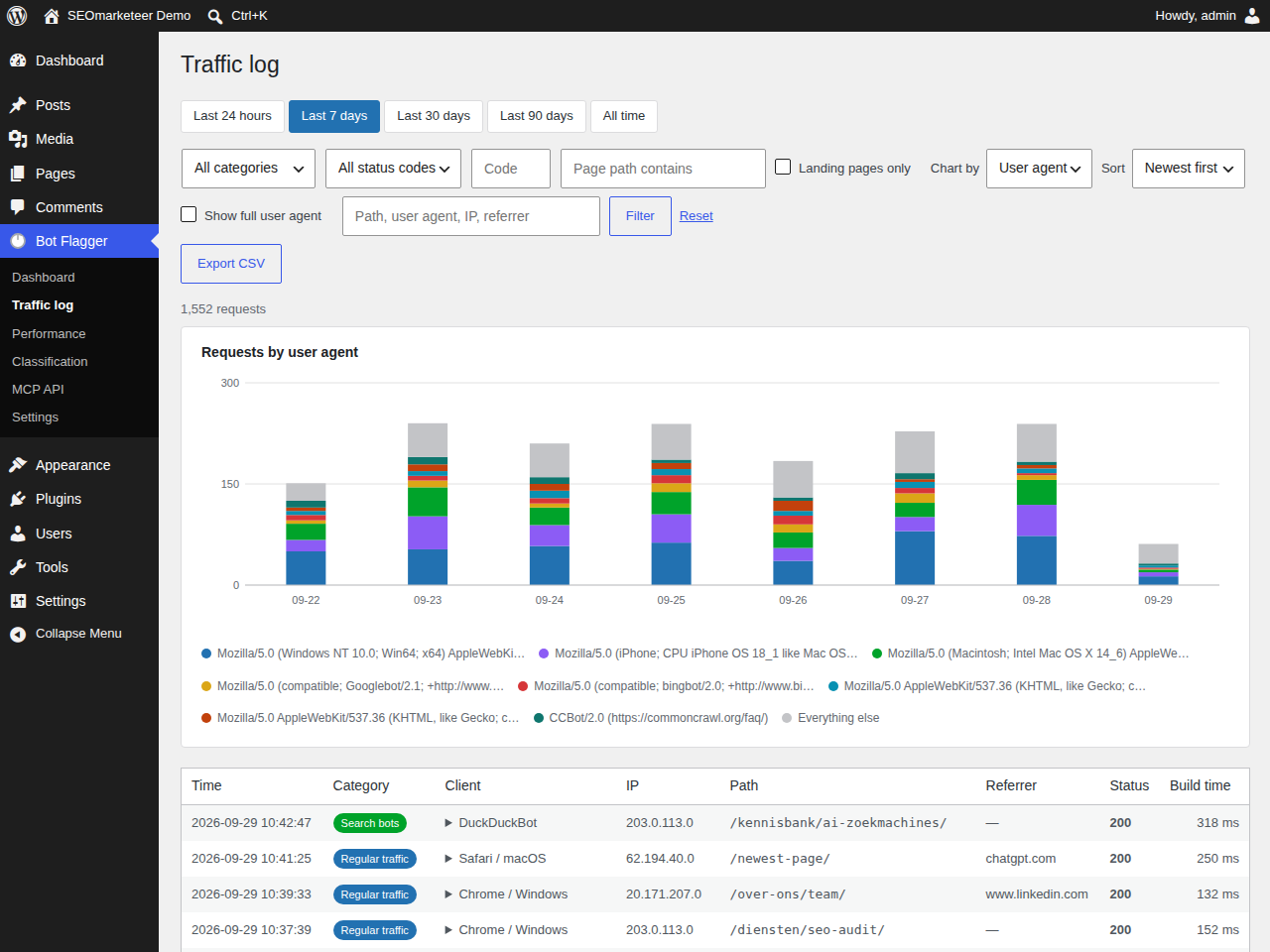
The log itself filters on category, status family (2xx to 5xx), an exact status
code, a page path, landing pages only, and a free text search across path, user
agent, referrer, IP and client. Combining a path with “landing pages only” gives
you the entry traffic for one page. Filters survive paging and are applied to
CSV exports.
Correcting a classification
Open the Traffic log and click the client name on any row. You get the user
agent as an editable pattern, a name, and a category. Shorten the pattern to the
distinctive part before saving, for example MyScraper/2. rather than the whole
string, so the rule catches other versions too.
Saving puts the rule first in the evaluation order, so it beats the shipped
defaults. Tick the box to also rewrite requests that are already in the log,
which is matched on the user agent containing your pattern.
The chart above the table follows the filters, and can be grouped by category,
by client or by the raw user agent. The eight busiest values get their own band
and the rest are folded into “Everything else”. “Show full user agent” prints
the whole string under each client name.
Details


Related plugins
Plugins that also contain the tag ai-crawlers
Better Robots.txt – AI-Ready Crawl Control & Bot Governance

Smalk AI Analytics

Visora — AI Visibility

CiteCue AI Auto-Fix

GlobalDev AI Traffic Control

RowanWeb Markdown for AI – .md Pages & llms.txt


About
Plugin for that tries to help you find the WordPress plugin you are looking for.
| Please enjoy an image of Crush (this awesome turtle) and have a lovely day! |  |
We do not own any plugin listed on this site and do not work for or work with WordPress.com or it's associated companies. We simply provide a searchable list of the available WordPress plugins.