


SwiftMigrate
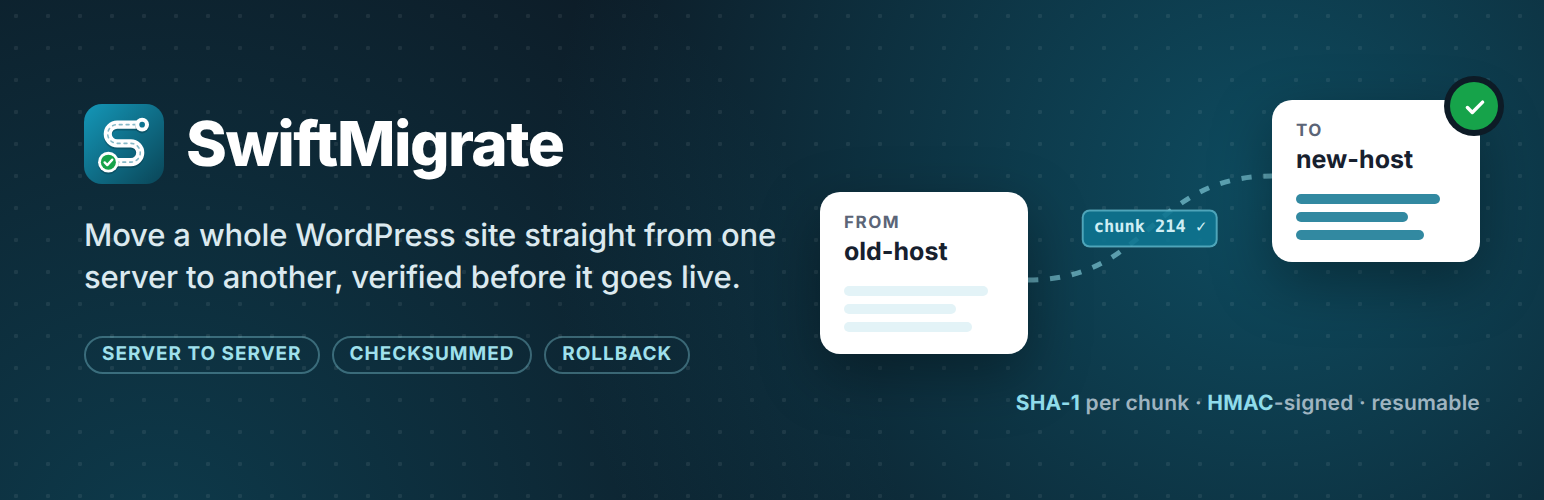
SwiftMigrate moves a complete WordPress site from its current server to a new one. The files and the database travel directly from server to server, so nothing is downloaded to your computer and there is no archive to upload.
How a migration works
- Install and activate SwiftMigrate on both sites. The new site can be a fresh WordPress install on any domain.
- On the new site, open SwiftMigrate Receive a site Generate migration key, then copy the key.
- On the old site, open SwiftMigrate Send this site, paste the key and click Connect.
- Review the pre-flight check, choose what to move and confirm that the destination may be overwritten. Click Start migration.
- When every chunk has been verified on the destination, click Restore on destination (or tick “Restore automatically”).
- Log in to the new site with the old site’s username and password.
- Check the new site, then click “Delete rollback copy” – or “Roll back” if something is wrong.
Features
- Direct server-to-server transfer with parallel streams (4 by default, configurable).
- Small files are packed together; large files of any size are split into chunks.
- Every file and chunk carries a SHA-1 checksum, and the destination rejects anything that does not match.
- After the transfer, the destination confirms every single chunk. Missing or damaged chunks are resent automatically before a restore is allowed.
- Fast database export using primary-key ranges, binary-safe values and statement sizes adapted to the destination’s MySQL limits.
- The restore imports into temporary tables, rewrites URLs and server paths (including serialized, JSON-escaped and URL-encoded data), then switches all tables at once. Different table prefixes are handled automatically.
- Rollback: the destination’s previous database and replaced files are kept until you delete them.
- Resumable: close the browser tab at any time and press Resume later.
- Full log of every migration under SwiftMigrate History & logs, downloadable as a text file.
Security
- A migration key is generated on the destination. It contains the destination’s address and a random 256-bit secret, and it expires after 24 hours by default.
- Every request between the two sites is signed with HMAC-SHA256, time-limited and single-use, so it cannot be altered or replayed.
- If the destination does not use HTTPS (or certificate verification is turned off), every request and response is additionally encrypted end-to-end with a key derived from the migration secret (XChaCha20-Poly1305, via PHP’s sodium extension or the library bundled with WordPress). Site data is never sent in clear text. If encryption is not available, a non-HTTPS migration is refused.
- Temporary data is kept in a private folder inside the uploads directory with a random, unguessable name, protected against web access. Received files are stored under hashed names with a .bin extension until the restore, so no received code can run from that folder.
- Keys are revoked when the plugin is deactivated.
- All admin screens and actions require the
manage_optionscapability.
Tuning for your host
The defaults suit most hosts. Under SwiftMigrate Settings you can adjust:
- Speed: parallel streams, maximum request size, small files per request, database rows per chunk, request timeout and compression.
- What is left behind: skip post revisions, transients, or spam and trashed comments; skip whole database tables; exclude files and folders with simple rules (for example
*.logor*/node_modules). - Safety and connection: rollback copy, migration key lifetime, SSL verification and a firewall-friendly mode for hosts that block binary uploads.
Never transferred
wp-config.php, .htaccess, .user.ini, php.ini and web.config stay as they are on the destination, so its database credentials and server rules keep working.
Limitations
- Multisite networks are not supported.
- Files that exist only on the destination are left in place.
- Changes made on the source while a migration runs may not all be captured. Avoid editing content during the transfer.
- Rollback needs the “Keep a rollback copy” setting (on by default) and enough free disk space on the destination.
External services
SwiftMigrate does not use any third-party service and does not send any data to the plugin author.
To perform a migration, the site you are moving (the source) sends its files and database content to the WordPress site whose migration key you paste (the destination). This happens only after you paste a key and click Connect / Start migration, and only to the address contained in that key. The destination is a WordPress site you control, running SwiftMigrate. The data is sent to the destination’s REST API route /wp-json/swiftmigrate/v1/transfer (or ?rest_route=/swiftmigrate/v1/transfer).
What is sent: the database tables and the files you choose to include (media, themes, plugins, WordPress core, other files in the site root), plus technical information needed for the transfer (site URL, server paths, table prefix, WordPress/PHP/MySQL versions and upload limits). Over HTTPS the data is encrypted by TLS; if the destination does not use HTTPS, SwiftMigrate encrypts every request and response itself with the migration key, so the data is never sent in clear text.
Because the destination is your own site, its privacy policy and terms are your own. No other service is involved.
Details


Related plugins
Plugins that also contain the tag clone
All-in-One WP Migration and Backup

WPvivid — Backup, Migration & Staging

WP Migrate Lite – Migration Made Easy

Migrate Guru – Site Migration & Cloning

Duplicate Menu

BlogVault Backup & Staging


About
Plugin for that tries to help you find the WordPress plugin you are looking for.
| Please enjoy an image of Crush (this awesome turtle) and have a lovely day! |  |
We do not own any plugin listed on this site and do not work for or work with WordPress.com or it's associated companies. We simply provide a searchable list of the available WordPress plugins.