


Under The Weather
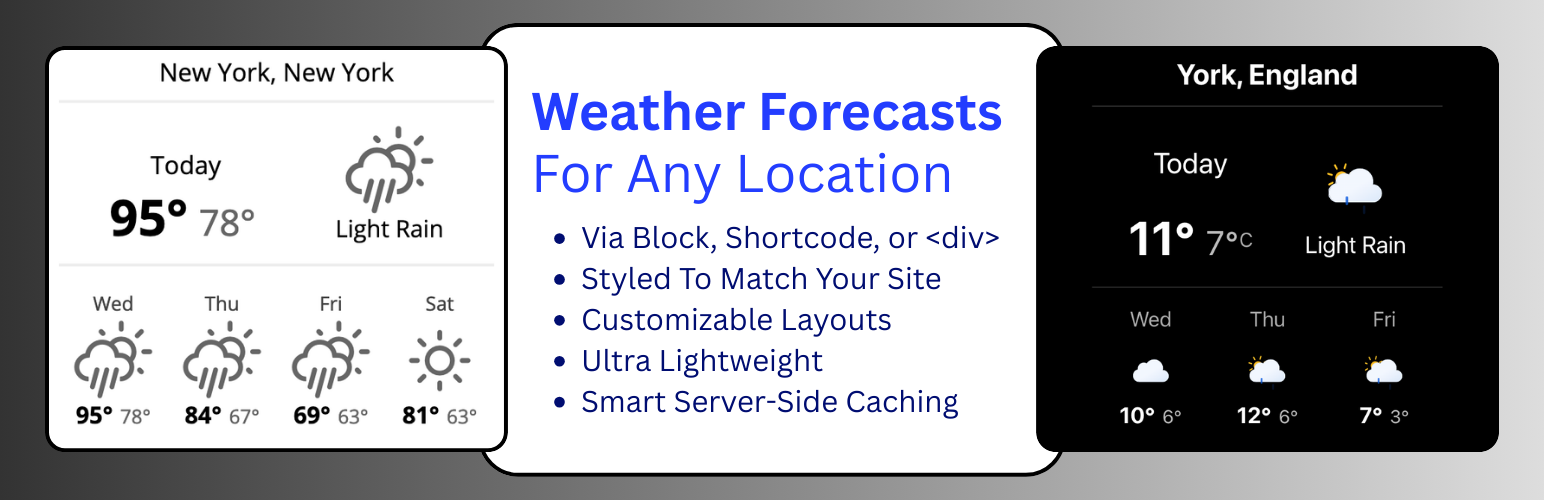
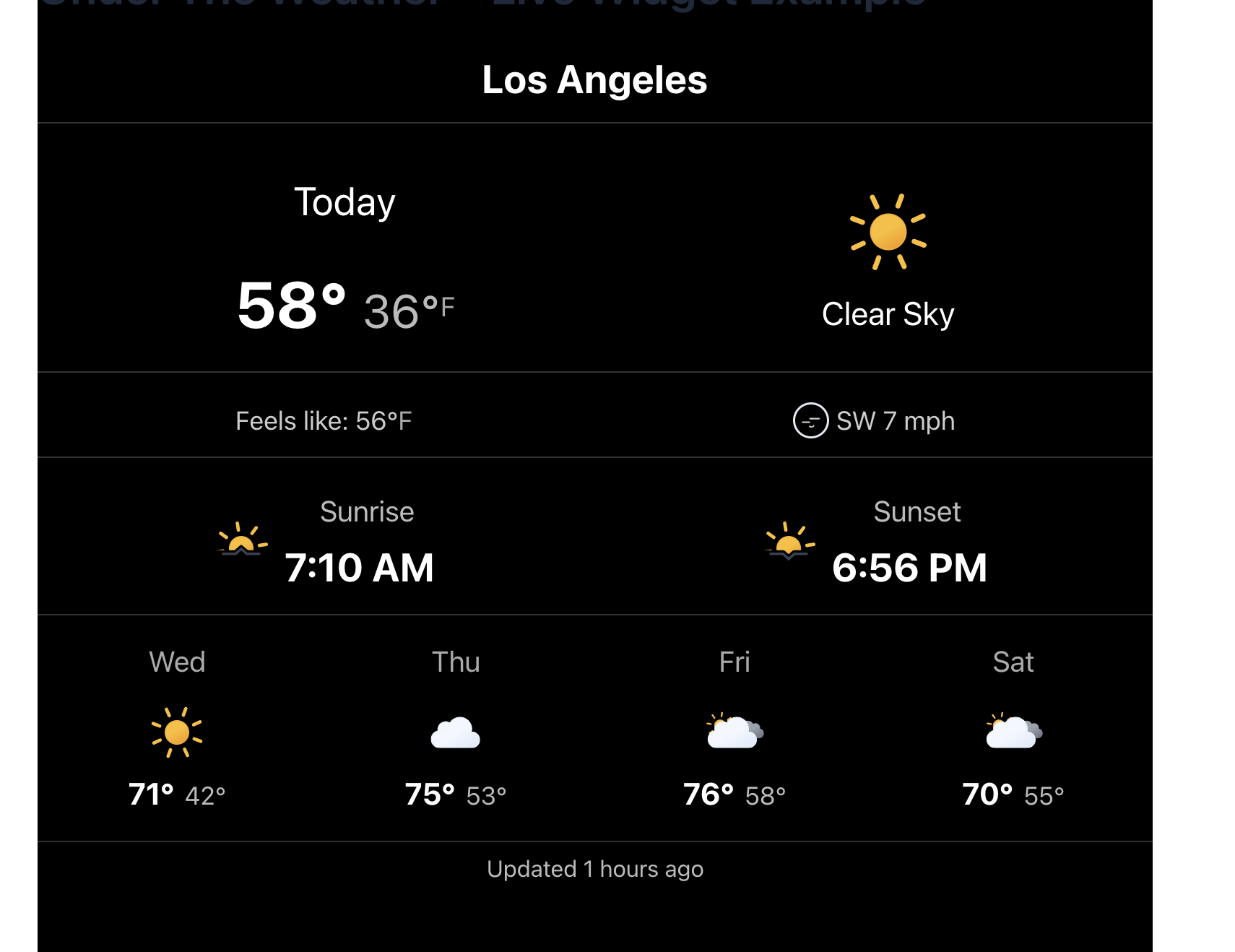
Under The Weather is a powerful yet simple plugin designed to display location-specific weather forecasts on your WordPress site. Featuring a dedicated “Under The Weather Forecast” block to add and customize weather widgets directly in the WordPress editor for a seamless workflow.
With performance in mind, Under The Weather uses a server-side caching system (WordPress Transients) to minimize API calls and ensure your site remains fast. Under The Weather is completely “vanilla” on the front-end, meaning it does not rely on jQuery or any other JavaScript frameworks. Built with modern security practices, including input validation, CSRF protection, and optional rate limiting to protect your site and API quota.
This plugin is ideal for travel blogs, outdoor activity sites, or any website that needs to display weather conditions for specific locations without the bloat of heavy, multi-dependency plugins.
Key Features:
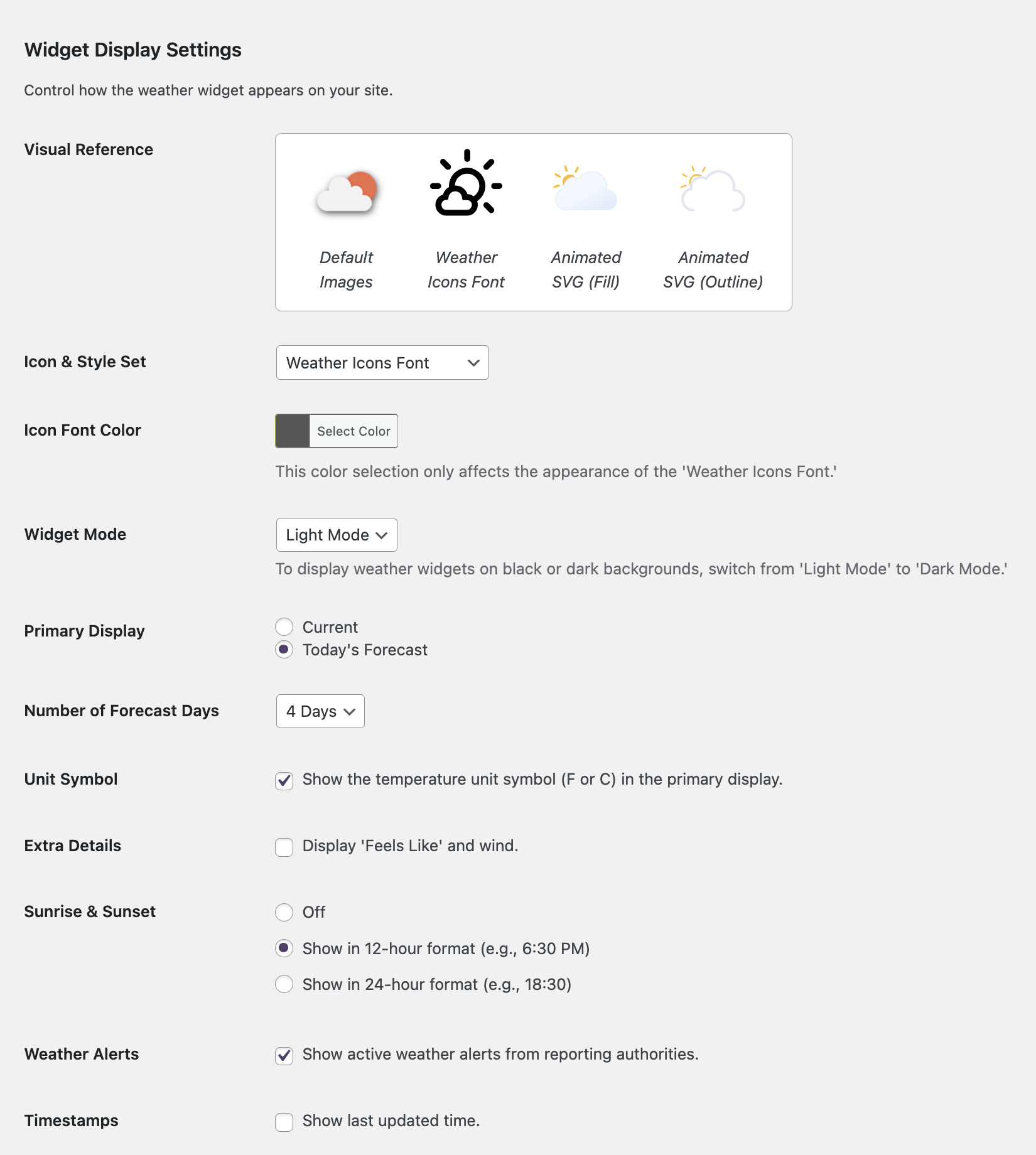
- Stylish Weather Widgets: Choose between default OpenWeather images, crisp Weather Icons font set, and two Animated SVG icon sets (Fill and Outline).
- Easy to Use: Add weather widgets using the WordPress block editor or by placing a simple
<div>with data attributes anywhere on your site. - Server-Side Caching: All API calls are cached on your server, dramatically reducing calls to the OpenWeather API and speeding up page loads for all users.
- Smart Caching: In addition to a configurable cache duration, the plugin automatically resets the forecast after midnight in the location’s timezone, ensuring your visitors always see the current day’s weather.
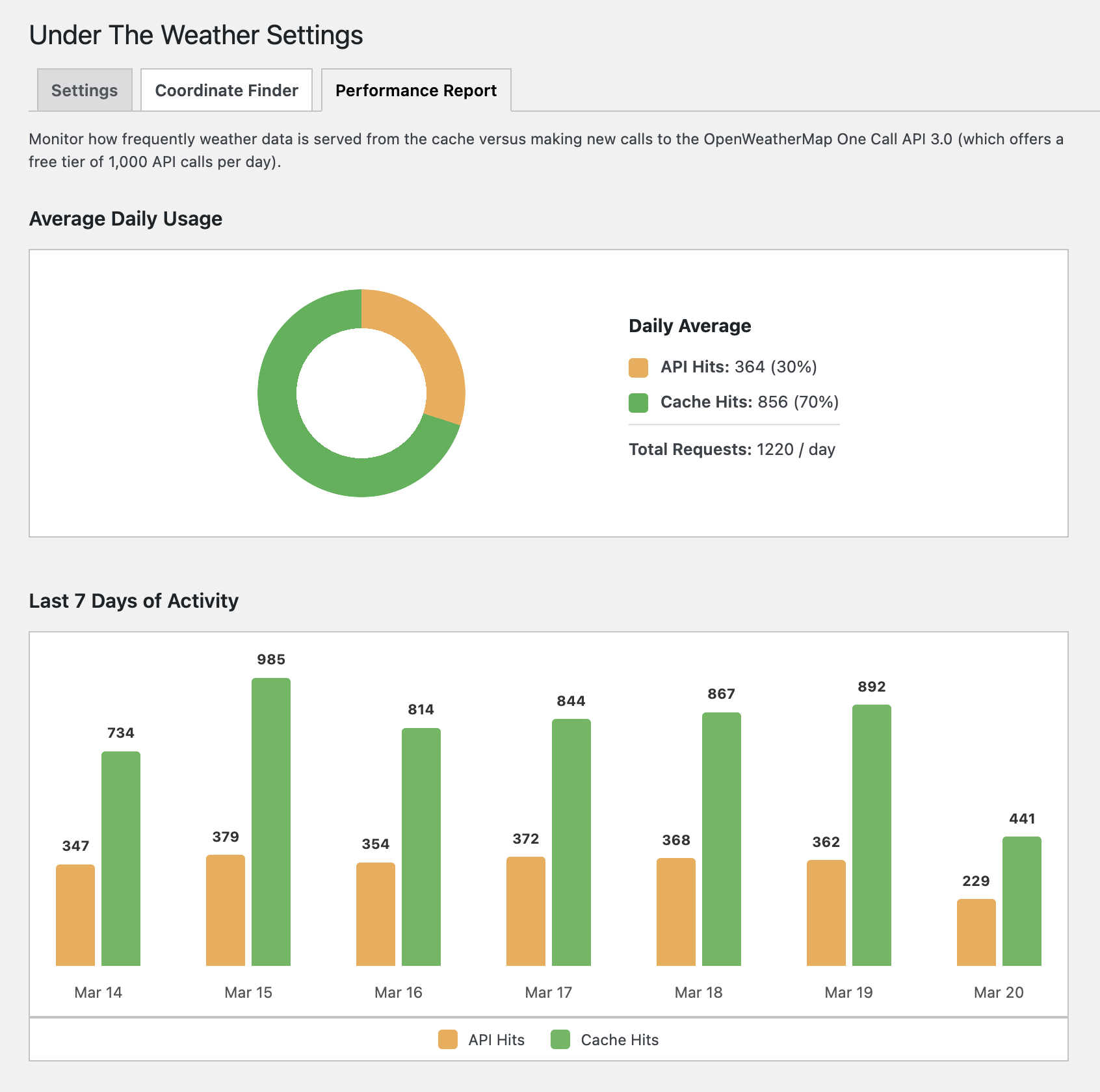
- Visual Performance Report: Monitor your site’s API usage with a bar chart that displays a 7-day history of cached requests versus new calls to the OpenWeather API – a clear look at how the caching system is working to keep your site fast and your API calls low.
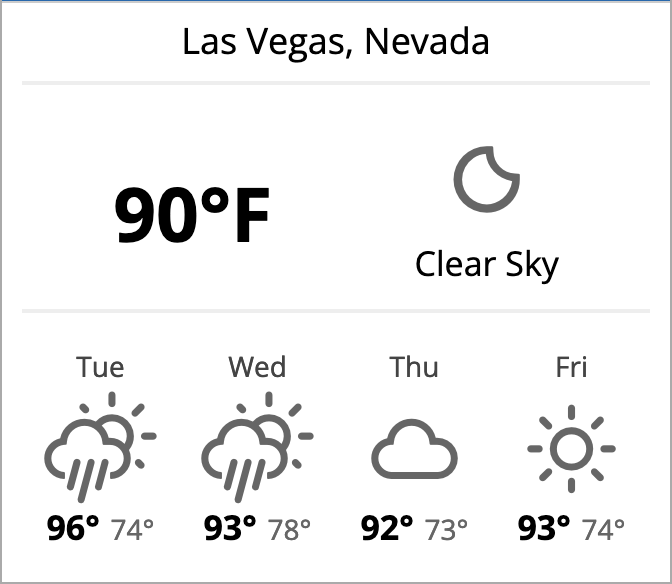
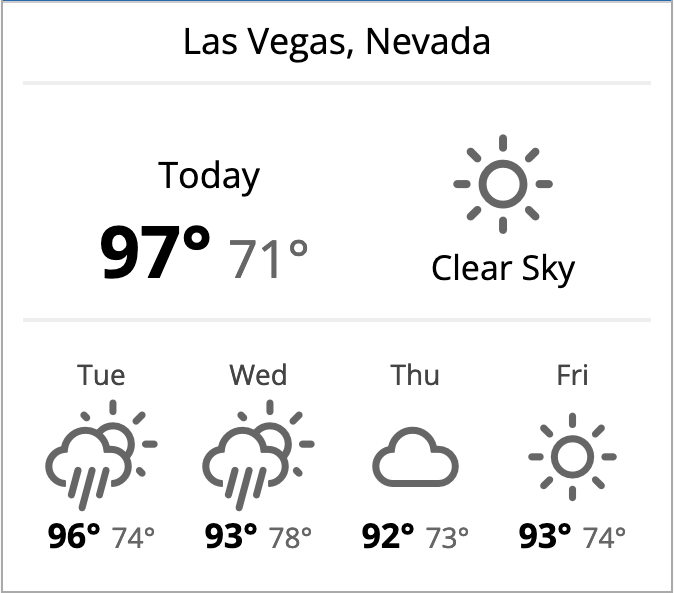
- Customizable Display: Use the main display to show either the current live weather or the high/low forecast for the current day, and set the number of days to include in the forecast ahead.
- Imperial & Metric Units: Display weather in Fahrenheit/mph or Celsius/kph on a per-widget basis.
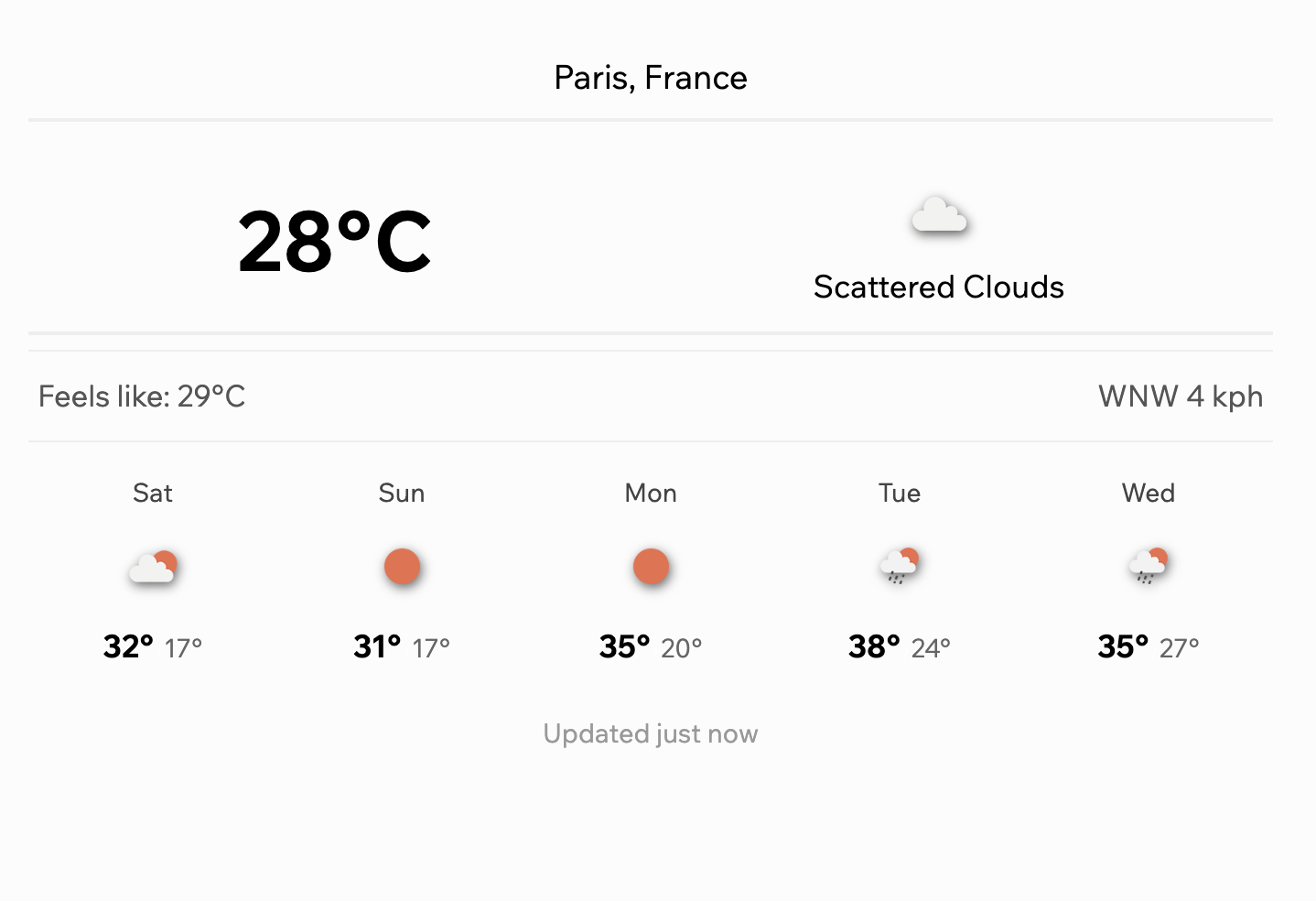
- Extra Details: Optionally display “Feels Like” temperature and detailed wind information.
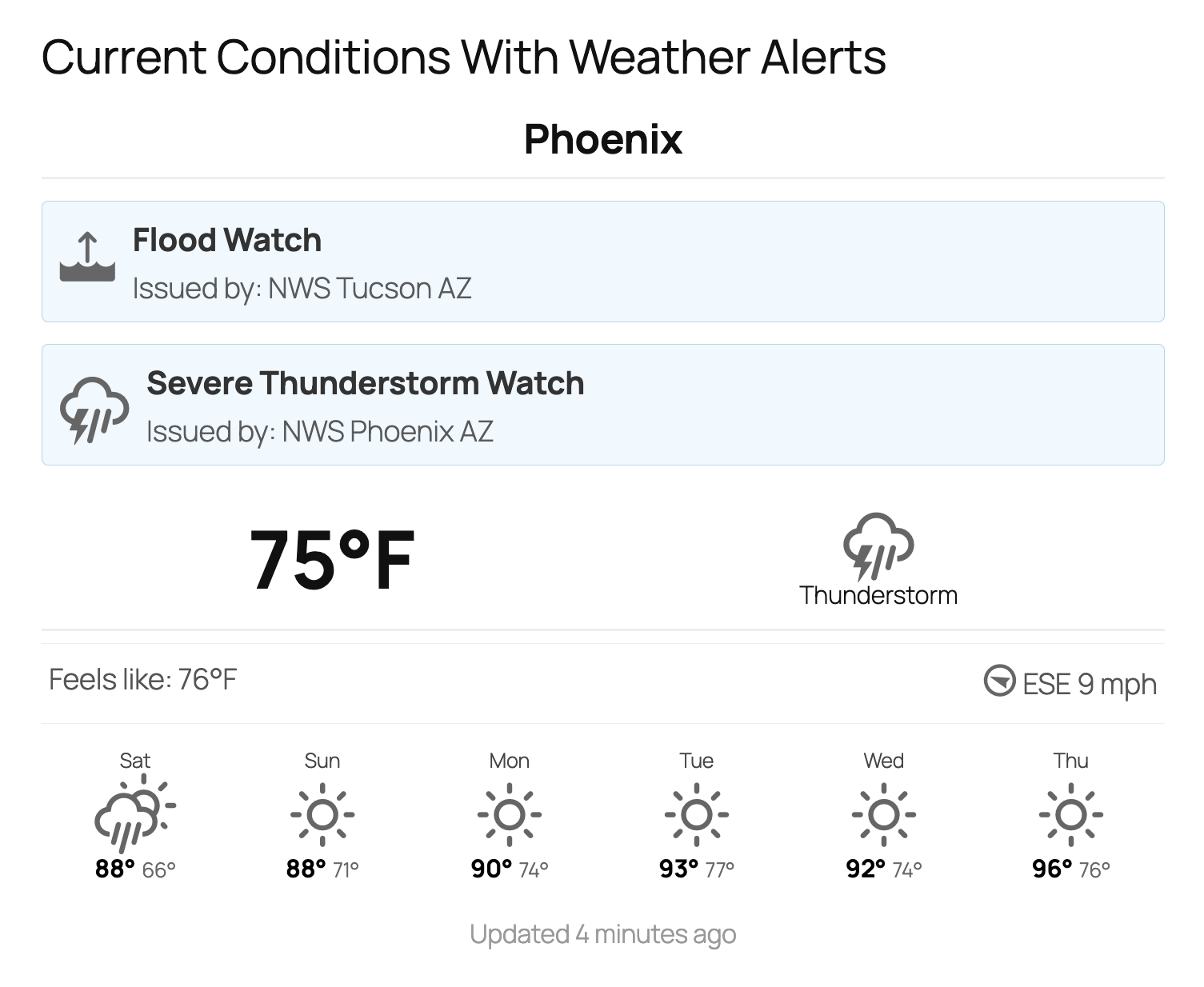
- Weather Alerts: Display official severe weather alerts directly in the widget to keep visitors informed.
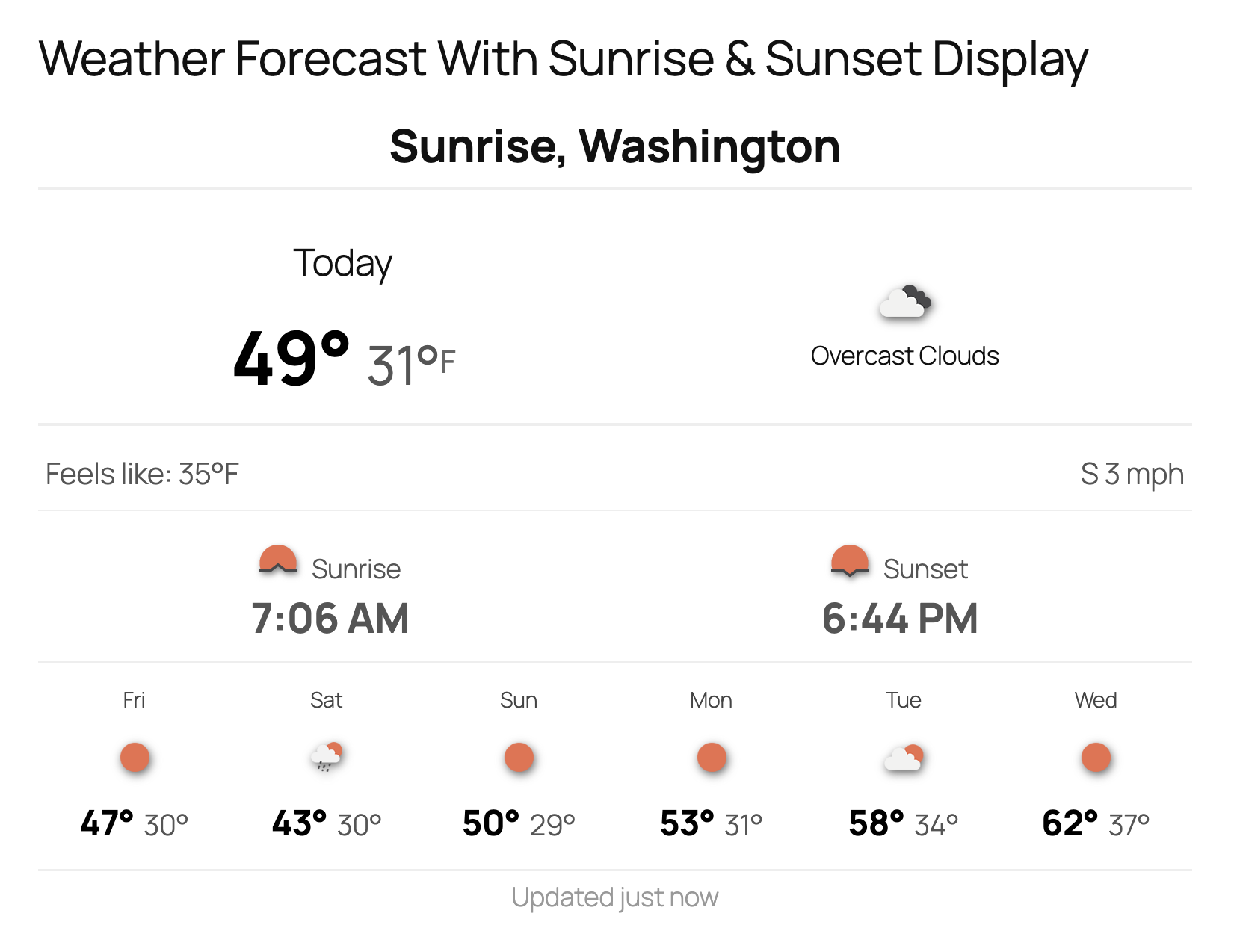
- Sunrise & Sunset Times: Optionally show daily sunrise and sunset times, with 12-hour and 24-hour format options.
- Color Picker: Customize the color of the “Weather Icons Font” set directly from the settings page.
- Performance Optimized: Built for speed with native script deferral, smart font preloading, and optional async CSS loading to score high on PageSpeed Insights.
- Lightweight: Enqueues assets only when needed and does not rely on heavy JavaScript libraries.
- Settings Page Coordinate Finder: An easy-to-use tool on the settings page retrieves coordinates by location name and generates ready-to-use widget
<div>code. - Block Editor Coordinate Finder: Search for locations by name and automatically fill in coordinates without ever leaving the block editor.
Usage
The Under The Weather plugin offers two ways to add a weather forecast: using the block editor or manually placing a <div>.
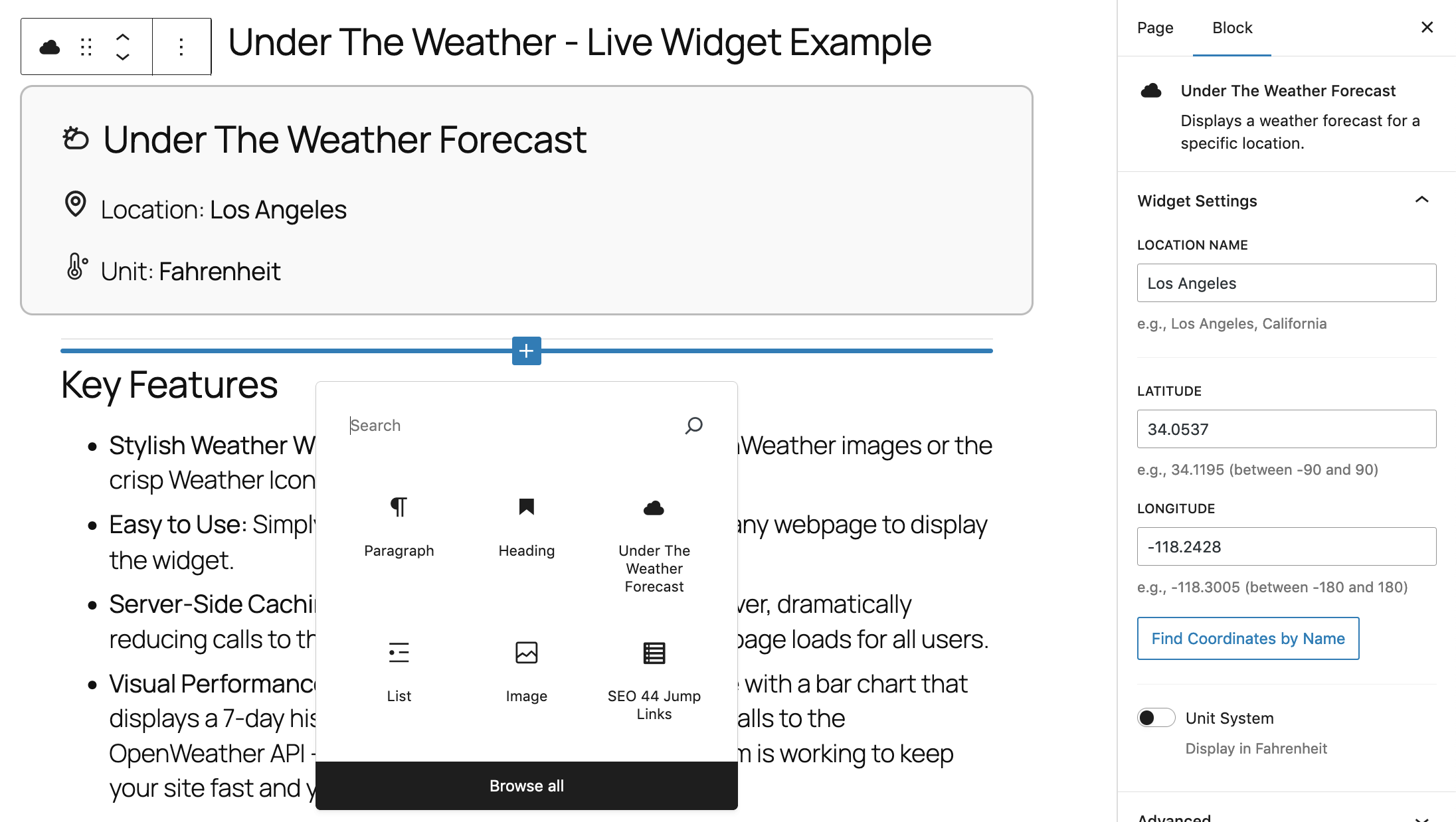
Using the Block Editor (Recommended)
- Open the post or page where you want to display the weather.
- Click the block inserter icon (+) to add a new block.
- Search for “Under The Weather Forecast” and add the block.
- Configure your location using either:
- Manual entry of coordinates in the block settings sidebar
- The built-in coordinate finder that searches by location name and fills in the coordinates for you
- Choose your preferred units (Imperial/Fahrenheit or Metric/Celsius)
- Publish or update your post – the weather will display automatically!
Manual Placement (Classic Editor & Themes)
To display the weather widget on a post, page, or in a template file, add a simple <div> element with the class weather-widget and the required data attributes.
data-lat: The latitude for the forecast.data-lon: The longitude for the forecast.data-location-name: The city or location name you want to display as the title of the widget. (Beyond its display purpose, the ‘data-location-name’ is also used to create the shared cache key).data-unit(optional): The unit system for temperature and wind speed. Acceptsmetricorimperial. The default unit isimperialif not provided.
Examples:
        <div class="weather-widget"
           data-lat="34.1186"
           data-lon="-118.3004"
           data-location-name="Los Angeles, California">
        </div>
To show the weather for a location in Celsius, you would add data-unit="metric":
        <div class="weather-widget"
           data-lat="48.8566"
           data-lon="2.3522"
           data-location-name="Paris, France"
           data-unit="metric">
        </div>
The plugin’s JavaScript will automatically find this element and populate it with the forecast.
Using the Shortcode (Classic Editor & Widgets)
You can also display the weather by using the [under_the_weather] shortcode. This is ideal for the Classic Editor, text widgets, or other page builders.
Available attributes:
lat: (Required) The latitude for the forecast.lon: (Required) The longitude for the forecast.location_name: (Required) The name to display for the location.unit: (Optional) The unit system. Acceptsmetricorimperial. Defaults toimperial.
Example: [under_the_weather lat="48.8566" lon="2.3522" location_name="Paris, France" unit="metric"]
Configuration
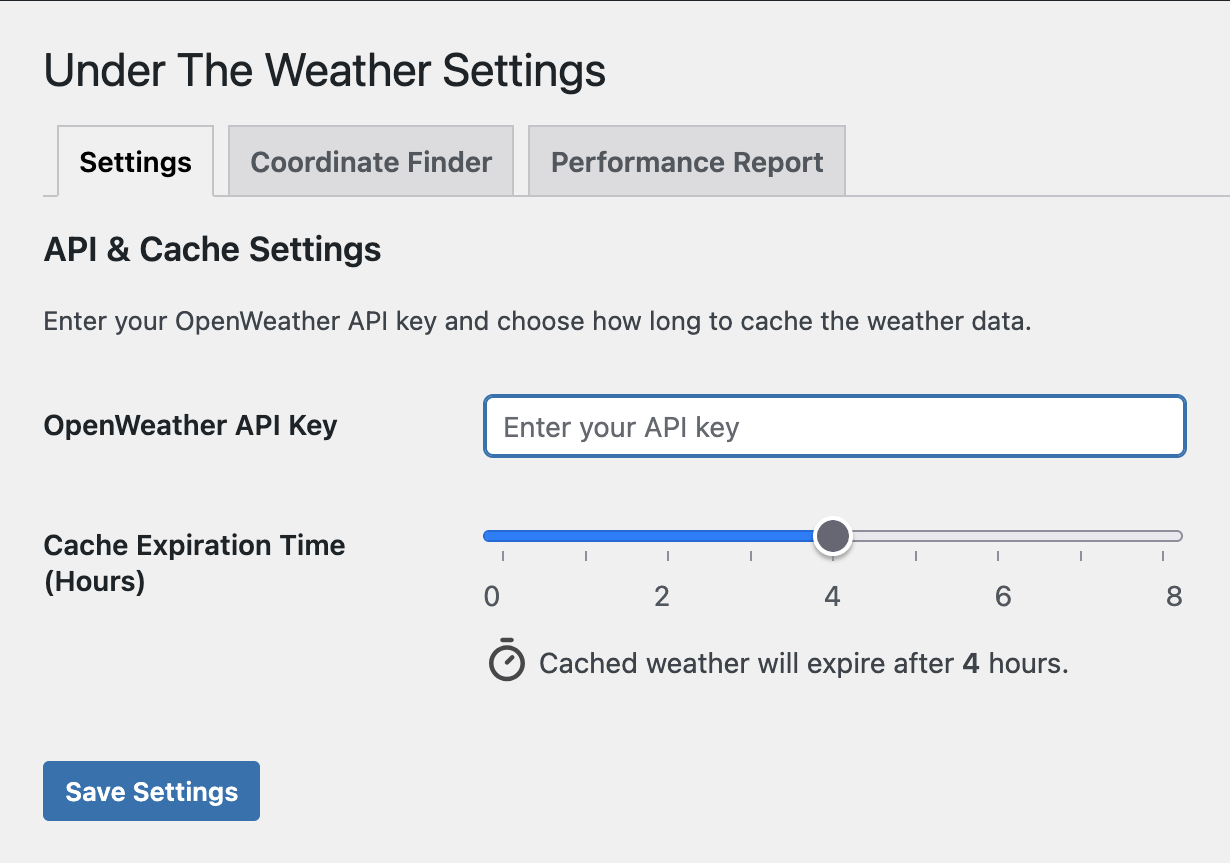
Before you begin, go to https://home.openweathermap.org/ and sign up for an API key and register for the One Call API 3.0 subscription. Paste your API key into the Under the Weather Settings Page.
API & Cache
Cache Expiration Time:
Use the slider to set the maximum time weather data is stored before fetching a new forecast, from 30 minutes to 8 hours.
The plugin also features a smart caching system that automatically ensures the cache expires after midnight in the location’s local timezone. This prevents showing a stale forecast from the previous day, regardless of your slider setting.
For displaying live conditions (using the Primary Display or Extra Details options), a shorter cache time of 1 or 2 hours is recommended.
For displaying only the daily high/low, a longer cache time of 3 or 8 hours is effective at reducing API calls.
Widget Display & Style
Icon & Style Set:
Pick the style that suits you best. Choose between four weather icon options:
* Recognizable Default images (PNGs) provided by OpenWeather.
* Sharp, modern Weather Icons fonts created by Erik Flowers.
* Two Animated SVG icon sets (Fill and Outline) by Bas Milius.
Note: Selecting the icon font will load an additional small CSS file.
Icon Font Color:
Use the color picker to customize the color of the “Weather Icons Font” set to perfectly match your theme. This setting only has a visible effect when the “Weather Icons Font” style is selected (it does not impact PNGs or SVGs). If left at the default, the icons will use the gray color specified in the plugin’s stylesheet.
Primary Display:
Select whether the main display of the widget shows the Current live temperature or Today’s Forecast (the high and low for the day).
Number of Forecast Days:
Adjust the number of days shown in the extended forecast row, from 2 to 6 days.
Extra Details:
Selecting this option will display ‘Feels Like’ and wind (direction and speed) information beneath the primary display. This setting adds nuance to the current weather conditions display.
Sunrise & Sunset: This setting allows you to display the local sunrise and sunset times for the location, which is useful for planning outdoor activities. Choose to show the times in a 12-hour (e.g., 6:30 AM) or 24-hour (e.g., 18:30) format.
Weather Alerts: When enabled, the widget will display any active severe weather alerts (e.g., thunderstorm warnings, flood advisories) issued by official authorities for the specified location. This provides critical, at-a-glance information for your visitors.
Display Timestamp:
Indicates the time elapsed since the weather data was last updated from the source. This option helps readers see how recently the weather widget obtained its information.
Display Unit Symbol:
Adds the unit symbol (F or C) next to the main temperature. This option allows you to select whether or not the widget should include the temperature unit symbol in the primary temperature display.
Advanced Settings
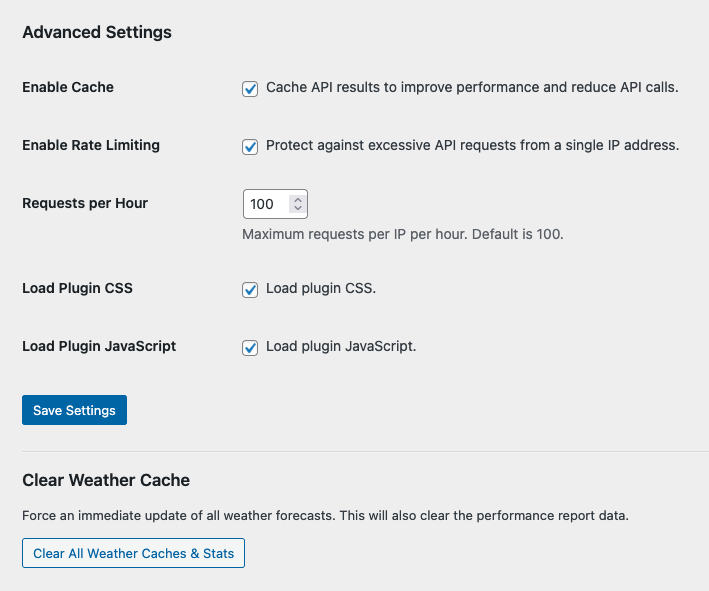
Enable Cache: You can uncheck this box, if you would like to use this plugin without the benefit of the caching function.
Enable Rate Limiting: Check this box to protect your site against excessive API requests from a single IP address. You can set the maximum number of requests per hour (default is 100). This helps prevent malicious traffic from exhausting your API quota.
Asset Loading: For the plugin to function correctly, the Load Plugin CSS and Load Plugin JavaScript boxes should normally remain checked. However, you can uncheck them if you prefer to include the plugin’s CSS and JS files as part of your theme’s own optimized assets.
If you uncheck Load Plugin JavaScript, you can load the Under The Weather scripts manually on select pages by adding the following template tag to your theme files (e.g., footer.php):
        <?php
           if ( function_exists( 'under_the_weather_load_scripts_manually' ) ) {
              under_the_weather_load_scripts_manually();
           }
        ?>
For most users, simply leaving these boxes checked is the best way to use the weather widget.
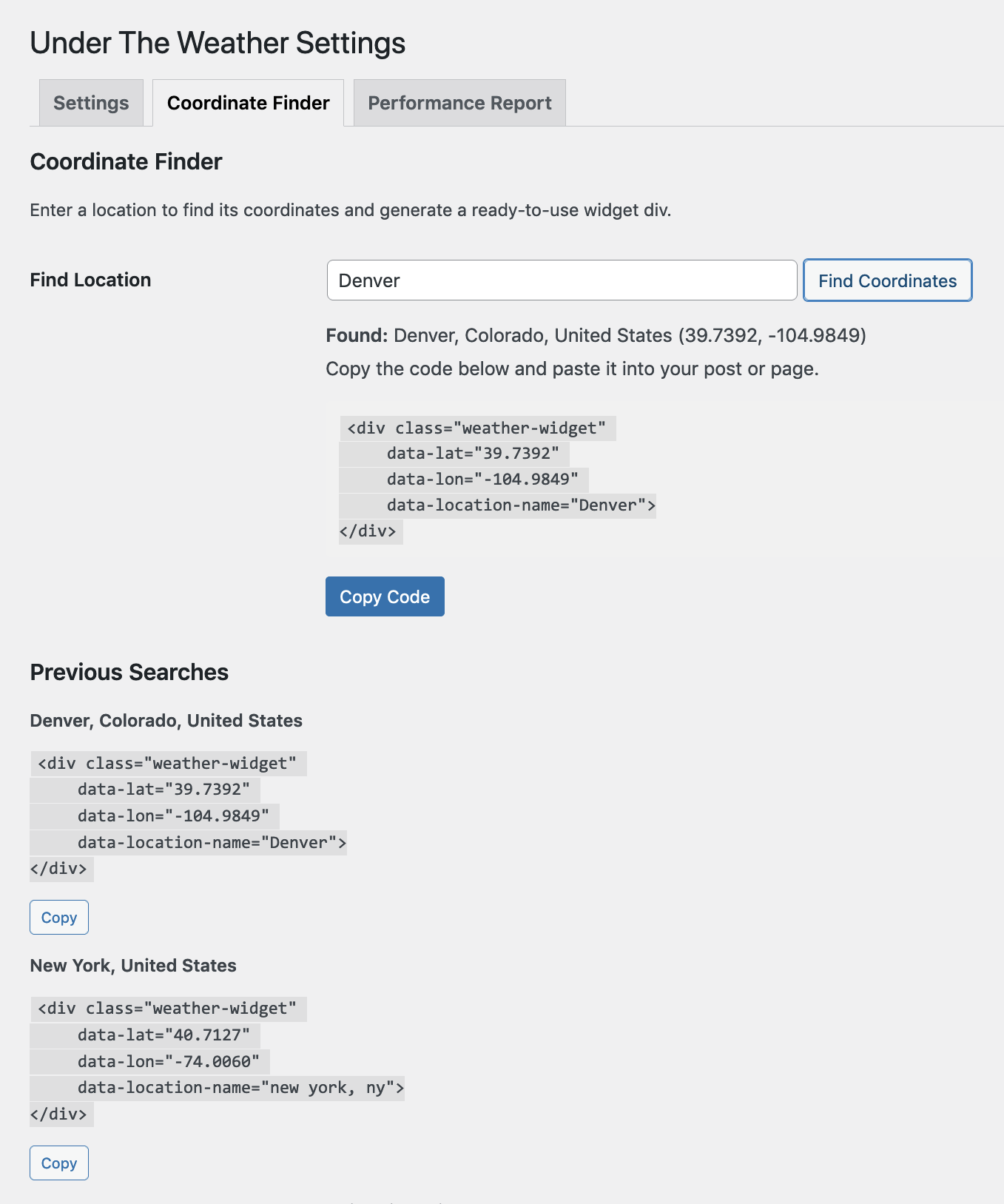
Coordinate Finder
Don’t know the latitude and longitude for your desired location? No problem. The Under The Weather plugin will find coordinates for you.
In the WordPress Block Editor
- Add an “Under The Weather Forecast” block to your post or page.
- Open the Block Settings
- Click the “Find Coordinates by Name” button.
- Type in the name of your location.
- Press “Search.”
- When search results appear, click on your desired location.
- The location’s coordinates will be automatically entered into the latitude and longitude settings for the weather forecast.
In the Plugin Settings Page
- Navigate to Settings > Under The Weather and click on the Coordinate Finder tab.
- Type a location name into the search box (e.g., “Los Angeles, CA”).
- Click the “Find Coordinates” button.
- The tool will display the generated
<div>with the correct coordinates and location name. - Use the “Copy Code” button to copy the ready-to-use widget HTML and paste it into a post, page, or widget.
The tool automatically saves a history of your last 5 searches, which persists between sessions. You can easily copy code from previous searches without having to look them up again.
Performance Report
The Under The Weather plugin includes a powerful Performance Report tab in the settings page (Settings > Under The Weather > Performance Report) to give you clear insight into the plugin’s efficiency and API usage. The main feature is a 7-day bar chart that provides a visual comparison of cached hits versus new calls to the OpenWeather API.
The performance report demonstrates how the caching system is working to reduce external requests and keep your site fast. Use this report to fine-tune your Cache Expiration Time and observe the impact on your API call rate.
The report also includes a status indicator that shows whether the optional Rate Limiting feature is currently active. If rate limiting is enabled and requests are being blocked, the raw data table at the bottom of the report will log these events. This can help you identify unusual traffic patterns or potential misuse of your API key.
Credits
- Weather Data: OpenWeather
- Weather Icon Font: Weather Icons by Erik Flowers
- Animated Weather Icons: Meteocons by Bas Milius
- Geocoding & Map Data: Data © OpenStreetMap contributors
- Block Icons: Phosphor
External Services
-
OpenWeatherMap API: This plugin connects to the OpenWeatherMap API to retrieve weather forecast data. To provide weather information, the following data is sent to the service:
-
Location Coordinates: The latitude and longitude provided in the widget settings are sent to fetch the weather for that specific location.
- API Key: Your OpenWeatherMap API key is sent to authenticate the request.
Here are the links to their terms of service and privacy policy:
* Terms of Service: https://openweather.co.uk/storage/app/media/Terms/Openweather_terms_and_conditions_of_sale.pdf
* Privacy Policy: https://openweather.co.uk/privacy-policy
- Nominatim (OpenStreetMap) API: The Coordinate Finder tool sends the location name entered by the administrator to the Nominatim geocoding service to retrieve latitude and longitude coordinates.
Here is the link to their privacy policy:
* Privacy Policy: https://osmfoundation.org/wiki/Privacy_Policy
Details
Related plugins
Plugins that also contain the tag block
Spectra Gutenberg Blocks – Website Builder for the Block Editor

Breadcrumb NavXT

WP Go Maps (formerly WP Google Maps)

Otter Blocks – Gutenberg Blocks, Page Builder for Gutenberg Editor & FSE

PDF Embedder

Layout Grid Block

About
Plugin for that tries to help you find the WordPress plugin you are looking for.
| Please enjoy an image of Crush (this awesome turtle) and have a lovely day! |  |
We do not own any plugin listed on this site and do not work for or work with WordPress.com or it's associated companies. We simply provide a searchable list of the available WordPress plugins.