


WXP Opening Times
WXP Opening Times shows your opening times on any page with a shortcode, together with an Open/Closed badge that stays correct while the visitor is on the page.
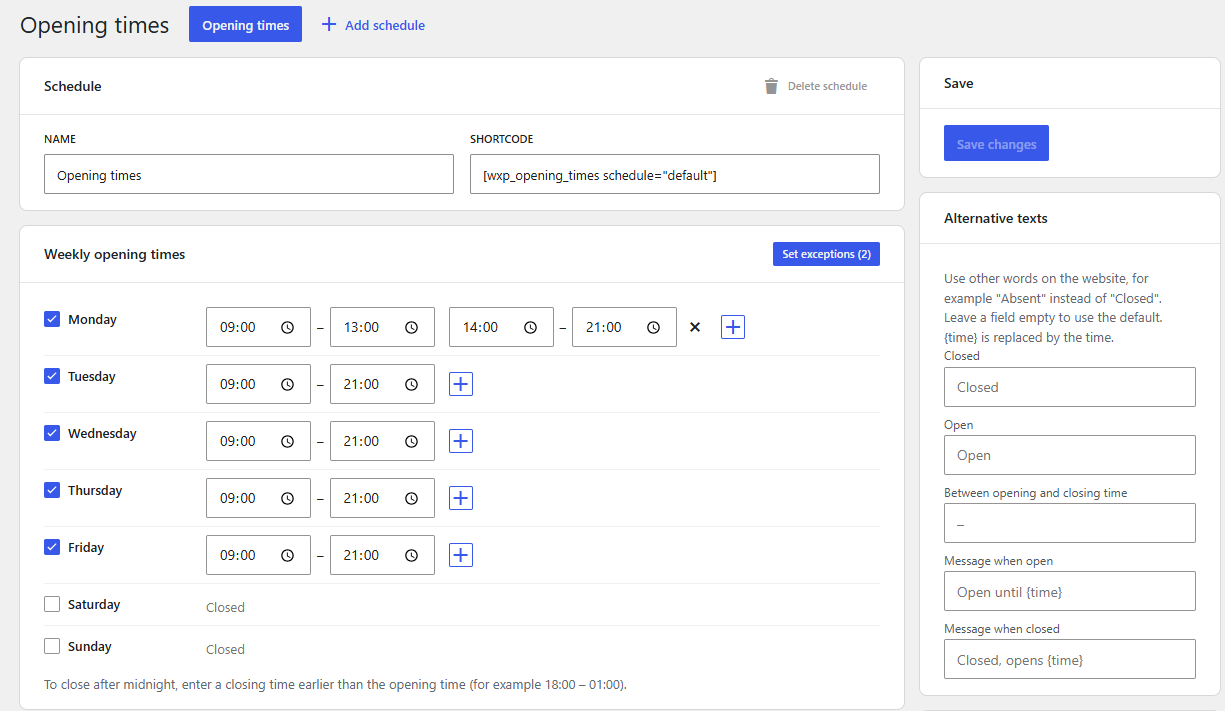
- Set the weekly opening times by ticking the days. Add a second (or third) set of times for a lunch break: 8:00–12:00 and 14:00–18:00. A closing time earlier than the opening time means “after midnight”.
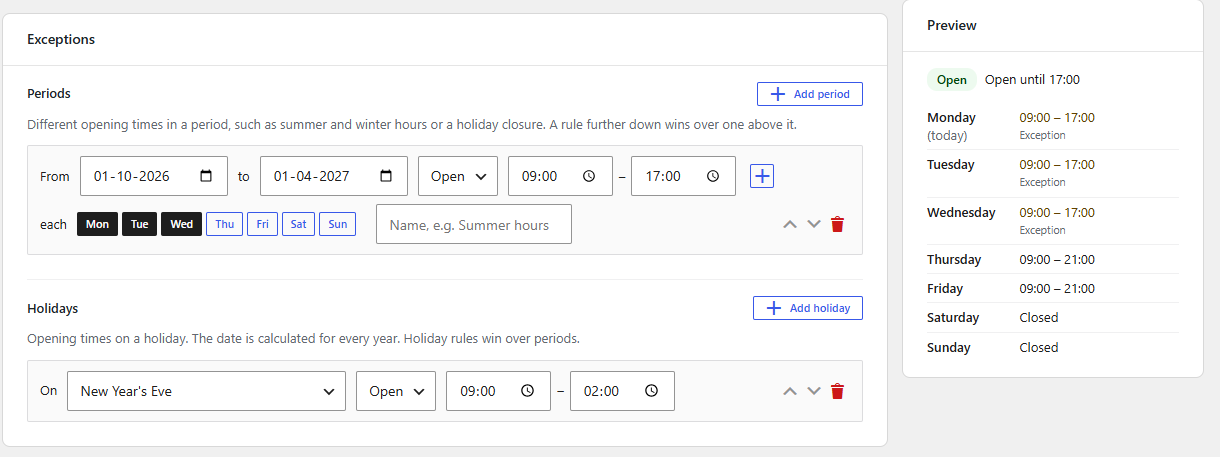
- Exceptions: different times in a period (summer and winter hours, a holiday closure, only on certain weekdays), and rules for holidays. Holiday dates are calculated for every year (Easter and everything that depends on it included).
- Several named schedules, for example “Restaurant” and “Kitchen”. Each can use its own words, such as “Absent” instead of “Closed” for a doctor, or “to” instead of a dash.
- Visitors can browse to the next weeks.
- Templates are written in Twig and can be overridden in your theme.
- Works on its own. It can be used next to WXP Restaurant Menu, but does not need it.
- Ready for translation: help translate it on translate.wordpress.org.
Shortcode
[wxp_opening_times]
Attributes:
schedule– id of the schedule, shown in the admin (default: the first schedule).template–default(week table) orcompact(one line), or a template from your theme.show_status–yesorno: the Open/Closed badge (default yes).show_title–yesorno: the schedule name as a heading (default no);heading_levelsets the level (2-6, default 3).show_dates–yesorno: the date next to each weekday (default no).-
week_nav–yesorno: previous/next week buttons (default no);weeks_aheadsets how far visitors can look ahead (0-26, default 4). -
text_closed,text_open,text_separator,text_open_until,text_closed_opens– other words for this block only, for exampletext_closed="Absent". They win over the texts set for the schedule in the admin. Use{time}in the last two for the time.
Elementor
With Elementor active, the “Opening times” widget (panel “WXP Plugins”) shows the same output as the shortcode. It has the same options, optional alternative texts for that widget, and style controls for the badge colours, the typography, the lines, the highlight of today and the week buttons.
Block editor
The “Opening times” block (category “WXP Plugins”) has the same options as the shortcode in the sidebar, including the alternative texts, and shows a live preview in the editor. Like the shortcode and the Elementor widget it is rendered on the server, so the status is always current.
Structured data (JSON-LD)
Add schema="yes" to the shortcode (or switch on “Structured data for search engines” in the block or the Elementor widget) and the page also gets the opening times as schema.org JSON-LD (openingHoursSpecification), so search engines can show them. The weekly hours are included, and so are the exceptions of the next 365 days: a closed day has opens and closes “00:00”. It is printed once per schedule on a page, and not in the editor previews. The business is a LocalBusiness with the site name and address of the home page; change the type or add details (address, phone number) with the wxp_opening_times_schema filter, for example to make it a Restaurant.
If an SEO plugin already prints the data of your business, use wxp_opening_times_get_schema() to get the same array, and add it there.
For developers
Template override: copy a file from the plugin’s templates folder to wxp-opening-times/ in your (child) theme. The markup contract is described at the top of _base.html.twig.
Helper functions (call them after the init action):
wxp_opening_times_is_open( $schedule = '', $at = null )returns true when open.$atis an optional DateTimeImmutable.wxp_opening_times_get_holidays( $date )returns the holidays on a date (Y-m-d) as a list ofkey,labelandcalendar.wxp_opening_times_get_schedules()returnsconfigured(whether anything was saved yet) and theschedules(idandname).wxp_opening_times_get_status( $schedule = '', $at = null )returnsopen,closes_at,opens_at,next_change(Unix times) andschedule, or null for an unknown schedule.
Filters: wxp_opening_times_status, wxp_opening_times_template_context, wxp_opening_times_template_paths, wxp_opening_times_twig_cache, wxp_opening_times_schema, wxp_opening_times_schema_days, wxp_opening_times_load_css (return false to load your own CSS) and wxp_opening_times_holidays (add holiday providers, for example for other calendars).
CSS custom properties on .wxp-opening-times (--wxp-ot-open-bg, --wxp-ot-closed-bg and more) change the colours.
Source code and third-party libraries
The admin app and the block are built with @wordpress/scripts. The readable sources are in the plugin, in assets/admin/src and assets/block/src; the build commands are in package.json (npm install, then npm run build).
The plugin bundles Twig (BSD 3-Clause) and a few Symfony polyfills (MIT) in vendor-prefixed, with their namespaces prefixed so they cannot clash with other plugins. They are installed with Composer (composer install).
Details
Related plugins
Plugins that also contain the tag business-hours
Business Hours Indicator

We’re Open!

Better Business Hours

WP Crontrol Hours

Stylish Business Hours

WP Open Hour Widget


About
Plugin for that tries to help you find the WordPress plugin you are looking for.
| Please enjoy an image of Crush (this awesome turtle) and have a lovely day! |  |
We do not own any plugin listed on this site and do not work for or work with WordPress.com or it's associated companies. We simply provide a searchable list of the available WordPress plugins.