

This plugin is outdated and might not be supported anymore
Back

ZeeMaps
Details
View on WordPress
Back
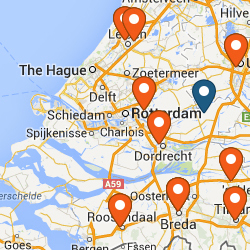
With a few simple clicks, you can post a customized, interactive Google Map in your
blog. Follow these simple steps to post your map:
- Go to the ZeeMaps server (http://www.zeemaps.com) and create your map
- Add markers, regions to your map
- Add one marker at-a-time, using Additions->Add Marker menu item, or use Additions->Upload CSV to add multiple markers from a CSV file or Google Spreadsheet
- After your map is done, note the map number for your map (the number on the map URL after the parameter group=)
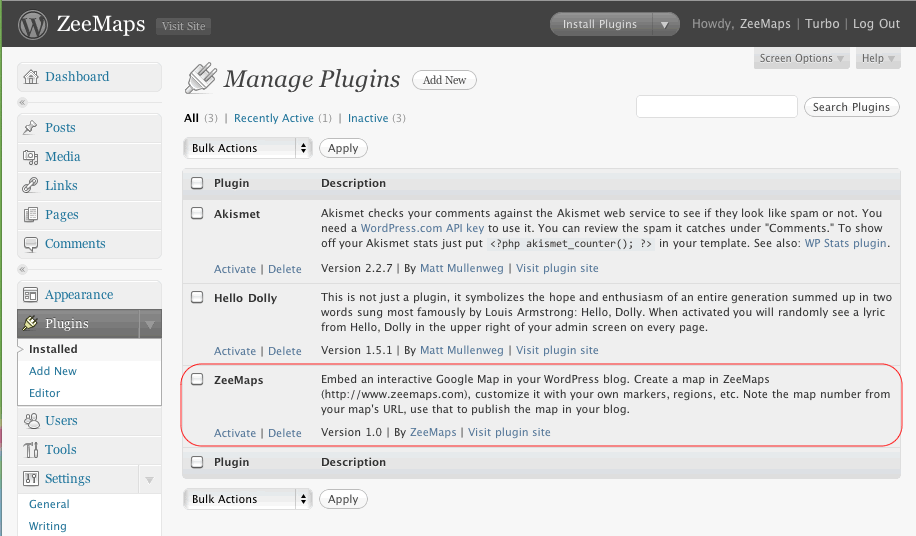
- Make sure you have the ZeeMaps plugin downloaded and activated
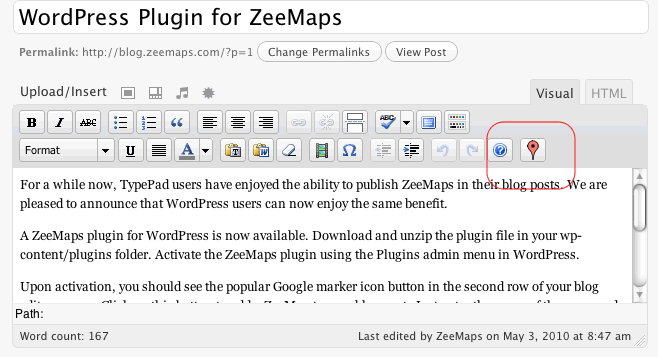
- Go to edit your blog entry
- In the second row for your blog editor menu buttons, you should see a new button with the Google marker icon
- Place your cursor in the location where you want to publish your map in the editor window
- Click on the Google marker icon button
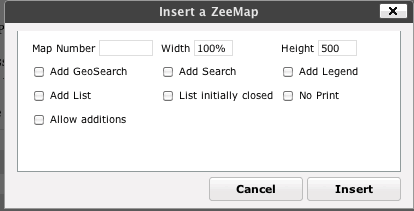
- Enter your map number and customize your published map in the resulting dialog
- Click on the insert button
This should add some text to your blog like:
[zeemaps 45 w=100% h=500 add geosearch]
This text will be replaced by the map in your blog.
Details
Plugin code:
zeemaps
Plugin version:
1.3
Author:
Outdated:
Yes
WP version:
2.9.2 or higher
PHP version:
or higher
Test up to WP version:
3.9.40
Total installations:
40
Last updated:
2014-07-30
Rating:
Times rated:
0
google-maps
map
maps
Related plugins
Plugins that also contain the tag google-maps
WP Go Maps (formerly WP Google Maps)
iframe

WP Store Locator
API KEY for Google Maps

Maps Widget for Google Maps

MapPress Maps for WordPress


About
Plugin for that tries to help you find the WordPress plugin you are looking for.
| Please enjoy an image of Crush (this awesome turtle) and have a lovely day! |  |
We do not own any plugin listed on this site and do not work for or work with WordPress.com or it's associated companies. We simply provide a searchable list of the available WordPress plugins.